
To create a pivot table from data on different worksheets, you can use a Multiple Consolidation Ranges pivot table, but the result is a pivot table with limited features and functionality.
Previously, Excel MVP Kirill Lapin shared his macro for creating a standard pivot table from data on different worksheets.
Now Kirill has expanded that technique, and written a macro to build a pivot table from data in multiple Excel files.
Pivot Table Macro
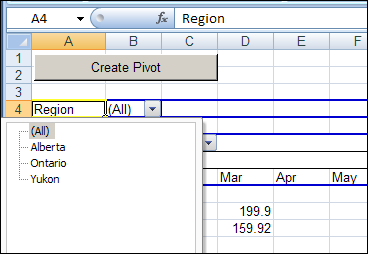
In Kirill’s example, the main file is named Report.xls. It contains the pivot table code, and a button that runs the macro. After you start the macro, it prompts you to select one or more data files, all stored in the same folder.
All of the data files must have the same structure, and the macro pulls the data stored on Sheet1 in each file.
Standard Pivot Table
The macro creates a standard pivot table based on a Union query, and not built from Multiple Consolidation Ranges, it’s a fully functioning pivot table, and you can pivot, group and filter the data, as usual. You can also refresh the pivot table, to show the latest data in the source files, as long as those files stay in their original location.
The Union Query
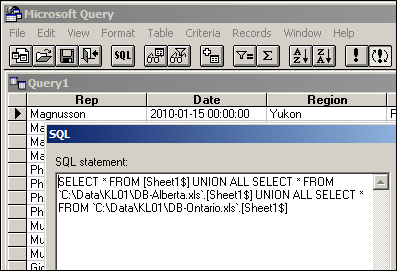
Kirill’s macro creates a Union query to combine the data from all the selected files. If you open Microsoft Query, you can see the SQL string for the Union query, and all the data from the selected workbooks.
Download the Sample File
You can download the Pivot Workbooks example to see the sample code and create the pivot table. The zipped folder that contains the Report.xls file, and the five sample data files. Unzip the folder, and keep all the files in the same folder. When you open the Report.xls file, enable macros to run the code.
______________
Debra, I’ll give that a try. Thanks again, I’m sure I’ll be back before too long now that I’ve discovered your site, it’s brilliant! I used to be accounted as something of a spreadsheet expert back in the days of Lotus 123 and I’m no beginner when it comes to Excel but I’m slightly rusty in one or two of its outer reaches. Your articles have already reminded me of several things I had forgotten and given me new insights as well. Keep up the good work, it’s much appreciated.
Hi Debra, after much research, head-scratching, and good old trial-and-error, I’ve discovered it works for me if I put the DSN back in!
However, I now have a new problem. Instead of creating a PivotTable directly from the Union Query, I need to create a Table in Excel containing all the data that is pulled together by the Union Query. I can do this manually but I’m having trouble coding it in VBA (about which I know virtually nothing – I’m trying to draw on previous macro-writing experience in other applications). Where I’m having trouble is in declaring the two variables (PT and PC) and their accompanying SET statements. Can you help? Regards, Kevin
Thanks for this code, the update on 14th of march works on my excel 2010 edition!
Another question I hope I can get help wth, or at least a pointer in any direction…
I would need to have the filename included in the columns of the pivot table. This information is however not available in the actual data within each worksheet so it becomes quite complicated…
I was thinking of adding a column in each separate excel sheets at the same time as you are creating the sql string (at this stage you have the file name available and no sql statement has actually been done), don’t know if this will be too slow or if there is a more elegant solution…?
Thanks for any help (and thanks for the helo so far).
Regards
Robert
You could amend the creation of the SQL string to something like this:
For i = 1 To UBound(arrFiles)If strSQL = "" Then
strSQL = "SELECT *, '" & arrFiles(i) & "' As FileName FROM [" & strSheet & "$]"
Else
strSQL = strSQL & " UNION ALL SELECT *, '" & arrFiles(i) & "' As FileName FROM `" & arrFiles(i) & "`.[" & strSheet & "$]"
End If
Next i
This would return the full path and file name, but will also introduce a new field so you would need to amend the default set up of the PivotTable as that code section will throw an error. You could get just the FileName by creating a custom getFileName function.
This is a very handy macro, so thanks to Krill for its development and Debra for sharing.
Hi Andrew,
Thank you for your code, this is what I am looking for, but there is little change . Can you please ammend this code to deliver only the File name and not the Full Path
Is there a limit on the size / number of rows this macro can handle?
I have 16 files, each with 64,000 rows. When I run the macro updated with Debra’s March 14 code, i get an error saying “system resources exceeded.”
When I run the macro on only two of the files, (so a total of 128,000 rows), then I get an error saying “unable to set the orientation property of the pivotfield class”, and when i click “debug”, it highlights the line “.Orientation = xlRowField” in the code.
Any idea on how I can fix this?
In this second case, it still does create a pivot table, but I’m not sure if it has done it correctly, or what is the problem. (when I try to do it for all 16 files, it doesn’t create anything)
Many thanks for the help,
Rob
Hi,
I have the same issue as yours, did you find a solution to your “system resources exceeded” error message?
Hi,
Excellent Macro. Thanks a lot. Really saved my day. I though have a question.
In order to run the macro and actually get the data, should the source files be closed and if not what should we do to run the macro and not get a connection lost error?
thanks in advance,
Dimitar