
To create a pivot table from data on different worksheets, you can use a Multiple Consolidation Ranges pivot table, but the result is a pivot table with limited features and functionality.
Previously, Excel MVP Kirill Lapin shared his macro for creating a standard pivot table from data on different worksheets.
Now Kirill has expanded that technique, and written a macro to build a pivot table from data in multiple Excel files.
Pivot Table Macro
In Kirill’s example, the main file is named Report.xls. It contains the pivot table code, and a button that runs the macro. After you start the macro, it prompts you to select one or more data files, all stored in the same folder.
All of the data files must have the same structure, and the macro pulls the data stored on Sheet1 in each file.
Standard Pivot Table
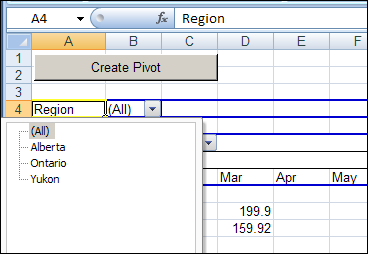
The macro creates a standard pivot table based on a Union query, and not built from Multiple Consolidation Ranges, it’s a fully functioning pivot table, and you can pivot, group and filter the data, as usual. You can also refresh the pivot table, to show the latest data in the source files, as long as those files stay in their original location.
The Union Query
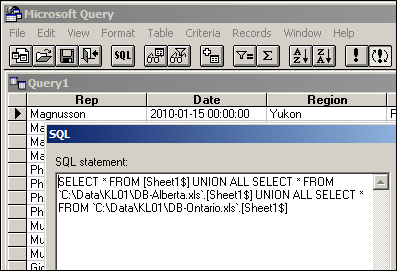
Kirill’s macro creates a Union query to combine the data from all the selected files. If you open Microsoft Query, you can see the SQL string for the Union query, and all the data from the selected workbooks.
Download the Sample File
You can download the Pivot Workbooks example to see the sample code and create the pivot table. The zipped folder that contains the Report.xls file, and the five sample data files. Unzip the folder, and keep all the files in the same folder. When you open the Report.xls file, enable macros to run the code.
______________
Krill’s macro works well with Excel97-2003, but what about Excel 2007? I can’t get it to work just by changing “.xls” to “.xlsx” in the macro. Any ideas?
Same problem.. it doesn´t work on Excel 2007.. any updates on this..
Thanks..
In the code, try the following changes:
''14-Mar-2012 changed extension to *.xls* arrFiles = Application.GetOpenFilename("Excel Workbooks (*.xls*), *.xls*", , , , True) ''14-Mar-2012 changed driver id from 790 to 1046 ''added driver info and removed DSN strCon = _ "ODBC;" & _ "DBQ=" & arrFiles(1) & ";" & _ "DefaultDir=" & "" & ";" & _ "Driver={Microsoft Excel Driver (*.xls, *.xlsx, *.xlsm, *.xlsb)};" & _ "DriverId=1046;" & _ "MaxBufferSize=2048;" & _ "PageTimeout=5"Wonderful Debra – thanks heaps – saved me a headache.
Hurray – this is excellent! Thank you very much.
Debra, any idea what changes would be necessary for Excel 2010? I’ve tried the 2007 changes but no joy,so I’m guessing that maybe there is a different driver id?
Many thanks if you can help. Kevin
@Kevin, the code works for me in Excel 2010, on both a WinXP and Win7 machine. I’m using 32-bit Excel though, so maybe something is different if you’re using 64-bit.
Change Declare statement to below
Declare PtrSafe Function SetCurrentDirectoryA Lib “kernel32” (ByVal Path As String) As Long
Replace declare statement to below
Declare PtrSafe Function SetCurrentDirectoryA Lib “kernel32” (ByVal Path As String) As Long
Hi Debra, many thanks for your prompt reply. Yes, I am using 64-bit. I’m also pretty computer-literate (IT background); can you give me any clues as to where I should search for the necessary info? Kind regards, Kevin
@Kevin, I don’t know much about the drivers, but you could ask in one of the tech forums on the Microsoft website, and someone might be able to point you in the right direction.