
To create a pivot table from data on different worksheets, you can use a Multiple Consolidation Ranges pivot table, but the result is a pivot table with limited features and functionality.
Previously, Excel MVP Kirill Lapin shared his macro for creating a standard pivot table from data on different worksheets.
Now Kirill has expanded that technique, and written a macro to build a pivot table from data in multiple Excel files.
Pivot Table Macro
In Kirill’s example, the main file is named Report.xls. It contains the pivot table code, and a button that runs the macro. After you start the macro, it prompts you to select one or more data files, all stored in the same folder.
All of the data files must have the same structure, and the macro pulls the data stored on Sheet1 in each file.
Standard Pivot Table
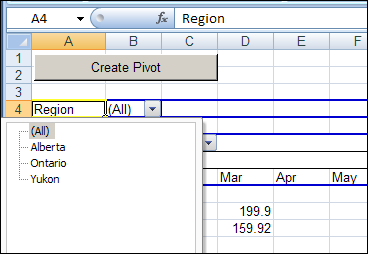
The macro creates a standard pivot table based on a Union query, and not built from Multiple Consolidation Ranges, it’s a fully functioning pivot table, and you can pivot, group and filter the data, as usual. You can also refresh the pivot table, to show the latest data in the source files, as long as those files stay in their original location.
The Union Query
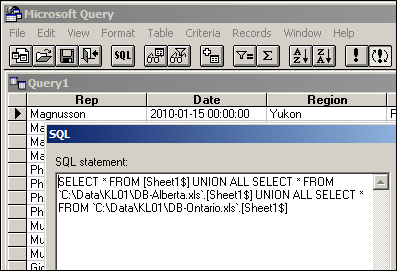
Kirill’s macro creates a Union query to combine the data from all the selected files. If you open Microsoft Query, you can see the SQL string for the Union query, and all the data from the selected workbooks.
Download the Sample File
You can download the Pivot Workbooks example to see the sample code and create the pivot table. The zipped folder that contains the Report.xls file, and the five sample data files. Unzip the folder, and keep all the files in the same folder. When you open the Report.xls file, enable macros to run the code.
______________
Hi,
I use the above macro that combines two different worbook from diferent database.
My problem is all the field names that have now changed in the database still appear below the old ones on the pivot tables and I can’t get rid of them to pick the new name only.
How do I ensure that the pivot table only reflect the new data field existing on the database?
Thanks!
Cel
You can also set this up to pull in multiple sheets by making a slight adjustment to the MergeFiles sub as per the below. Note that you put your multiple sheetnames in this form:
strTabs() = Split(“Sheet1;Sheet2;Sheet3”, “;”)
…i.e. list them with a semicolon between each one, with no spaces.
Sub MergeFiles()

    Dim PT As PivotTable

    Dim PC As PivotCache

    Dim arrFiles As Variant

    Dim strSheet As String

    Dim strPath As String

    Dim strSQL As String

    Dim strCon As String

    Dim rng As Range

    Dim i As Long

    Dim strTabs() As String

    Dim lngTabs As Long

    strPath = CurDir

    ChDirNet ThisWorkbook.Path
arrFiles = Application.GetOpenFilename("Excel Workbooks (*.xls), *.xls", , , , True)
strTabs() = Split("Sheet1;Sheet2;Sheet3", ";")
If Not IsArray(arrFiles) Then Exit Sub
Application.ScreenUpdating = False
If Val(Application.Version) > 11 Then DeleteConnections_12
Set rng = ThisWorkbook.Sheets(1).Cells
rng.Clear
For lngTabs = 0 To UBound(strTabs)
strSheet = strTabs(lngTabs)
For i = 1 To UBound(arrFiles)
If strSQL = "" Then
strSQL = "SELECT * FROM [" & strSheet & "$]"
Else
strSQL = strSQL & " UNION ALL SELECT * FROM
" & arrFiles(i) & ".[" & strSheet & "$]"End If
Next i
Next lngTabs
strCon = _
"ODBC;" & _
"DSN=Excel Files;" & _
"DBQ=" & arrFiles(1) & ";" & _
"DefaultDir=" & "" & ";" & _
"DriverId=790;" & _
"MaxBufferSize=2048;" & _
"PageTimeout=5"
Set PC = ThisWorkbook.PivotCaches.Add(SourceType:=xlExternal)
With PC
.Connection = strCon
.CommandType = xlCmdSql
.CommandText = strSQL
Set PT = .CreatePivotTable(TableDestination:=rng(6, 1))
End With
With PT
With .PivotFields(1) 'Rep
.Orientation = xlRowField
.Position = 1
End With
.AddDataField .PivotFields(8), "Sales", xlSum 'Total
With .PivotFields(3) 'Region
.Orientation = xlPageField
.Position = 1
End With
With .PivotFields(2) 'Date
.Orientation = xlColumnField
.Position = 1
.DataRange.Cells(1).Group _
Start:=True, _
End:=True, _
Periods:=Array(False, False, False, False, True, False, True)
End With
End With
'Clean up
Set PT = Nothing
Set PC = Nothing
ChDirNet strPath
Application.ScreenUpdating = True
End Sub
Could anyone help me with the coding of actually getting the macro to create pivot tables from within the opened worksheets such as, sheet2 + sheet3. Instead of getting the worksheet from within a specific folder.
Hi,
How could I modify this code so that it opens a single file (not through filepicker) and creates a pivot table from all the sheets in the workbook but on a new workbook?
Any assistance would be greatly appreciated.
Walter
Hi Team,
I Need macro to extract data from excel and create Pvarious Pivots. also if i can name the different pivot tabs it would be of great help.
i tried to record one macro to create pivot but it dint work and gave below error, please need your urgent help:
Sub Macro3()
‘
‘ Macro3 Macro
‘
‘
Sheets.Add
ActiveWorkbook.PivotCaches.Create(SourceType:=xlDatabase, SourceData:= _
“Actual Time booking- Nav!R1C1:R2134C8″, Version:=xlPivotTableVersion14). _
CreatePivotTable TableDestination:=”Sheet8!R3C1″, TableName:=”PivotTable3” _
, DefaultVersion:=xlPivotTableVersion14
Sheets(“Sheet8”).Select
Cells(3, 1).Select
With ActiveSheet.PivotTables(“PivotTable3”).PivotFields(“Work Item Set”)
.Orientation = xlRowField
.Position = 1
End With
With ActiveSheet.PivotTables(“PivotTable3”).PivotFields(“Resource”)
.Orientation = xlRowField
.Position = 2
End With
With ActiveSheet.PivotTables(“PivotTable3”).PivotFields(“Work Item”)
.Orientation = xlPageField
.Position = 1
End With
ActiveSheet.PivotTables(“PivotTable3”).AddDataField ActiveSheet.PivotTables( _
“PivotTable3”).PivotFields(“Actual Hours”), “Sum of Actual Hours”, xlSum
With ActiveSheet.PivotTables(“PivotTable3”).PivotFields(“Time Per”)
.Orientation = xlColumnField
.Position = 1
End With
Sheets(“Sheet8”).Select
End Sub