
Even though a pivot table is automatically formatted when you create it, you can add your own formatting later. For example, in the pivot table shown below, I’ve added colour to the subtotal rows, and made column B narrow.
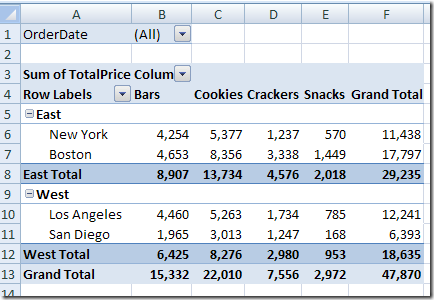
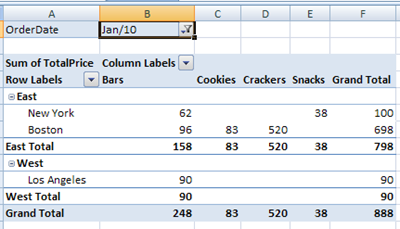
However, some of that pivot table formatting might be lost if you refresh the pivot table or change its layout. Even if you select a different item in the report filter, the formatting could be lost.
Here’s what the same pivot table looks like, after I select an order date from the report filter.
Preserve the Formatting
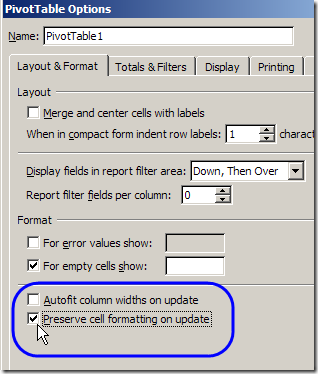
Most pivot table formatting can be preserved if you change the Format options in the PivotTable Options dialog box.
- Right-click a cell in the pivot table, and click PivotTable Options.
- On the Layout & Format tab, in the Format options, remove the check mark from Autofit Column Widths On Update. This will prevent column widths from changing, if you have manually adjusted them.
- Add a check mark to Preserve Cell Formatting on Update
- Click OK.
Apply Formatting
After changing these Pivot Table options, the formatting should stick. When you apply formatting to the Pivot Table, do the following:
- Ensure that Enable Selection is turned on.
- Unless you want to format a single cell, use the pivot table selection technique to select the elements you want to format (point to the top or left edge of the element, and then click when the black arrow appears).
______________
P.S. For more information on Pivot Tables, please see the Pivot Table Tutorials on the Contextures Website.
_________________
I’m so glad I’m not alone – I have been struggling with this for ages, it looks perfect at first, but if you remove a value from the value field and then put it back the formatting is always lost. I create my table for many people to use on a shared data system and it is very frustrating that it can’t simply stick – I only need ‘currency’ and ‘number’ formats to stick for about 6 fields.
Anyone had any luck yet?
I’m finding that the key part is in the ‘apply formatting’ part of the instruction above – i.e. If I change the format by selecting the whole column (eg. E:E) and formatting it like I normally would, it won’t stick. However if I change the format by using the method above – where you click on top of the pivot field till the little arrow comes up, click the arrow so that the pivot cells ONLY in that column are selected, and THEN right click to ‘format cells’ and change the format…. then it sticks upon refresh… woohoo!
tqvm! it works
I don’t have any problem with the format sticking upon refresh. It’s when I take a field out of the values box and then put it back in — I put the field in, format the number, then take the field out. When I put it back in, no formatting. I tried the method above, same problem.
The interesting (and frustrating) part is that this only happens in this workbook. Most of my other workbooks will hold formatting, but I can’t figure out what’s different about this one.
Ok, I found something that has worked so far. I noticed that the default number format for the sheet that the pivot was on was General. I changed it to Accounting (which was what I had been trying to get the pivot table to use), and now I don’t have to format anymore. Go to the Number area on the Home tab and use the drop down box to set the default number format. This doesn’t solve the problem of the pivot table holding formats if you want different formats for different fields, but it works for what I’m doing.
This worked great..I have seen the same instructions about the Enable selection and the Preserve Cell Formatting on other sites. This is the first explanation that included that I needed to select the column with the black arrow at the top. Once I did that the formatting remained upon refreshing the data.
There are a couple of other things you can try. Expand everything before making changes the formatting of the body of the table and turn on Field Headers, make the formatting changes and then turn off Field Headers – then the changes stick. Well, they did at least for me.