
Even though a pivot table is automatically formatted when you create it, you can add your own formatting later. For example, in the pivot table shown below, I’ve added colour to the subtotal rows, and made column B narrow.
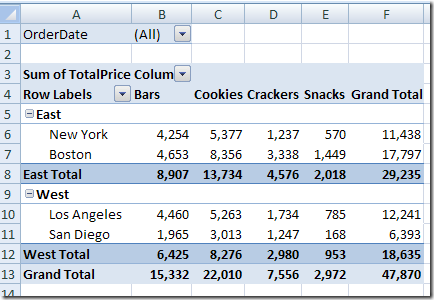
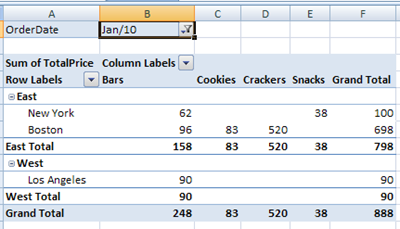
However, some of that pivot table formatting might be lost if you refresh the pivot table or change its layout. Even if you select a different item in the report filter, the formatting could be lost.
Here’s what the same pivot table looks like, after I select an order date from the report filter.
Preserve the Formatting
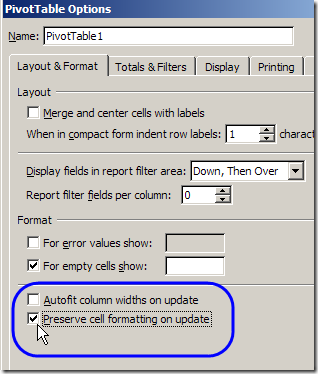
Most pivot table formatting can be preserved if you change the Format options in the PivotTable Options dialog box.
- Right-click a cell in the pivot table, and click PivotTable Options.
- On the Layout & Format tab, in the Format options, remove the check mark from Autofit Column Widths On Update. This will prevent column widths from changing, if you have manually adjusted them.
- Add a check mark to Preserve Cell Formatting on Update
- Click OK.
Apply Formatting
After changing these Pivot Table options, the formatting should stick. When you apply formatting to the Pivot Table, do the following:
- Ensure that Enable Selection is turned on.
- Unless you want to format a single cell, use the pivot table selection technique to select the elements you want to format (point to the top or left edge of the element, and then click when the black arrow appears).
______________
P.S. For more information on Pivot Tables, please see the Pivot Table Tutorials on the Contextures Website.
_________________
This might help.. after doing the procedure above. Select pivottable. Enable all borders. Then disable it. Then change the format to whatever you want. Refresh. Format should stick. It worked for me at least. 🙂
Highlight at cell that is formated the way you want. From the “Home” menu, go to “Cell Styles”. At the bottom of the pop-up menu, hit “New Cell Styles”. Check the items you want to be included in the new cell style. (At this point, I would assume that you would keep all of the items, but you can uncheck some or you can hit the “Format” button and format the cell the way you want. Save this new “Cell Style”. Hightlight the cell or group of cells that you want to apply the new format with the “select arrow”. Go back to “Cell Styles” on the “Home” menu and select the new style you just created. The highlighted cells should now be formated the way you want and they should remain the same after a “Refresh” is done.
I’ve tried all of these suggestions (in Excel 2010) but whenever I remove field and add it back to the PT, it loses its number formatting. I have some fields that require dollar currency and some require Euro currency.
@Sunali, you nailed it! Very subtle the method of selecting a pivot table column while the little arrow is showing, then right-clicking to Format Cells. That did it! Bravo, and thanks!
BTW, selecting while the ‘down arrow’ appears in any cell will select the entire column of data below the column header. Selecting while the ‘right arrow’ appears in any cell will select only that cell.
Does anyone have a suggestion for formatting row heights in pivot tables? After I refresh my data, the row height is too great, causing my printed file to be larger than I would like. Also, the row height is inconsistent, with a greater height for rows at the top of the table and a smaller height at the bottom. Weird. Even though I fix the formatting before I print, and save….every time I refresh the row heights change. This is really annoying! Any thoughts would be appreciated. thanks.
Amy, I have found through trial and error that all filters need to be off before formatting. For instance, if you have any slicers or date filters, remove them so all data shows in the pivot, adjust the row heights, then reapply your filters.