
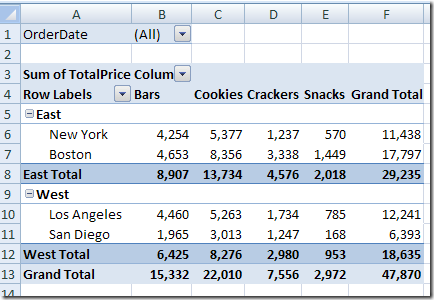
Even though a pivot table is automatically formatted when you create it, you can add your own formatting later. For example, in the pivot table shown below, I’ve added colour to the subtotal rows, and made column B narrow.
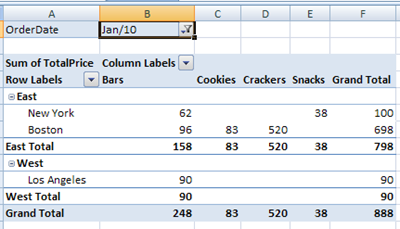
However, some of that pivot table formatting might be lost if you refresh the pivot table or change its layout. Even if you select a different item in the report filter, the formatting could be lost.
Here’s what the same pivot table looks like, after I select an order date from the report filter.
Preserve the Formatting
Most pivot table formatting can be preserved if you change the Format options in the PivotTable Options dialog box.
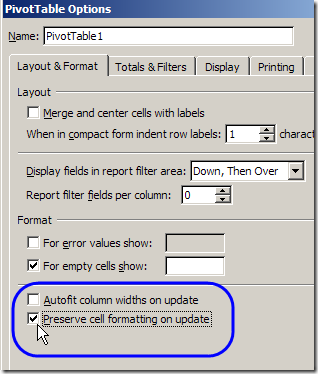
- Right-click a cell in the pivot table, and click PivotTable Options.
- On the Layout & Format tab, in the Format options, remove the check mark from Autofit Column Widths On Update. This will prevent column widths from changing, if you have manually adjusted them.
- Add a check mark to Preserve Cell Formatting on Update
- Click OK.
Apply Formatting
After changing these Pivot Table options, the formatting should stick. When you apply formatting to the Pivot Table, do the following:
- Ensure that Enable Selection is turned on.
- Unless you want to format a single cell, use the pivot table selection technique to select the elements you want to format (point to the top or left edge of the element, and then click when the black arrow appears).
______________
P.S. For more information on Pivot Tables, please see the Pivot Table Tutorials on the Contextures Website.
_________________
DOES NOT WORK!
Does not work. I can’t find any accurate directions to change a number/date format in a pivot chart and have it saved.
This does NOT work. I don’t know why this same ‘solution’ seems to show up on every message board, but it won’t work.
What type of formatting are you applying to the pivot table? What version of Excel and operating system?
This does not work. I’m using Excel 2010, and would love to find a way to preserve the formatting of columns. For instance, I have a time field formatted hh:mm on data list. The pivot displays this as hh:mm:ss. I go through all the steps listed above, but any new data added is in the hh:mm:ss format. My formatting only holds for the previously formatted cells. I cannot find the answer anywhere.
In one of my pivot tables I can’t even get the formatting to hold on previously formatted cells. It works in other files, but for this file if I remove a field and then put it back in, it loses the format. I’ve checked every option I can find, including all those above, and nothing works. I recently converted to Excel 2010, but I think this is a 2007 file. Any ideas?
Agreed, it doesn’t work. I’m on office 2010. My biggest pet peeve is with the borders. If I expand my entire sheet, highlight whole table, then select “No Border” it will remove them. THEN when I collapse and open again, they return everytime, usually in different places. The same is true when I select “All Border” they all disappear except a few blotches of “thick box border.”