Show Text in a Pivot Table Values Area

A common question is “How can I show text in a pivot table’s values area, instead of numbers?”

For example, if you add the Region field to the Values area, you’d like to see the region’s name, instead of a Count Of Region number.
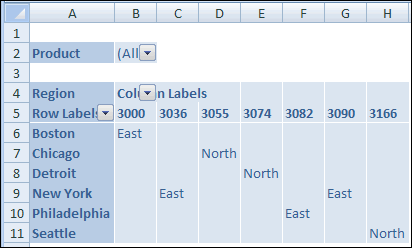
PivotTextVal01

If you use Crosstab queries in Microsoft Access, you might have achieved this by using the First or Last summary function, instead of Sum or Count.

Unfortunately, the First and Last functions aren’t available in Excel pivot tables, so there’s no easy way to show text in the Values area.

Workaround #1 – Use the Row Fields

You could add the Region field to the Row Labels area, with the City field. Then add another field in the Values area to show a count of the regions. The layout won’t be exactly what you wanted, but it will show the region name.
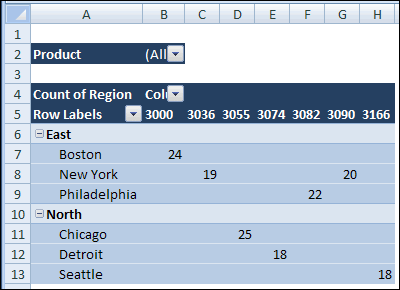
PivotTextVal02

Workaround #2 – Create a Custom Number Format

In this example, there are only two region names, so you could use a custom number format to show the region names. You’ll assign a number to each region, then use that number in the pivot table. Note: This technique is limited to 2 items.

Create the Region Number field:

  1. In the source data, add a new column with the heading RegNum. In this column, type a 1 for East region orders and 2 for North region orders.
  2. Refresh the pivot table, so the RegNum appears in the Field List.
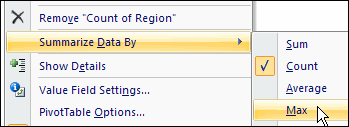
  3. Add the RegNum field to the Values area, and right-click on one of the numbers.
  4. In the popup menu, click summarize by Max.
PivotTextVal03

Apply a Custom Number Format:

  1. Right-click a Region value in the Values area in the pivot table.
  2. In the popup menu, click Number Format.
  3. In the Category list, click Custom.
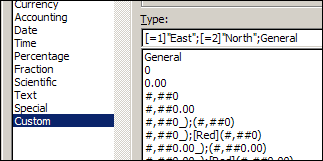
  4. In the Type box, enter [=1]”East”;[=2]”North”;General
  5. Click OK, to close the dialog box.

PivotTextVal04

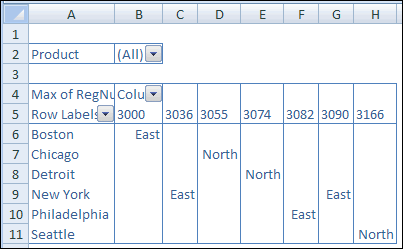
The pivot table will show the Region names, instead of the Region numbers.
PivotTextVal05

____________
Centre Column Headings in Excel Pivot Table

If your pivot table has column labels, and more than one field in the Values area, you might want to centre the column labels.

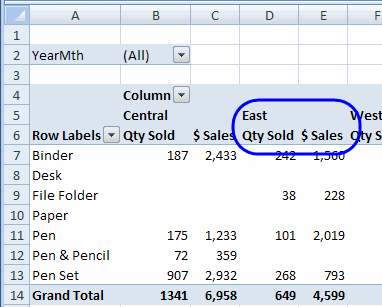
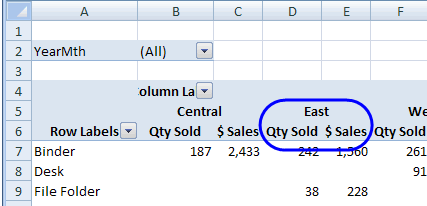
For example, in the pivot table shown below, there are Region headings in the Column Labels area. Below each Region label, there are headings for the Qty Sold and $ Sales fields.

LabelColCtr01

The East label is at the far left of its Qty Sold heading. It’s hard to tell which Region headings go with which Value headings.

To make the pivot table easier to read, you can centre the Region labels over their Value field headings.

To centre the column headings in Excel 2007:

  1. Select a cell in the pivot table
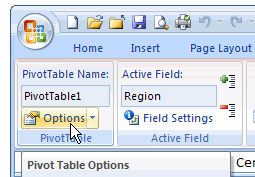
  2. On the Ribbon, under the PivotTable Tools tab, click Options
  3. At the far left, in the PivotTable group, click Options

RibbonPTOptions

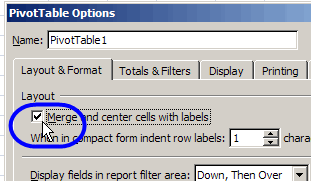
  1. On the Layout & Format tab, in the Layout section, add a check mark to Merge and Center Cells With Labels

LabelColCtr02

  1. Click OK

Each Region column label is now centred over its Value field headings.

LabelColCtr03


Hide Page Items in Excel 2003 Pivot Table

In Excel 2003, and earlier versions, the items in a page field’s dropdown list don’t have check boxes to indicate which items to show and which to hide, like there are in the Report Filters for Excel 2007 and later.

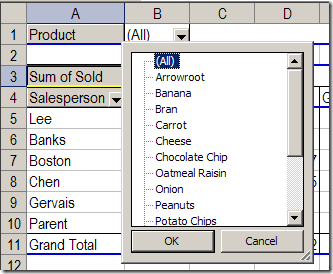
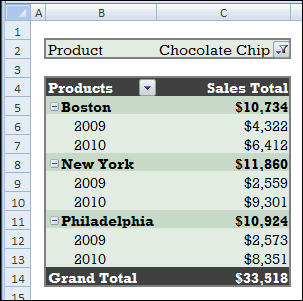
In the pivot table shown below, the Product field is in the page area.

PageHide01

It’s easy to select one product, such as Chocolate Chip. Or, you can select (All), and see the data for all the products.

However, you might want to hide some of the products instead of viewing the data for all the items. Without the check boxes, it’s not obvious how you can hide them.

Hide Some of the Page Items

Follow these steps to hide one or more of the page field items:

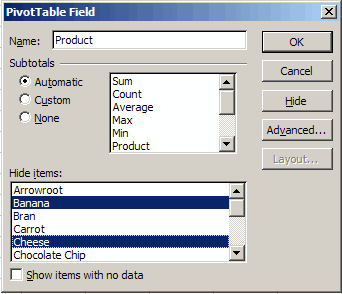
  1. Double-click the page field button to open the PivotTable Field dialog box.
  2. In the Hide items list, click on the items that you want to hide. In the screen shot below, Banana and Cheese will be hidden.

PageHide02

3.    Click OK to close the PivotTable Field dialog box.
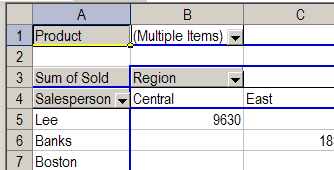
4.    Until you unhide the items, the page field will show (Multiple Items) instead of (All), unless an individual item is selected.

PageHide03

Tip: You could temporarily move the page field to the row area, remove checkmarks for the items you want to hide, and move the field back to the page area.

_________________

Pivot Table Error: Excel Field Names Not Valid

Usually, things go smoothly when you when you try to create a pivot table. However, occasionally you might see a pivot table error, Excel Field Names not Valid, if you try to build a new pivot table, or refresh an existing pivot table.

Updated Jan. 1, 2019 – macro to help with troubleshooting the pivot table error

Continue reading “Pivot Table Error: Excel Field Names Not Valid”

Modify a Pivot Table Calculated Item

After you create a calculated item in a pivot table, you might need to change its formula.

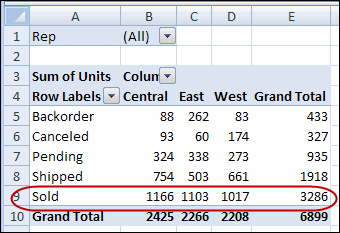
For example, in this pivot table there’s a calculated item named Sold, in the Order Status field. The Sold item sums the orders with a status of Shipped, Pending, or Backorder.

CalcItem01

Change the Calculated Item Formula

You can change the formula, so it doesn’t include the Backorder items. To do that, follow these steps to go back into the Insert Calculated Item dialog box and modify the calculated item.

  1. In the pivot table, one of the Order Status items. For example, select cell A6, which is the Canceled item.
  2. On the Ribbon, click the Options tab, under the PivotTable Tools tab.
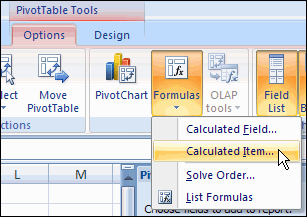
  3. in the Tools group, click Formulas, and then click Calculated Item.CalcItem02
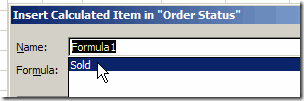
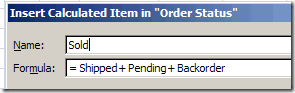
  4. In the dialog box, click the drop down arrow for the Name box.
  5. Select Sold, which is the name of the calculated item you want to change.CalcItem03
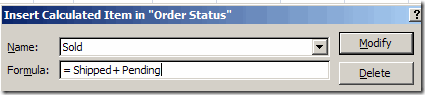
  6. In the Formula box, change the formula, to remove the +Backorder.CalcItem04
  7. The revised formula is =Shipped+Pending.CalcItem05
  8. Click Modify, to save the change, and then click OK to close the dialog box.

_________________

Create Two Pivot Tables on Excel Worksheet

In a comment on this blog, someone asked how to create two pivot tables on the same Excel worksheet.

NOTE: See the updated version of this Two Pivot Tables article, from July 2020.

Shown below is a worksheet named Pivot_Reports, with a pivot table on it, based on the data on the Sales_East sheet.

TwoPT01

We’ll add another pivot table to the Pivot_Reports sheet, based on data on the Sales_North sheet.

Add the Second Pivot Table

  • Select the Sales_North sheet, and select a cell in the data table.
  • On the Ribbon, click the Insert tab
  • In the Tables group, click PivotTable (click the top half of the PivotTable command).

RibbonInsertPT

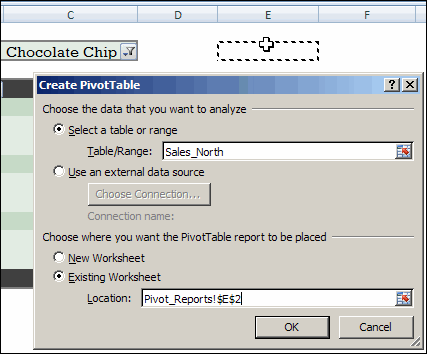
  • In the Create PivotTable dialog box, at the top, leave the default selection of Select a Table or Range, where the Sales_North table shows.
  • In the lower section, click Existing Worksheet.
  • Click in the Location box, then click on the sheet tab for the Pivot_Reports sheet.
  • Click on the cell where the second pivot table should start.

TwoPT02

  • Click OK to create the new pivot table.
  • Add the fields that you’d like in the new pivot table.

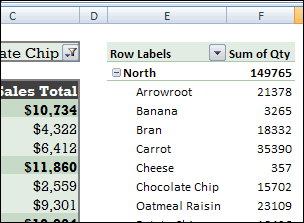
The second pivot table is added to the Pivot_Reports worksheet.

TwoPT03

Prevent Pivot Table Overlap

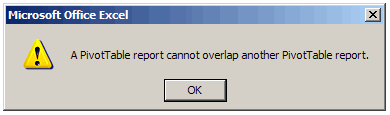
When you have two or more pivot tables on the same worksheet, be careful to prevent them from overlapping.

PTOverlap

Before you add new fields to the pivot table on the left, you might have to add blank columns between the pivot tables. Or, if one pivot table is above the other, add blank rows between them.

If the pivot tables will change frequently, adding and removing fields, it may be better to keep the pivot tables on separate sheet.

This short video shows pivot table refresh problems, and how to avoid them. For detailed written notes, go to the Pivot Table Errors page on my Contextures site.

Related Articles

Create a Pivot Table In Excel

Create Two Pivot Tables On Excel Worksheet

____________
Create Multiple Subtotals in a Pivot Table

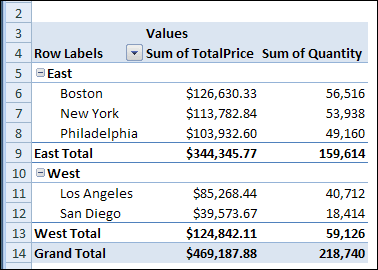
When you add multiple fields to the Row Labels area in a pivot table, subtotals automatically appear for the outer fields. In the pivot table shown below, Region and City fields are in the Row Labels area. Two fields are in the Values area: Sum of Quantity shows the total quantity for each city, and Sum of TotalPrice shows the total sales amount.

MultiSub01

Region Subtotal is Shown

A subtotal row is at the bottom of each region. It shows the total quantity and total sales for each region. You can add another row of subtotals for each region, to show the average quantity and sales. 

Add More Subtotals

You can change the field settings for the Region field and it will show more subtotal rows:

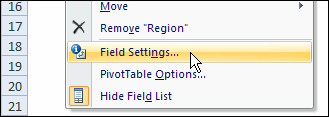
  1. Right-click one of the Region row labels, and click Field Settings.

    FieldSettings

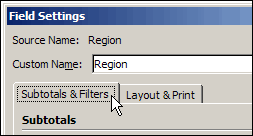
  2. In the Field Settings dialog box, click the Subtotals & Filters tab.

    FieldSettingsSF

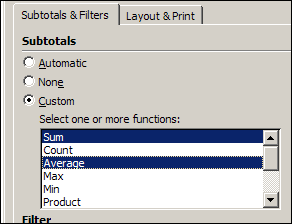
  3. In the Subtotals section, click Custom. Note: When you select Custom, the Automatic subtotal is removed.
  4. In the list of functions, click Sum and Average – the functions you want to use as subtotals. 

    FieldSettingsSub

  5. Click OK, to close the Field Settings dialog box

Note: When you select multiple Custom subtotals, the subtotals are displayed at the bottom of the group, even if you set the option to show subtotals at the top of the group.

_________________
Change the Series Order in a Pivot Chart

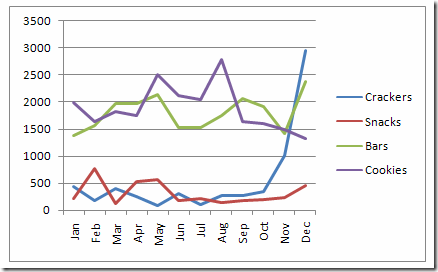
When you create a pivot chart, the series order is automatically applied. In this example, the product categories had been manually sorted in the pivot table. In the pivot chart legend, the products are in the same order: Crackers, Snacks, Bars and Cookies.

ChartSeries01

In a longer list of items, you might like the series sorted alphabetically, so they’re easier to find in the list.

Change the Sort Order

To change the sort order, follow these steps:

  1. Select the pivot chart
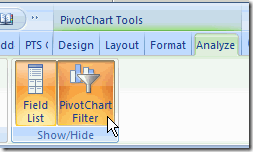
  2. If the PivotChart Filter pane isn’t visible, click the Analyze tab on the Ribbon, then click PivotChart Filter.RibbonPivotChartFilter
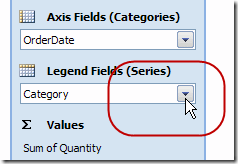
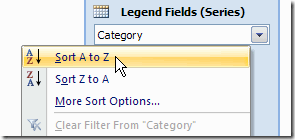
  3. In the PivotChart Filter pane, click the arrow in the drop-down list for the field you want to sort. In this example,
    click the arrow for the Legend Fields (series), where the Category field is listed.ChartSeries02
  4. Click Sort A-Z, to sort the categories in ascending order

ChartSeries03

Pivot Table Series Order

NOTE: Changing the series order in the Pivot Chart will also affect the Pivot Table on which it is based.

_________________
Hide Error Values in Pivot Table

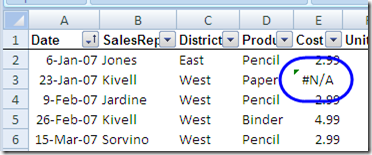
Sometimes there are errors in the source data on which a pivot table is based. For example, in the screen shot below, there is an #N/A error in the Cost column of the list.

ErrorWksht

Show or Hide Errors?

In most cases, I like to see the errors on the worksheet, so that source data problems are easy to spot.

However, you might prefer to hide the errors in the pivot table, instead of showing them there.

Open PivotTable Options

By default, error values are displayed in a pivot table.

However, by changing the PivotTable Options, you can hide the errors, so blank cells appear instead of the errors.

To hide the errors, follow these steps:

  • Right-click any cell in the pivot table
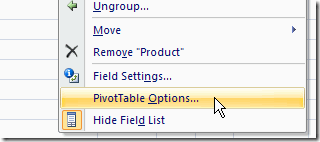
  • Next, in the pop-up context menu, click PivotTable Options.

PTOptions

Change Error Setting

When the PivotTable Options window opens, follow these steps:

  • First, in the PivotTable Options dialog box, click the Layout & Format tab.
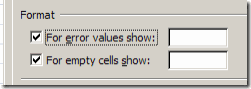
  • Next, in the Format section, add a check mark to “For Error Values Show”.

PTErrorVal

Specify Error Value Text

In the box beside the  “For Error Values Show” setting, you can specify what text to use, to replace any error.

  • Blank: If you leave the text box blank, the errors will be replaced with blank cells.
  • Text: You can type one or more characters, such as a hyphen, or “NA”, to replace the error values with that text.

After you finish your change to the For Error Values Show setting:

  • Click the OK button, to close the PivotTable Options dialog box.

Note: Values Area Only

  • This pivot table option setting only affects cells in the Values area of the pivot table.
  • If error values appear in the Row Labels, Column Labels, or Report Filter area, they will not be replaced.

_____________________