Usually you sort a pivot table’s items alphabetically, or numerically. Here is our current pivot table, with the regions in alphabetical order.
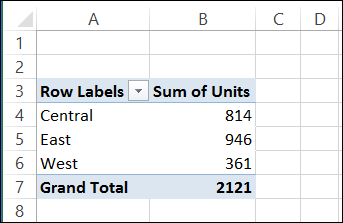
Sometimes you might want another sort order though, such as listing cities or regions in geographical order. In this example, we’d like our company’s regions listed in this order in the pivot table reports – from East to West:
Creating a Custom List
To show the regions in geographical order, you can create a custom list of regions, in the order in which you want them sorted automatically.
- Click the File tab on the Ribbon, then click Options.
- In the list of categories, click Advanced, and in the General section, click Edit Custom Lists.
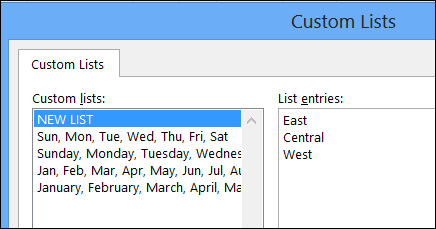
- In the Custom Lists dialog box, under Custom Lists, select NEW LIST
- Click in the List Entries section, and type the list of regions, in the order that you want them sorted, pressing the Enter key after each item, to separate the list items
- Click the Add button to add your list to the Custom Lists area
- Click OK twice, to close the dialog boxes.
Sorting with a Custom List
After creating a custom list, the custom sort order isn’t automatically applied to fields that are already in the pivot table layout. You’ll refresh the pivot table to apply the custom list sort order:
- Right-click any cell in the pivot table, and click Refresh.
The regions are then listed in the custom list order.
If the regions don’t automatically change to the custom list order, the field is probably set for Manual Sort. To change the field to Automatic Sort:
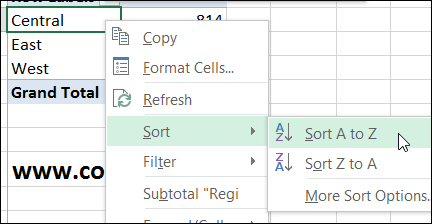
- Right-click on one of the region names in the pivot table.
- Click Sort, and then click Sort A to Z
__________________