
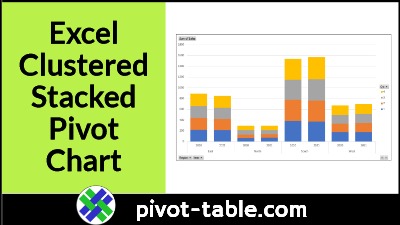
Excel doesn’t have a Cluster Stack chart type, but you can make a pivot chart with stacked columns that are grouped into “clusters”. See the steps in the video below, and get the sample Excel file, to try it for yourself. Continue reading “Easy Steps for Excel Clustered Stacked Pivot Chart”
Author: Debra
Duplicate Numbers in Pivot Table Items Problem
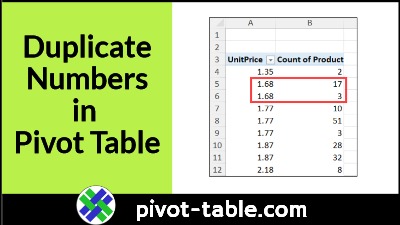
When you set up a pivot table, and put fields into the Rows Area or Columns area, Excel groups the items, and calculates the totals for each group. For example, see count of products for each Unit Price. Each item should only be listed once in the pivot table, but sometimes you might see duplicates.
Continue reading “Duplicate Numbers in Pivot Table Items Problem”
Faster Pivot Table Refresh in Excel Macros

With a large pivot table, running a macro that refreshes that pivot table might be painfully slow. The usual macro steps, like turning off screen updating, and disabling events, don’t solve this problem. Try adding an extra bit of code to your macro, to see if that makes the refresh go faster.
Continue reading “Faster Pivot Table Refresh in Excel Macros”
Pivot Table Highlight Weekend Data Conditional Formatting
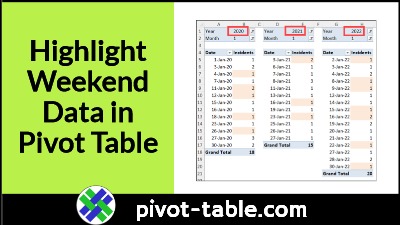
You can use conditional formatting in an Excel pivot table, to highlight specific data, such as months with high sales numbers. This example uses conditional formatting to highlight the pivot table values that are connected to weekend dates. Continue reading “Pivot Table Highlight Weekend Data Conditional Formatting”
Excel Dashboard Check Pivot Table Filters Before Printing
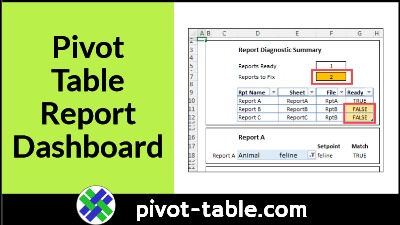
Do you create weekly or monthly reports based on pivot tables, and share those reports with clients or co-workers? If there are multiple pivot tables in your report, use this Excel dashboard technique to check all the filters, before you hit Send!
Continue reading “Excel Dashboard Check Pivot Table Filters Before Printing”
Annoying Pivot Table Problem GetPivotData Formula Fix
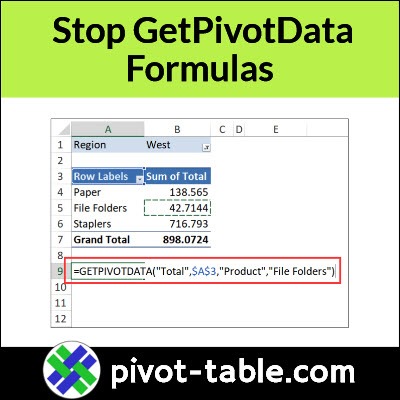
If you’re building a formula, and you click on a pivot table value, Excel puts a GetPivotData function into your formula. Here’s how to stop that from happening.
Continue reading “Annoying Pivot Table Problem GetPivotData Formula Fix”
Back Up Pivot Table Workbooks With Free Excel Tool
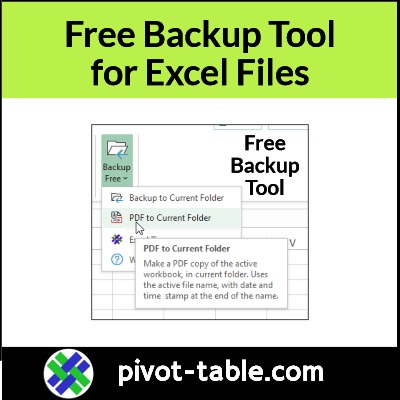
While you’re working with pivot tables, in complex Excel workbooks, it’s a good habit to make backup copies frequently. With my free Excel backup tool, you can make backups while you work, just by clicking a button.
Continue reading “Back Up Pivot Table Workbooks With Free Excel Tool”
Remove All Selected Pivot Table Value Fields With Macro
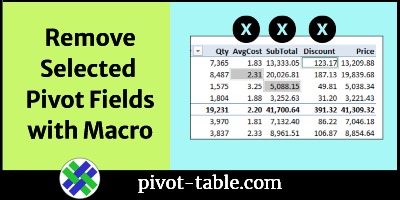
Pivot tables make it easy to work with your data, and see the summaries in different layouts. To add or remove fields from the layout, you can check or uncheck fields in the PivotTable Field list. In large pivot tables, with lots of fields, this macro makes it easy to remove specific fields from the Values area. Just select one or more fields, and run the macro!
Continue reading “Remove All Selected Pivot Table Value Fields With Macro”
Excel Macro to Filter and Print Quick Pivot Table Reports
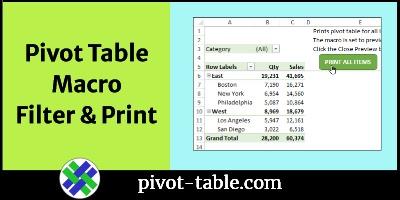
With a report filter in your pivot table, you can choose a region name, or employee, to show the data for selection only. This macro automatically chooses each item in the report filter field, and prints the pivot table, showing that data. It’s a quick way to print out a set of monthly reports.
Continue reading “Excel Macro to Filter and Print Quick Pivot Table Reports”
Show Years in Separate Lines in Excel Pivot Chart
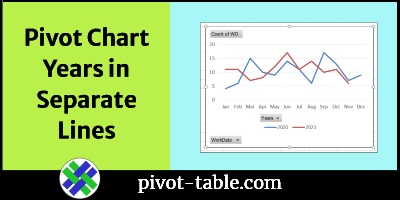
If you make an Excel pivot chart to show monthly data, a line chart might have all the dates in a single line. This video shows how to group the dates, if needed, and how to show years in separate lines. It just takes a simple step – move the Years field to the pivot chart’s Legend (Series) area.
Continue reading “Show Years in Separate Lines in Excel Pivot Chart”