Arrange Value Fields Vertically for Printing

Most of the time, you probably use a pivot table on your computer, but occasionally you might need to print one, to share with other people in your company.

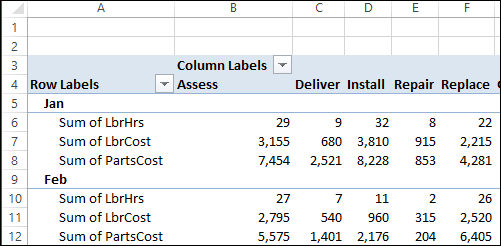
Onscreen, pivot tables can get quite wide, and you can scroll back and forth, to see everything. In the pivot table shown below, there are 3 Values fields, and they are repeated for each of the items in the Column field.

Continue reading “Arrange Value Fields Vertically for Printing”

Create a Simple Calculated Field

Besides using the fields from a pivot table’s source data, you can create calculated fields. These fields are formulas that can refer to other fields in the pivot table, to perform calculations on the summarized amounts.

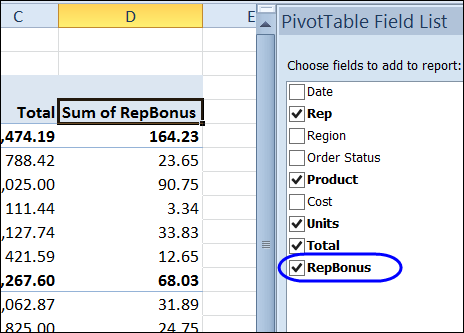
In this example, the RepBonus calculated field is added to the pivot table, to show the bonus amounts paid on product sales.

Continue reading “Create a Simple Calculated Field”

Quickly Move a Large Pivot Table

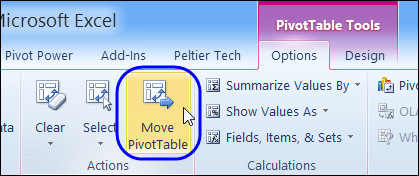
Sometimes you have to move a pivot table, after you’ve created it. That’s not too difficult if the pivot table is small – just select all the cells, cut them, and paste in a new location.

With a very large pivot table, it’s a bit harder – you have to scroll through the worksheet, and try to select all the cells, including any report filters.

Continue reading “Quickly Move a Large Pivot Table”

Problems Adding Slicers in Excel 2010

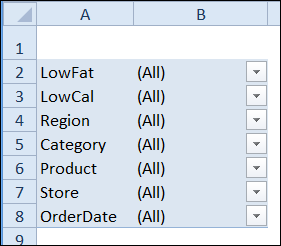
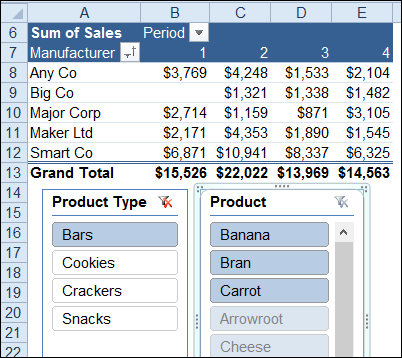
Slicers were introduced in Excel 2010, and they make it easy to filter one or more pivot tables with a single click. In the screen shot below, “Bars” is selected in the product type Slicer. In the Product Slicer, the bars are shown at the top, and the other products are listed below the bars.

Continue reading “Problems Adding Slicers in Excel 2010”

Show Multiple Grand Totals in an Excel Pivot Table

In a pivot table, you can show multiple subtotals for a field, such as Sum, Count and Average. However, there isn’t a setting that lets you show multiple Grand Totals.

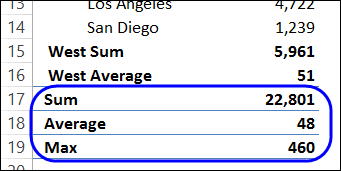
With a simple workaround, you can replace the Grand Total with a new field, and show two or more Grand Total calculations. In the screen shot below, the Sum, Average and Max are being calculated.

grandtotaladd03

Add a New Field in the Source Data

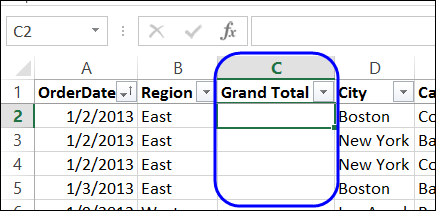
This solution uses a new field in the pivot table’s source data, with a heading cell, and nothing else in the column.

grandtotaladd01

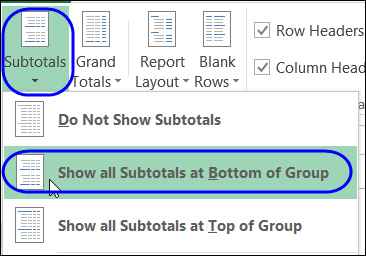
That field is added to the pivot table, and subtotals are moved to the bottom of each group.

grandtotaladd05

For written instructions, please visit my Contextures website: Pivot Table Multiple Grand Totals

Watch the Video

To see the steps for showing multiple grand totals, please watch this short video tutorial.

_______________________

Create Pivot Chart with Shortcut Keys

The quickest way to create a chart in Excel is by using a keyboard shortcut. With the following shortcuts, you can create a chart on a separate sheet, or place it on the same sheet as the data.

Create a Chart Sheet

These shortcuts work for worksheet data, or pivot table data. In this example we’ll create quick Pivot Charts from a pivot table.

  1. First, select any cell in the pivot table.
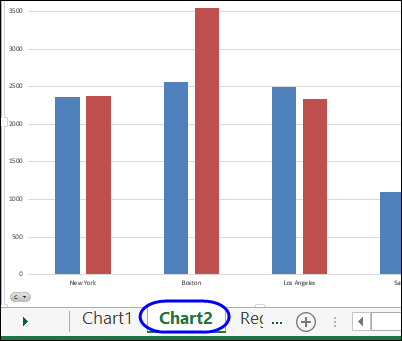
  2. On the keyboard, press the F11 key, to insert a pivot chart on a new chart sheet.

pivotchartshortcuts02

Create a Pivot Chart on the Data Sheet

To create an embedded pivot chart, on the same sheet as the pivot table, follow these steps:

  1. Select any cell in the pivot table
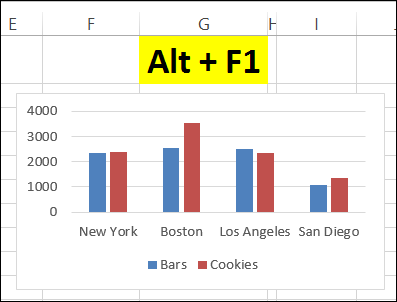
  2. On the keyboard, press the Alt key, then tap the F1 key.

pivotchartshortcuts

Watch the Chart Shortcuts Video

To see the steps for creating a pivot chart with shortcuts, please watch this short video tutorial.

_________________

Create a Custom List for Pivot Table Sorting

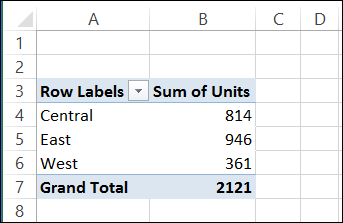
Usually you sort a pivot table’s items alphabetically, or numerically. Here is our current pivot table, with the regions in alphabetical order.
customlists04

Sometimes you might want another sort order though, such as listing cities or regions in geographical order. In this example, we’d like our company’s regions listed in this order in the pivot table reports – from East to West:

  • East
  • Central
  • West

Creating a Custom List

To show the regions in geographical order, you can create a custom list of regions, in the order in which you want them sorted automatically.

  1. Click the File tab on the Ribbon, then click Options.
  2. In the list of categories, click Advanced, and in the General section, click Edit Custom Lists.
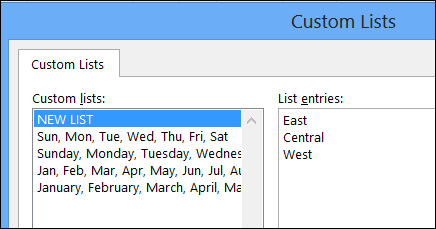
  3. In the Custom Lists dialog box, under Custom Lists, select NEW LIST
  4. Click in the List Entries section, and type the list of regions, in the order that you want them sorted, pressing the Enter key after each item, to separate the list items
  5. Click the Add button to add your list to the Custom Lists area
  6. Click OK twice, to close the dialog boxes.
customlists05

Sorting with a Custom List

After creating a custom list, the custom sort order isn’t automatically applied to fields that are already in the pivot table layout. You’ll refresh the pivot table to apply the custom list sort order:

  1. Right-click any cell in the pivot table, and click Refresh.

The regions are then listed in the custom list order.

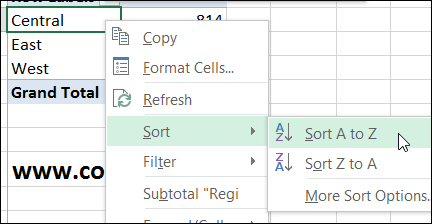
If the regions don’t automatically change to the custom list order, the field is probably set for Manual Sort. To change the field to Automatic Sort:

  1. Right-click on one of the region names in the pivot table.
  2. Click Sort, and then click Sort A to Z
customlists06

__________________