
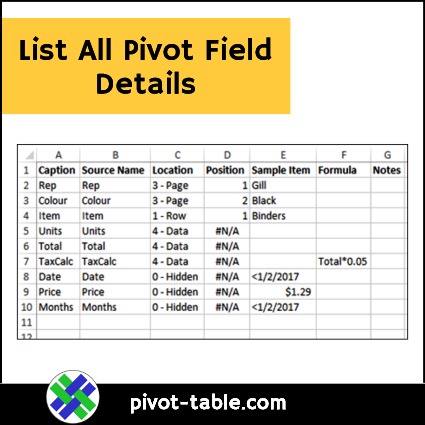
Here’s another macro to help with documenting what’s in an Excel workbook. Use this macro to make a list of all the fields in a pivot table. The list includes details for each field, such as its caption and location in the pivot table layout.
Author: Debra
List All Pivot Tables with Source or MDX
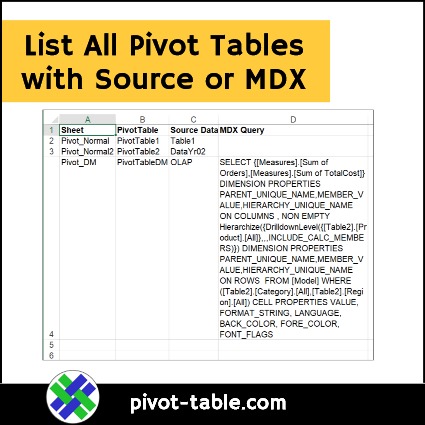
If you have multiple pivot tables and lists in an Excel file, you might need to identify which data source each pivot table uses. This macro will list all pivot tables, with source , or MDX, for OLAP-based pivot tables. Continue reading “List All Pivot Tables with Source or MDX”
Remove Pivot Fields with Macros
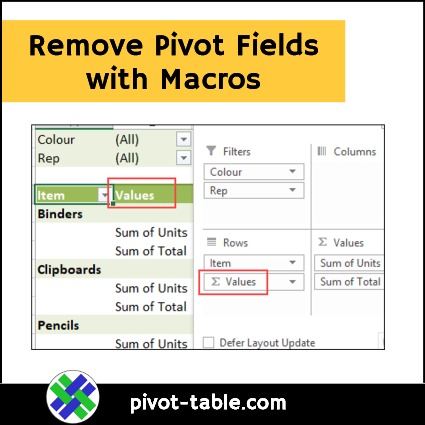
If you want to quickly remove all the pivot fields from one part of a pivot table, these macros will help. The sample macro below remove all the row fields, and there are more examples on my Contextures site, as well as a workbook that you can use for testing. Unlike the previous versions, these macros work with both normal pivot tables, and for OLAP-based pivot tables (Data Model).
Excel Macro Lists Pivot Table Details
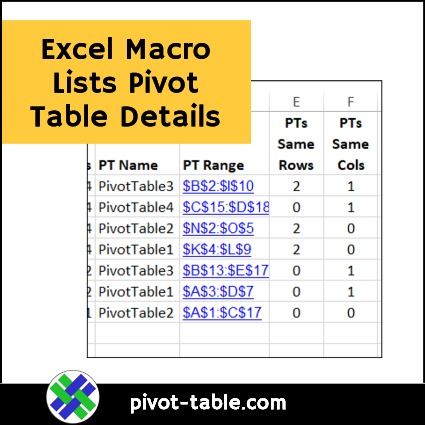
If you see error messages when refreshing, this Excel macro lists pivot table details, and might help with your troubleshooting. The macro code is shown below, and there’s also a free workbook with the macro in it, that you can download.
Clean Up Pivot Table Subtotals
When there are multiple row fields in a pivot table, the outer fields automatically show subtotals. The pivot table layout can look cluttered if there are too many subtotals, especially if they are close together. Here are a couple of tips to help you clean up pivot table subtotals, to make the data easier to read.
Show Numbers as Text in Pivot Table Values
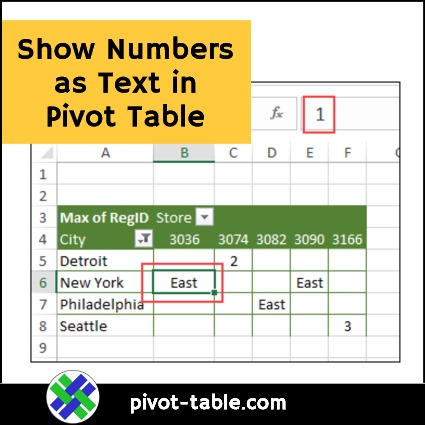
In an Excel pivot table, you can add text fields to the Row and Column areas, and in the Report Filters. However, pivot table Values area will only show numbers, so if you add a text field there, Excel shows a count of those text items. The technique shown below lets you show number fields as text Values, so you can display the names (East, West), instead of ID numbers (1, 2), for a small group of items.
Continue reading “Show Numbers as Text in Pivot Table Values”
Create Pivot Table Calculated Item and Calculated Field
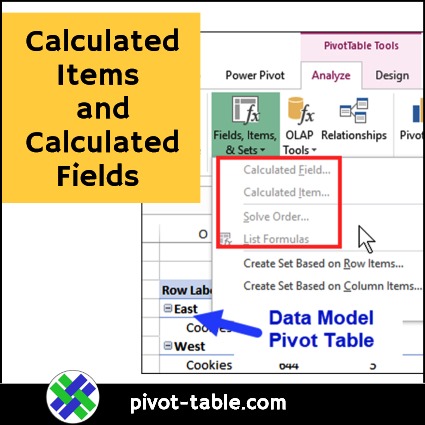
In Excel, you can create pivot table calculated item and calculated field formulas. This short video shows you an example of each type of pivot table formulas, and when they should be used.
Continue reading “Create Pivot Table Calculated Item and Calculated Field”
Show the Values Row in Excel Pivot Table
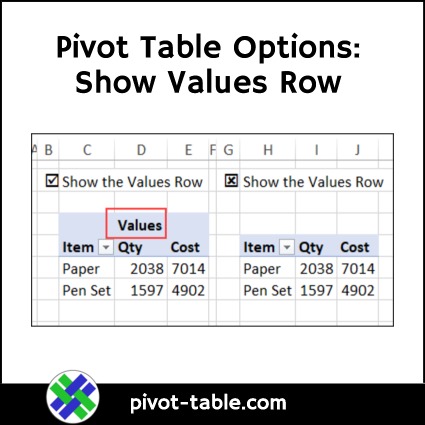
In the Excel PivotTable Options dialog box, there are lots of settings that you can turn on or off. Most of the settings work the way you’d expect, but the “Show the Values Row” option might not seem to do anything. You turn it on and off, and nothing changes. Here’s an explanation of how, and when, the “Show the Values Row” pivot table option works, and you can see the steps in the video below.
Allow or Block Pivot Table Features

After you set up an Excel pivot table, use macros to allow or block pivot table features and commands. That should discourage other people from making layout changes, which could affect other parts of your Excel workbook.
Get Pivot Chart Title from a Report Filter Cell
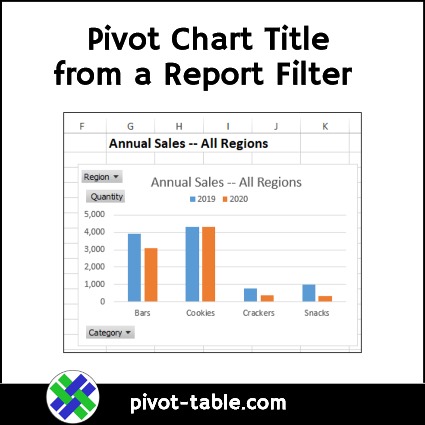
Instead of typing a pivot chart title, which never changes, use this method to create a dynamic heading. See how to create a formula on a worksheet, then link to that cell, to create a pivot chart title from a report filter cell.
Continue reading “Get Pivot Chart Title from a Report Filter Cell”