

In a big workbook, you might have lots of pivot tables, and each of those pivot tables is formatted with a PivotTable Style. To quickly see what’s in a workbook, use a macro to list all Pivot Tables and their styles.
Default and Custom PivotTable Styles
First, to see all the available PivotTable Styles in a workbook, follow these steps:
- Select a cell in any pivot table.
- Click the Design tab on the Excel Ribbon
- Click the More button on the PivotTable Styles palette.
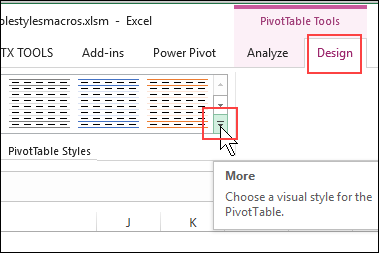
The styles are in sections for Light, Medium and Dark. If you create custom pivot table styles, they’ll appear at the top of the style gallery, in the Custom section.
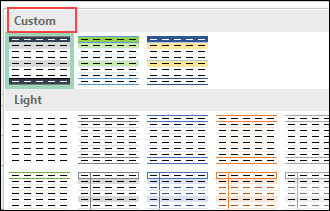
Pivot Table Custom Styles
If you’re not sure how to create your own custom pivot table style, this short video shows the steps.
Also, there are step-by-step written instructions on my Contextures site, on the Pivot Table Formatting page.
List All Pivot Tables and Their Styles
Instead of checking each pivot table individually, use my macro to list all Pivot Tables and their styles. The macro adds a new sheet to the active workbook, with the a list of the pivot tables and their style settings.
The list shows the sheet name, pivot table name, pivot table address, and style name. It also show if the style is BuiltIn (TRUE) or Custom (FALSE).
The last 3 columns show a colour sample for the Header, Row Subheading 1, and the Inside Border.
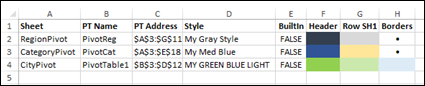
NOTE: Lots of black is used for the style formatting, so the macro shows a black dot, instead of filling the cell with black. I find that easier to read, and it also saves on printer toner, if you want to print the list.
Macro to List All Pivot Tables
This macro to list all Pivot Tables and their styles is in the sample workbook that you can download. The sample file has other macros too, to list and set the styles.
Or, to use this macro in your own workbook, copy the code below to a regular code module. Then, add a worksheet button to run the macro, or run it from the Macros command on the Excel Ribbon’s View tab.
Sub PTsAll_ListStyles()
Dim wb As Workbook
Dim wsL As Worksheet
Dim ws As Worksheet
Dim pt As PivotTable
Dim stl As TableStyle
Dim lClrH As Long
Dim lClrR As Long
Dim lClrB As Long
Dim myRow As Long
On Error Resume Next

Set wb = ActiveWorkbook
Set wsL = Sheets.Add

With wsL
  .Range(Cells(1, 1), Cells(1, 8)).Value _
    = Array("Sheet", "PT Name", "PT Address", _
        "Style", "BuiltIn", "Header", _
          "Row SH1", "Borders")
End With

myRow = 2

For Each ws In wb.Worksheets
  For Each pt In ws.PivotTables
    Set stl = pt.TableStyle2
    With wsL
      .Cells(myRow, 1).Value = ws.Name
      .Cells(myRow, 2).Value = pt.Name
      .Cells(myRow, 3).Value = _
        pt.TableRange2.Address
      If Not stl Is Nothing Then
        .Cells(myRow, 4).Value = stl.NameLocal
        .Cells(myRow, 5).Value = stl.BuiltIn

        lClrH = stl.TableStyleElements _
            .Item(xlHeaderRow).Interior.Color
        If lClrH = 0 Then
          .Cells(myRow, 6).Value = "•"
        Else
          .Cells(myRow, 6).Interior.Color = lClrH
        End If

        lClrR = stl.TableStyleElements _
            .Item(xlRowSubheading1).Interior.Color
        If lClrR = 0 Then
          .Cells(myRow, 7).Value = "•"
        Else
          .Cells(myRow, 7).Interior.Color = lClrR
        End If

        lClrB = stl.TableStyleElements _
            .Item(xlWholeTable) _
              .Borders(xlInsideHorizontal).Color
        If lClrB = 0 Then
          .Cells(myRow, 8).Value = "•"
        Else
          .Cells(myRow, 8).Interior.Color = lClrB
        End If

      Else
        .Cells(myRow, 4).Value = "None"
      End If
      myRow = myRow + 1
    End With
    Set stl = Nothing
  Next pt
Next ws

With wsL
  .Range("A1:H1").Font.Bold = True
  .Range("J1").Value = "• = Black"
  .Columns("A:J").EntireColumn.AutoFit
  .Columns("E:H").HorizontalAlignment = xlCenter
  .Columns(9).ColumnWidth = 3.57
  .Range("A1").Select
End With

End Sub
Get the Sample Workbook
To get the sample workbook with pivot tables, custom styles, and more macros, go to the Pivot Table Styles Macros page on my Contextures website.
The zipped file is in xlsm format, and contains macros. Be sure to enable macros when you open the workbook, if you want to test the macros.
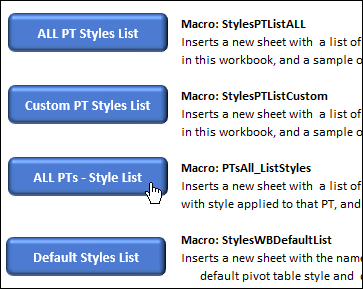
On the Macros sheet in the sample file, there is a list of the macros, with a description of what they do, and buttons to run the macros.
More Pivot Table Resources
__________________
One thought on “List All Pivot Tables and Their Styles”