
To create a pivot table from data on different worksheets, you can use a Multiple Consolidation Ranges pivot table, but the result is a pivot table with limited features and functionality.
Previously, Excel MVP Kirill Lapin shared his macro for creating a standard pivot table from data on different worksheets.
Now Kirill has expanded that technique, and written a macro to build a pivot table from data in multiple Excel files.
Pivot Table Macro
In Kirill’s example, the main file is named Report.xls. It contains the pivot table code, and a button that runs the macro. After you start the macro, it prompts you to select one or more data files, all stored in the same folder.
All of the data files must have the same structure, and the macro pulls the data stored on Sheet1 in each file.
Standard Pivot Table
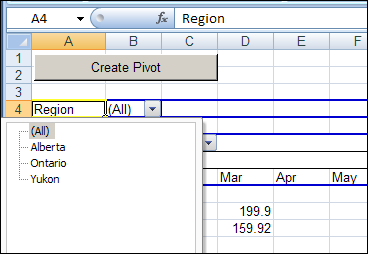
The macro creates a standard pivot table based on a Union query, and not built from Multiple Consolidation Ranges, it’s a fully functioning pivot table, and you can pivot, group and filter the data, as usual. You can also refresh the pivot table, to show the latest data in the source files, as long as those files stay in their original location.
The Union Query
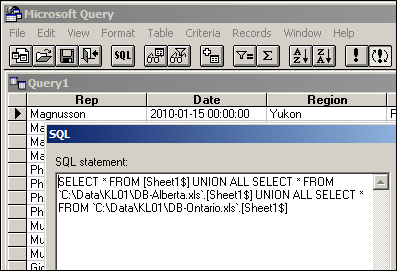
Kirill’s macro creates a Union query to combine the data from all the selected files. If you open Microsoft Query, you can see the SQL string for the Union query, and all the data from the selected workbooks.
Download the Sample File
You can download the Pivot Workbooks example to see the sample code and create the pivot table. The zipped folder that contains the Report.xls file, and the five sample data files. Unzip the folder, and keep all the files in the same folder. When you open the Report.xls file, enable macros to run the code.
______________
Hi there,
Thanks for the codes and I can successfully modified and ran the code for my own data including pivot table created without any problems. However, when I play around with the pivot table I’ve found one of my data source has changed to text which originally in number format. Is there a code I can add to these so I can convert the text column back to my number column in my exiting database in ODBC?
Many thanks
Ken
I would need a way to specificy a range so that not all data from the entire sheet is used. How and where do I do this?
Thanks in advance!
Matt, did you ever get an answer to that question about specifying a range? Trying to do the same. Thanks
Change Declare statement to below
Declare PtrSafe Function SetCurrentDirectoryA Lib “kernel32” (ByVal Path As String) As Long