
In the PivotTable Field List, the fields usually appear in the same order that they appear in the source data. If the pivot table source data has lots of fields, it might be hard to find a specific field in the list.
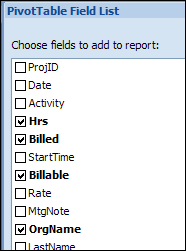
To make it easier to find the fields in the long list, you would like the field list in alphabetical order.
Sort the List
You can change a pivot table option, to make the PivotTable Field List show the fields in alphabetical order.
- Right-click a cell in the pivot table, and in the pop-up menu, click PivotTable Options.
- In the PivotTable Options dialog box, click the Display tab.
- At the bottom of the Display tab, in the Field List section, select Sort A to Z, and then click OK
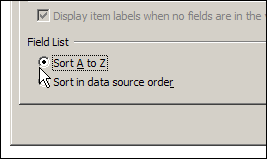
Later, if you want to return the field list to its original order, select Sort in Data Source Order, instead of Sort A to Z.
_______________
Is there a way to make this setting a permanent one vs. having to always adjust.