
A common question is “How can I show text in a pivot table’s values area, instead of numbers?”
For example, if you add the Region field to the Values area, you’d like to see the region’s name, instead of a Count Of Region number.
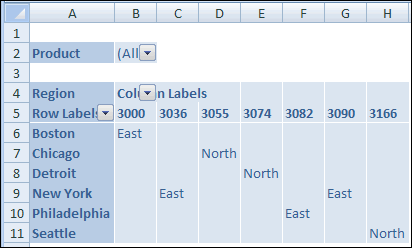
If you use Crosstab queries in Microsoft Access, you might have achieved this by using the First or Last summary function, instead of Sum or Count.
Unfortunately, the First and Last functions aren’t available in Excel pivot tables, so there’s no easy way to show text in the Values area.
Workaround #1 – Use the Row Fields
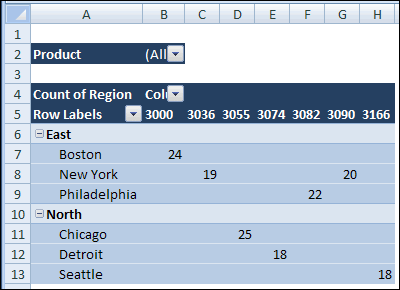
You could add the Region field to the Row Labels area, with the City field. Then add another field in the Values area to show a count of the regions. The layout won’t be exactly what you wanted, but it will show the region name.
Workaround #2 – Create a Custom Number Format
In this example, there are only two region names, so you could use a custom number format to show the region names. You’ll assign a number to each region, then use that number in the pivot table. Note: This technique is limited to 2 items.
Create the Region Number field:
- In the source data, add a new column with the heading RegNum. In this column, type a 1 for East region orders and 2 for North region orders.
- Refresh the pivot table, so the RegNum appears in the Field List.
- Add the RegNum field to the Values area, and right-click on one of the numbers.
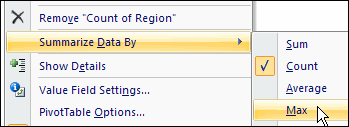
- In the popup menu, click summarize by Max.
Apply a Custom Number Format:
- Right-click a Region value in the Values area in the pivot table.
- In the popup menu, click Number Format.
- In the Category list, click Custom.
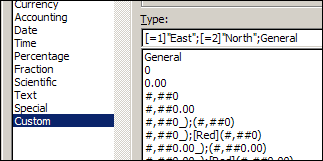
- In the Type box, enter [=1]”East”;[=2]”North”;General
- Click OK, to close the dialog box.
The pivot table will show the Region names, instead of the Region numbers.
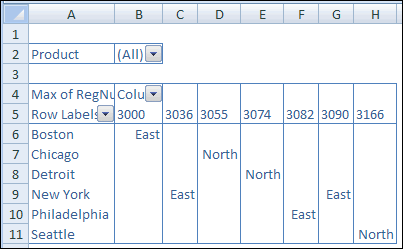
____________
Debra,
last year I published a workaround for creating cross tabular views with texts in the value area. Not an Excel Pivot Table, but a VBA routine generating a cross-tab, looking like a Pivot Table (well, more or less). It is not too complicated to implement, even if someone is not familiar with VBA.
You can find the article and the Excel workbook for free download here:
Emulate Excel Pivot Tables with Texts in the Value Area using VBA
After reading your article and the comments here, I thought some of your readers might be interested.
Best regards
Robert
Thanks!
This information saved my day!
Thank you, thank you, thank you!
Hi there,
Just noticed that the solution with the custom formatting also works for CONDITIONAL FORMATTING. This way there do not seem to be limitations as to the number of possible variables (Code 1: for “North” [=1], “South”[=2] code 2 for “East”[=3],”West”[=4]etc.). I’ve got Office 2007 on my computer and it works.
Kr
Luke
Hi , Is this same way to perform for many varialbes as showed in the article.
Luke – Thx – how do you get the CONDITIOANL FORMATTING to remain after you update the table – I loose my formats they return to the prior format?
Thanks for sharing.
It method doesn’t seem to work if ‘1’ and the ‘2’ is formuled.
e.g. In my newly created column in the datasource, I have the formula =if(A1<50,"1","2")
How can I get around this please without having to manually enter in the 1's and 2's?
@Tisha, don’t use the quote marks around the 1 and 2. Change your formula to the following and it should work correctly:
=if(A1<50,1,2)