
A common question is “How can I show text in a pivot table’s values area, instead of numbers?”
For example, if you add the Region field to the Values area, you’d like to see the region’s name, instead of a Count Of Region number.
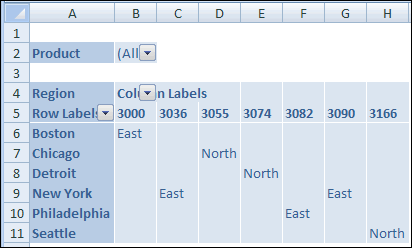
If you use Crosstab queries in Microsoft Access, you might have achieved this by using the First or Last summary function, instead of Sum or Count.
Unfortunately, the First and Last functions aren’t available in Excel pivot tables, so there’s no easy way to show text in the Values area.
Workaround #1 – Use the Row Fields
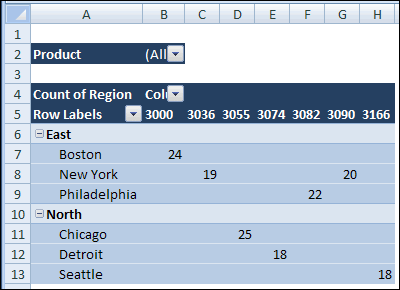
You could add the Region field to the Row Labels area, with the City field. Then add another field in the Values area to show a count of the regions. The layout won’t be exactly what you wanted, but it will show the region name.
Workaround #2 – Create a Custom Number Format
In this example, there are only two region names, so you could use a custom number format to show the region names. You’ll assign a number to each region, then use that number in the pivot table. Note: This technique is limited to 2 items.
Create the Region Number field:
- In the source data, add a new column with the heading RegNum. In this column, type a 1 for East region orders and 2 for North region orders.
- Refresh the pivot table, so the RegNum appears in the Field List.
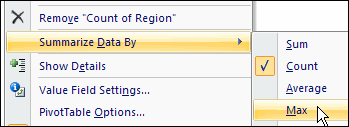
- Add the RegNum field to the Values area, and right-click on one of the numbers.
- In the popup menu, click summarize by Max.
Apply a Custom Number Format:
- Right-click a Region value in the Values area in the pivot table.
- In the popup menu, click Number Format.
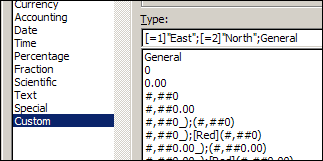
- In the Category list, click Custom.
- In the Type box, enter [=1]”East”;[=2]”North”;General
- Click OK, to close the dialog box.
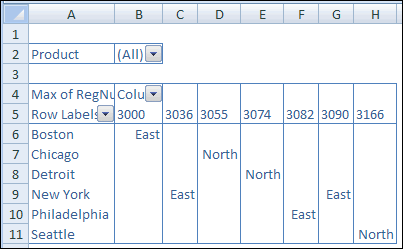
The pivot table will show the Region names, instead of the Region numbers.
____________
Hi ,
I’ve done this example for 1 and 2 but does it not work up to 3 and 4? Is their a limit?
Thanks
Yes, this is a very limited way, only up to 3.
Hi Mark,
Yes, there’s a limit of 2 items that can be formatted this way with a custom number format. I’ve added a line to the blog post, to clarify that.
Thanks,
Debra
I am unable to use it on large scale. its good with 1 or 2 values. but not with more then 10 values.
But its good thing. THnx
Thansk very much it was a great help
good tip, but useless for x1000 of values
Hi Debra,
Thank You Very much for saving us. This is the only workable way I have found after searching hundreds of web pages.
Any way you can define different set of coding and do the same thing so that the txt fields are appearing.
(Eg; Code 1: for “North” [=1], “South”[=2] code 2 for “East”[=3],”West”[=4])
But the appearance of the table is bit of a issue.
Thilan Balasuriya