
You might have to make changes to a workbook that contains a pivot table. If someone else created that workbook, you may not be sure where to find the Excel table that was used as the pivot table’s source data. In some workbooks there can be several Excel tables, and it’s not immediately obvious which table was used. These tips will help you locate the source data for a pivot table.
Before You Start
- The following instructions are for Excel 2007. For newer versions of Excel, go here – Find the Source Data for Your Pivot Table
- The following instructions will take you to the source data, if it exists. Instead, if you want to recreate the source data, go here – Rebuild source data
How To Locate the Source Data for a Pivot Table
To locate the source data for a pivot table, follow these steps:
- Select any cell in the pivot table.
- On the Ribbon, under the PivotTable Tools tab, click the Options tab.
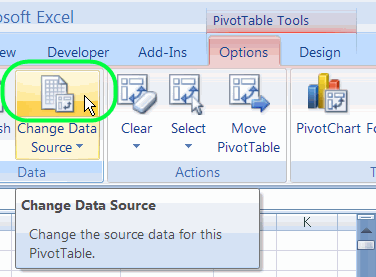
- In the Data group, click the top section of the Change Data Source command.
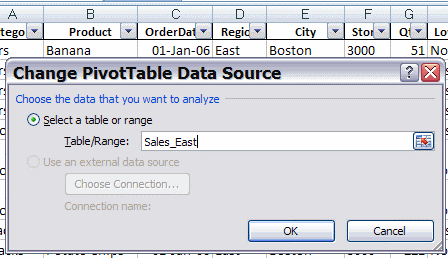
In the Change PivotTable Data Source dialog box, you can see the the source table or range in the Table/Range box. This may be a worksheet reference, such as
- Sales_North!$A$1:$O$500
or a table name, such as
- Sales_East
On the worksheet, behind the dialog box, you can see the source range, surrounded by a moving border.
4. Click OK, to close the dialog box.
Unhide a Sheet
Usually the source range will be visible, and surrounded by a moving border. If the source range isn’t activated, it may be on a hidden worksheet. You can follow these steps to unhide a sheet:
- On the Ribbon, click the Home tab
- In the Cells group, click Format.
- In the Visibility section, click Hide & Unhide, and then click the Unhide Sheet command.
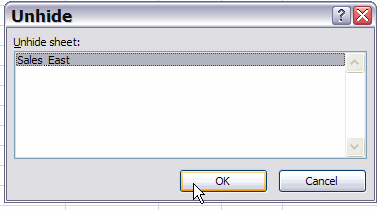
- In the list, select the sheet that you want to make visible, and click OK.
Video: Pivot Table Source Data
This video shows how to:
- find the source data for an Excel pivot table, and
- make sure it includes all the rows and columns that you need.
More Articles on Pivot Table Source Data
- Re-create the Source Data
- Find the Source Data:
- Pivot Chart – Change Source Data (Excel 2010)
- Saving Source Data with Pivot Table File
- Protect the Source Data
- Normalize Source Data For Better Results
- Change Field Names in Source Data
- Filter the Source Data
- Copy Source Number Formatting
- Number of Records in Source
_________________________
Hi!
Regarding pivot chart datasources.
If I create a pivotchart on sheet 1 (for example)using the pivot table on sheet 1 and then make a copy of that sheet, sheet 2 for example, the datasource of the pivot chart is still linked to sheet 1.
I need now to be linked to sheet 2. How can I do that!!!!?????
Thanks for letting me know!!
Hi!
Thanks for your comment.
On Excel 2007 it diesn’t work.
They have really muffed up pivot tables.
The chart always remains linked to the original pivot table.
The latest one is that line charts colour series differently to the legend…brilliant.
Blank cells appear as zero values on the line chart instead of being left blank…genius.
Another source told me how to do it in Excel 2003! It’s so easy and saves SOOOO much time! Just open the Pivot Table Wizard, click back (duh), change your data source. Man, I wish I knew this sooner!
Good luck!
Noooop…not working!
Thank you so much for “How To Locate the Source Data” – I couldn’t find this at all on the MS site!
Thanks Jane, I’m glad you found the information here.
Brilliant .. just what I needed.
I’ve just Added this site to my favourites!