
You might have to make changes to a workbook that contains a pivot table. If someone else created that workbook, you may not be sure where to find the Excel table that was used as the pivot table’s source data. In some workbooks there can be several Excel tables, and it’s not immediately obvious which table was used. These tips will help you locate the source data for a pivot table.
Before You Start
- The following instructions are for Excel 2007. For newer versions of Excel, go here – Find the Source Data for Your Pivot Table
- The following instructions will take you to the source data, if it exists. Instead, if you want to recreate the source data, go here – Rebuild source data
How To Locate the Source Data for a Pivot Table
To locate the source data for a pivot table, follow these steps:
- Select any cell in the pivot table.
- On the Ribbon, under the PivotTable Tools tab, click the Options tab.
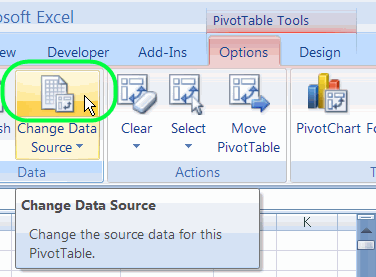
- In the Data group, click the top section of the Change Data Source command.
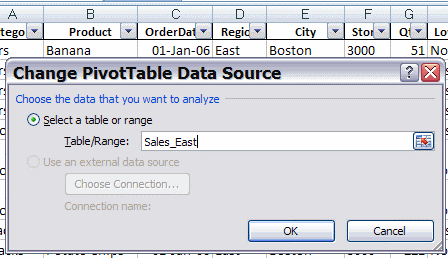
In the Change PivotTable Data Source dialog box, you can see the the source table or range in the Table/Range box. This may be a worksheet reference, such as
- Sales_North!$A$1:$O$500
or a table name, such as
- Sales_East
On the worksheet, behind the dialog box, you can see the source range, surrounded by a moving border.
4. Click OK, to close the dialog box.
Unhide a Sheet
Usually the source range will be visible, and surrounded by a moving border. If the source range isn’t activated, it may be on a hidden worksheet. You can follow these steps to unhide a sheet:
- On the Ribbon, click the Home tab
- In the Cells group, click Format.
- In the Visibility section, click Hide & Unhide, and then click the Unhide Sheet command.
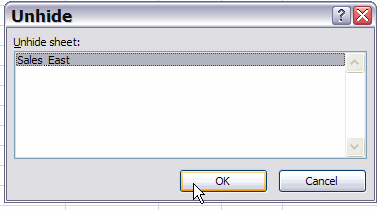
- In the list, select the sheet that you want to make visible, and click OK.
Video: Pivot Table Source Data
This video shows how to:
- find the source data for an Excel pivot table, and
- make sure it includes all the rows and columns that you need.
More Articles on Pivot Table Source Data
- Re-create the Source Data
- Find the Source Data:
- Pivot Chart – Change Source Data (Excel 2010)
- Saving Source Data with Pivot Table File
- Protect the Source Data
- Normalize Source Data For Better Results
- Change Field Names in Source Data
- Filter the Source Data
- Copy Source Number Formatting
- Number of Records in Source
_________________________
In my Excel i don’t have this option. Where can i find it out?
Thanks
Mehrnaz
Mehrnaz, if you’re using Excel 2003, right-click on the pivot table, and click Pivot Table Wizard. Click the Back button, and you’ll see the pivot table source.
Thanks guys. This question has been vexxing me for some time. I found the answer quickly and easily at this web site.
Much appreciated!
In Excel 2003, I like to know where chart source data is located. When I select the chart and goto Chart on menu bar the source data is not highlighted. I have tried many different ways and not able to come up with a way to make excel show source data. Thanks for any suggestions.
Regards,
Thanks great help
how to get the total data in the original format when pivot table has been created on the same worksheet.