
You might have to make changes to a workbook that contains a pivot table. If someone else created that workbook, you may not be sure where to find the Excel table that was used as the pivot table’s source data. In some workbooks there can be several Excel tables, and it’s not immediately obvious which table was used. These tips will help you locate the source data for a pivot table.
Before You Start
- The following instructions are for Excel 2007. For newer versions of Excel, go here – Find the Source Data for Your Pivot Table
- The following instructions will take you to the source data, if it exists. Instead, if you want to recreate the source data, go here – Rebuild source data
How To Locate the Source Data for a Pivot Table
To locate the source data for a pivot table, follow these steps:
- Select any cell in the pivot table.
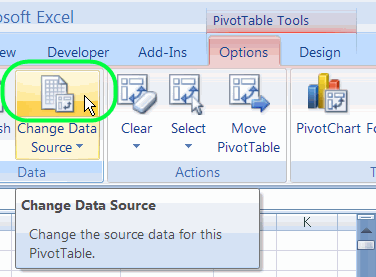
- On the Ribbon, under the PivotTable Tools tab, click the Options tab.
- In the Data group, click the top section of the Change Data Source command.
In the Change PivotTable Data Source dialog box, you can see the the source table or range in the Table/Range box. This may be a worksheet reference, such as
- Sales_North!$A$1:$O$500
or a table name, such as
- Sales_East
On the worksheet, behind the dialog box, you can see the source range, surrounded by a moving border.
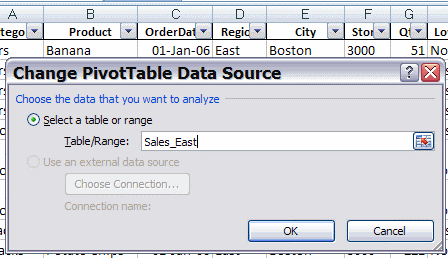
4. Click OK, to close the dialog box.
Unhide a Sheet
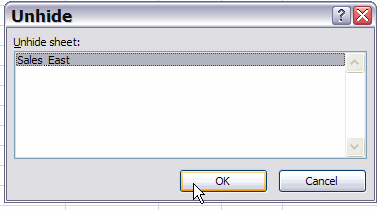
Usually the source range will be visible, and surrounded by a moving border. If the source range isn’t activated, it may be on a hidden worksheet. You can follow these steps to unhide a sheet:
- On the Ribbon, click the Home tab
- In the Cells group, click Format.
- In the Visibility section, click Hide & Unhide, and then click the Unhide Sheet command.
- In the list, select the sheet that you want to make visible, and click OK.
Video: Pivot Table Source Data
This video shows how to:
- find the source data for an Excel pivot table, and
- make sure it includes all the rows and columns that you need.
More Articles on Pivot Table Source Data
- Re-create the Source Data
- Find the Source Data:
- Pivot Chart – Change Source Data (Excel 2010)
- Saving Source Data with Pivot Table File
- Protect the Source Data
- Normalize Source Data For Better Results
- Change Field Names in Source Data
- Filter the Source Data
- Copy Source Number Formatting
- Number of Records in Source
_________________________
OK, what if someone has emailed you an Excel 2010 spreadsheet which includes pivot tables but no source data. You can still move fields around etc and surely the data must be somewhere but you can’t get to it. Any ideas?
@Darryl, remove any filters from the pivot table, then double-click the grand total cell. That should dump all the data onto a new worksheet, from the pivot cache.
Hey thanks, worked a treat 🙂
Good Day, hope everyone is doing well 🙂
Excel 2007 Question: I’m from a Freight Forwarding Firm. I work with various shipping lines like Maerskline, APL, Hamburg Sud, MSC etc…. Each Shipping Line or you can also name it as a Carrier, routes its cargo on specific Sectors like Gulf, West Africa, US East Coast, US West Coast; on these Sectors are various Ports, e.g US East Coast has the following ports (Atlanta [10], Chicago [5], Miami [19], New Jersey [4], New York [87], Savannah [14]). Each Ports DOCKS a Certain amount of Containers on Monthly Basis which i’ve mentioned in [ ].
I already have this Data in Excel Sheet, moved to Pivot Table and then to respective Charts based on each Shipping Line that totals to 12 at the moment.
I’ve 12 Excel Files and 12 Power Point presentations on basis of Charts.
The number of Containers on each Shipping Line “CHANGES” on Monthly Basis depending on its Sales for that Month.
Is There A Way To Have One Worksheet; 12 Shipping Lines Data One Below The Other, I Just Copy Paste The Data Into The Allotted Cells [end of every Month] & MY CHARTS CHANGE AUTOMATICALLY.
Your kind assistance would be highly appreciated. Thanks
Kind Regards,
SAMI
Thank you! This tip saved my day
Hello,
I was forwarded an excel file with various pivots. The pivots are referencing a tab in the Table/Range in the Change Data Source drop-down that is not visible. When trying to Unhide worksheets, the Unhide option is greyed out. How do I retrieve this worksheet that apparently exists, according the Table/Range field.
Thank you.
John
Try the instructions on my Excel blog, but choose Visible instead of Very Hidden
http://blog.contextures.com/archives/2010/03/12/go-undercover-with-hidden-excel-worksheets/
i’m having figuring out how to double check what rows are included in the datasource when the source is named as a table not a range for a pivot table.