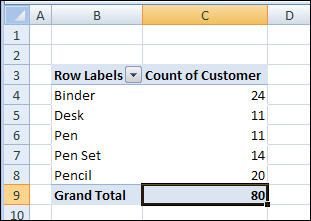
After you create an Excel pivot table, you might want to know how many unique customers placed an order for each product. However, when you add the Customer field to the pivot table’s Value area, it shows the number of orders, not the number of unique customers.
Unfortunately, a pivot table doesn’t have a built-in function to calculate a unique count. As a workaround, you could add a column to the source data, then add that field to the pivot table.
Add a Field to the Source Data
In this example, we want to count the number of unique Customer who ordered each product. We’ll add a column to the pivot table source data, with the heading ‘CustProd’.
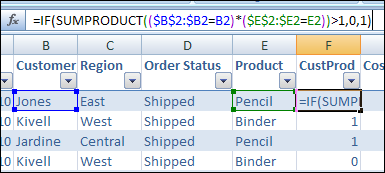
In the CustProd column , we’ll enter a formula that refers to the customer (B) and product (E) columns.
With this formula, if the row contains the first instance of a customer/product combination, the result is 1. For subsequent instances, the result is 0.
Add the Field to the Pivot Table
After you create the new field in the source data, copy the formula down to the last row of data.
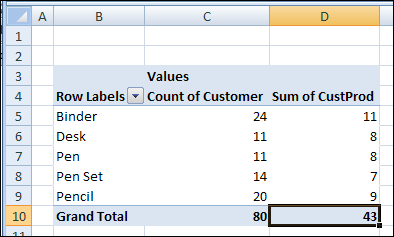
Then add the CustProd field to the pivot table Values area using the Sum function. In the screenshot below, you can see the Sum of CustProd field.
Based on the new CustProd field, we can see that 11 unique customers placed orders for a Binder, and only 7 unique customers ordered a Pen Set.
Video: Show Distinct Count in Excel 2013 With PowerPivot
[Update] To see the steps for setting up the pivot table, and creating the formula, please watch this video.
Video: Count Unique in Excel Pivot Table
[Update]In this short video, I show how to count unique items (distinct count) in a Microsoft Excel pivot table. This method works in Excel 2013 and later versions.
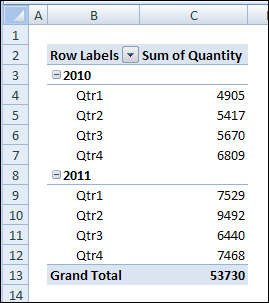
However, the grouping options are based on the calendar year, and there are no options for grouping pivot table dates by fiscal year. If you want to group the dates by your company’s fiscal year, which starts in July, there’s no built-in way to do that.
Pivot Table dates grouped by year and quarter
Fiscal Year Workaround
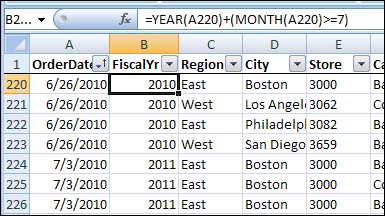
Because there’s no built-in option to group pivot table dates by fiscal year, you’ll have to use a workaround solution. In the pivot table source data, you can add a column with a formula that calculates the fiscal year, and then add that field to the pivot table.
For example, if your fiscal year starts in July, use the following formula to calculate the fiscal year, where the date is in cell A2:
=YEAR(A2)+(MONTH(A2)>=7)
The formula calculates the year of the date in cell A2. Then, it calculates the month of the date in cell A2, and checks to see if the month number is 7 or higher. If the month is less than 7, then zero will be added to the year, otherwise 1 will be added.
In the screenshot below, you can see the fiscal year formula for dates in June and July.
The year for all the dates is 2010.
For the June dates, the month is 6, which is less than 7. So, zero is added to the year, and the fiscal year is 2010.
For the July dates, the month is 7, so 1 is added to the year, and the fiscal year is 2011.
Fiscal Year formula
Fiscal Quarter Workaround
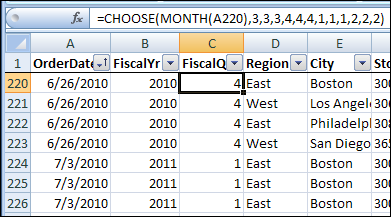
If you also want to group the pivot table dates by the fiscal quarter, you can add another column to the pivot table source data. Use this formula to calculate the fiscal quarter, if the fiscal year starts in July.
=CHOOSE(MONTH(A2),3,3,3,4,4,4,1,1,1,2,2,2)
The Choose formula calculates the month of the date in cell A2. Based on the month number, the formula selects the appropriate fiscal quarter number from the numbers that follow. For example, if the month is June, the month number is 6. In the Choose formula, the sixth number is 4, so June is in fiscal quarter 4.
In the screenshot below, you can see the fiscal quarter formula for dates in June and July.
For the June dates, the month is 6, and the sixth month in the Choose formula is 4, so June is in fiscal quarter 4.
For the July dates, the month is 7, and the seventh month in the Choose formula is 1, so July is in fiscal quarter 1.
fiscal quarter formula for dates in June and July
Add the Fiscal Dates to the Pivot Table
If you had grouped year and quarter dates in the pivot table, ungroup them and remove them.
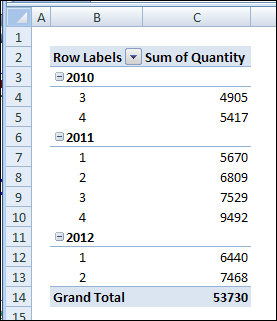
Refresh the pivot table, and add the fiscal year and fiscal quarter fields to the Row Labels area.
fiscal year and fiscal quarter fields in pivot table
Videos: Pivot Table Grouping
Learn more about pivot table grouping, and get a workbook with sample file that you can use for testing. Go to the How to Group Pivot Table Data page on my Contextures website.
First, this video shows how to group Text items in a pivot table.
Next, this short video shows the basics of pivot table grouping
______________
When you add a date field to your Pivot Table, Excel automatically groups the dates into a hierarchy, such as years and months. See how to stop pivot table date grouping in the latest versions of Excel, and a couple of workarounds for Excel 2016. You can also read about why this feature was added, and watch a date grouping video.
Prevent Date Grouping
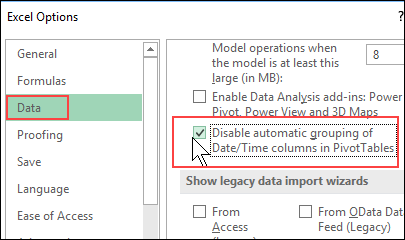
It’s easy to prevent automatic date grouping for pivot tables in Excel 2019/365, by changing a setting. See the simple steps below.
If you’re using Excel 2019 or Excel for Office 365, there’s good news. You don’t have to use workarounds or make changes to the registry. Now, you can simply change one of the Excel options, to stop pivot table date grouping.
NOTE: This is an application-level setting, not a setting for individual workbooks.
To turn this setting off:
At the top of Excel, click the File tab
Click Options, then click the Data category
In the “Data options” section, add a check mark to “Disable automatic grouping of Date/Time columns in PivotTables”
Click OK to close Excel Options
Excel 2016 Workaround
In Excel 2016, there isn’t an easy way turn off pivot table date grouping. However, to prevent dates from automatically grouping in Excel 2016, you can use this 2-step workaround:
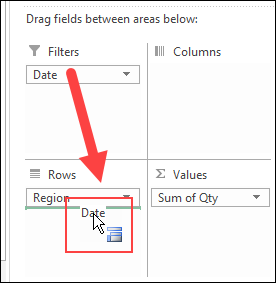
Add the date field to the pivot table Report Filter area first. Dates are not automatically grouped there
Then, in the PivotTable Fields list, drag the date field into the Rows or Columns area. Dates will remain ungrouped.
Excel 2016 Registry
The only way to turn off pivot table date grouping in Excel 2016, if you’re brave enough, is by making a change to the Windows Registry.
Pivot Tables dates weren’t grouped in earlier versions of Excel, but that behaviour changed in Excel 2016. Since that version, dates in Pivot tables have been automatically grouped too.
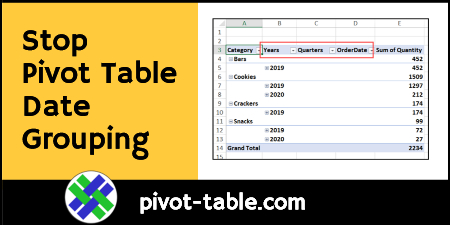
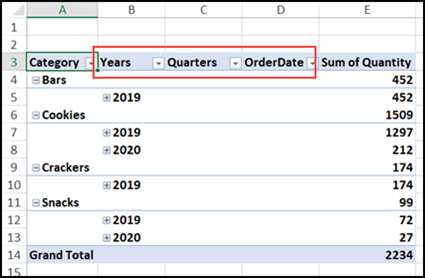
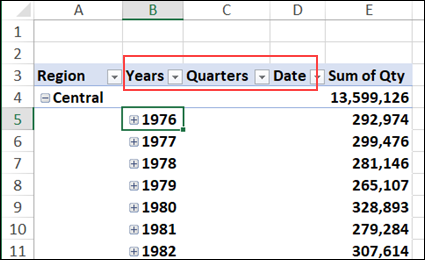
Here’s a pivot table in which I added the Category and OrderDate fields to the Rows area. Because of the date grouping, extra columns were automatically created, to show the Years and Quarters, as well as the Order Date.
Implementing grouping for Data Model PivotTables allows for grouping to be used in conjunction with the power of the xVelocity engine and is a key feature for making Data Model PivotTables a replacement for native ones in the future. When used in a data model PivotTable, Time grouping adds relevant Date/Time columns such as Date (Year), Date (Quarter) and Date (Month) to the grouped table in the model; these columns could then be reused with other user endpoints of the data model, such as PowerView and Power BI
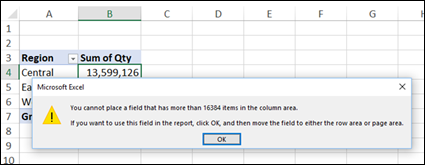
The date grouping feature can help in normal pivot tables too. For example, with a large dataset, Excel shows an error message if I try to put the date field into the Columns area.
“You cannot place a field that has more than 16384 items in the column area. If you want to use this field in the report, click OK, and then move the field to either the row area or page area.”
However, Excel allows me to put the Date field into the Rows area, and it automatically groups the dates into Years and Quarters. That saves me the step of having to group the dates manually.
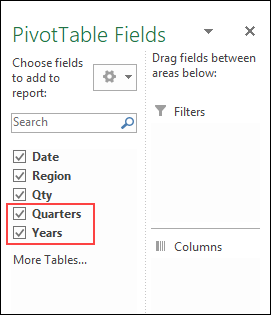
The new fields – Years and Quarters are also automatically added to the PivotTable Fields list.
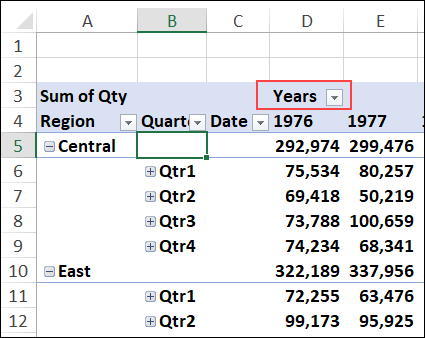
With these grouped fields, I can move Years into the Columns area, and Excel won’t show an error message about the item limit.
Undo Pivot Table Date Grouping
So, the date grouping feature can be a real time saver, if you usually group the dates manually. But, if you don’t like the grouping feature, there are steps you can take to undo it or stop it, depending on which version of Excel you’re using.
For all versions (Excel 2016 and later), you can manually ungroup the dates, with one of these methods:
Keyboard Shortcut
Add the Date field to the pivot table
Immediately press Ctrl + Z, to undo the automatic date grouping
The grouped fields are removed, and the original Date field remains in the pivot table
Ungroup Command
Add the Date field to the pivot table
At any time, right-click on any of the date field items or headings
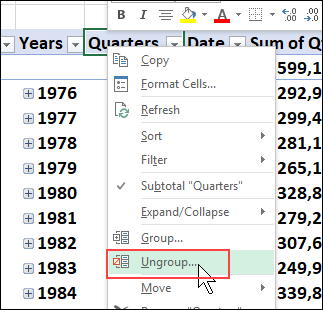
In the right-click menu, click Ungroup
The grouped fields are removed, and the original Date field remains in the pivot table
Video: Pivot Table Date Grouping
Watch this video to see how to group the date field in 4-week periods, and set the starting date. There are written instructions on my Contextures website – Group Pivot Table Dates
If there’s a date field in your Excel pivot table, you can use it to focus on a specific date, or a selected date range. To filter the dates, you can use the following filter types:
Date checkboxes
Date range entry
Dynamic date range selection
Using Date Checkboxes
If a date field is in the Row Labels area of the pivot table, do the following to show or hide specific dates.
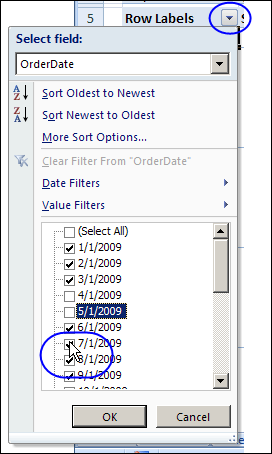
Click the drop down arrow on the Row Labels heading
Select the Field name from the drop down list of Row Labels fields
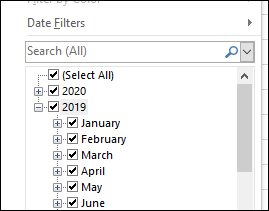
In the list of dates, add check marks to show dates, or remove check marks to hide dates.
Click OK
Clear a Date Filter
To remove a date filter from a pivot table field:
Click the drop down arrow on the Row Labels heading
Select the Field name from the drop down list of Row Labels fields
Click Clear Filter From [date field name]
Filter for a Specific Date Range
If a date field is in the Row Labels area of the pivot table, do the following to show a specific date range.
Click the drop down arrow on the Row Labels heading
Select the Field name from the drop down list of Row Labels fields
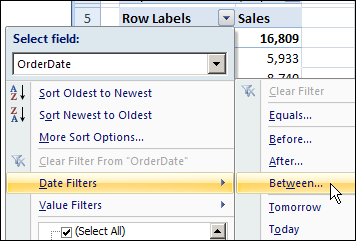
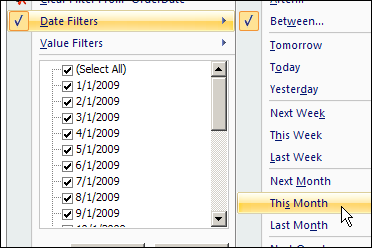
Click Date Filters, then click Between..
.
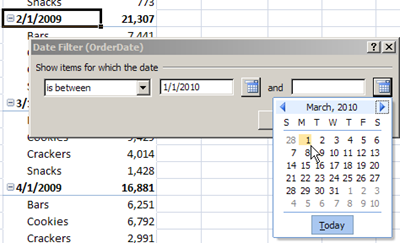
In the Between dialog box, type a start and end date, or select them from the pop up calendars.
Click OK.
Filter for a Dynamic Date Range
A Dynamic Date Range is one that changes automatically, as time moves forward. For example, Tomorrow, which will represent a different date, every day that you open the pivot table file.
If a date field is in the Row Labels area of the pivot table, do the following to show data from the current month, as a dynamic date range.
Click the drop down arrow on the Row Labels heading
Select the Field name from the drop down list of Row Labels fields
Click Date Filters, then click This Month
Date Filters in the Pivot Table Report Filters
Unfortunately, the Date Range filters and Dynamic Date filters aren’t available in the Pivot Table Report Filters area. If you move a date field to the Report Filters area, only the Checkbox filter type is available.
If you move a filtered date field from the Row Labels area to the Report Filters area, any filtering will be discarded, unless the check boxes were used to select specific dates.
Watch the Pivot Table Date Filters Video
To see the steps in action, please watch this short video on Pivot Table Date Filters.
______________
For more information on Pivot Tables, please see the Pivot Table Tutorials on the Contextures Website.
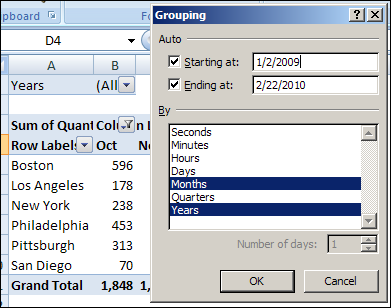
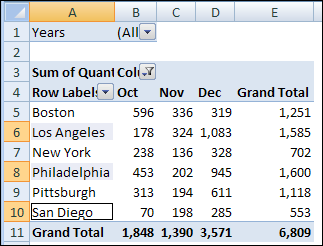
For example, in a pivot table with sales order data, you can group the Order Date field by years and months, to quickly compare the sales totals each month, for a selected year.
group dates by years and months
In this pivot table example, we have sales data for six stores. Three of the stores are new, and opened in the past 12 months. The other 3 stores are older. You’re doing a presentation to the Board of Directors, and you’d like to compare the sales in the new stores to sales in the older stores.
The new stores are in:
Los Angeles
Philadelphia
San Diego
The older stores are in:
Boston
New York
Pittsburgh
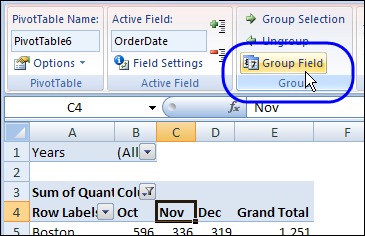
To group the Order Date field, you clicked on one of the dates in the pivot table, then clicked Group Field on the Ribbon’s Option tab.
Group Field on the Ribbon’s Option tab
However, when you click a label in the City field, the Group Field command isn’t available, so you aren’t sure how to create the Old and New groups for the City field.
Group the Selected Items
The Group Field command is only available for date and number fields in the Row Labels or Column Labels area of the pivot table.
Because the City names are entered as text, you can use a different method to group them.
Manually select the cities you want in the first group. To select nonadjacent cities, hold the Ctrl key, and then click the city names.
In this example, we’ll select the cities with the new stores, Los Angeles, Philadelphia and San Diego.
select text items to group them
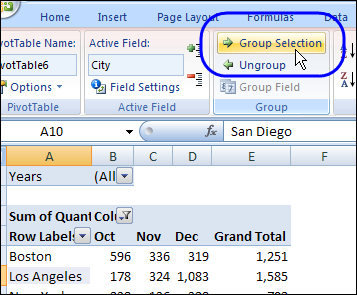
With the city names selected, on the Ribbon’s Options tab, click Group Selection
click the Group Selection command
Name the Group
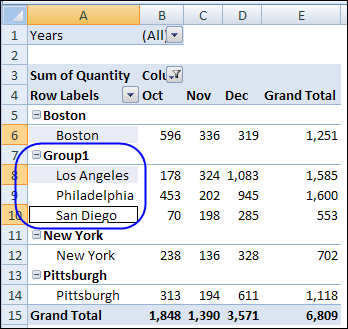
This creates a new item in the City field, named Group1, with the selected cities listed under that heading. For each of the remaining cities, a heading is created, with its city name.
Group1 created in pivot table
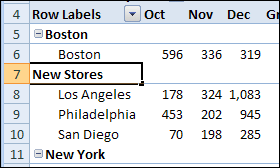
To change the name of the new group, click on the Group1 heading cell, and then type a name for the group, such as New Stores.
change name of new group
Group the Remaining Items
Next, you can group the remaining stores and name that group.
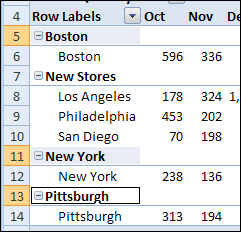
Select the remaining stores, and click the Group Selection command to group them.
Select the remaining stores
Name the second group as Old Stores.
Alternative Method of Grouping
Instead of grouping the stores in the pivot table, you could add a StoreType field to the source data, and then enter Old or New for each record.
Next, add the new StoreType field as the first field in the Row Labels area. The city names will appear under the correct StoreType heading.
Videos: Pivot Table Grouping
Learn more about pivot table grouping, and get a workbook with sample file that you can use for testing. Go to the How to Group Pivot Table Data page on my Contextures website.
First, this video shows how to group Text items in a pivot table.
Next, this short video shows the basics of pivot table grouping
______________
For more information on Pivot Tables, please see the Pivot Table Tutorials on the Contextures Website.
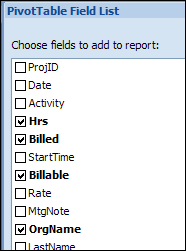
In the PivotTable Field List, the fields usually appear in the same order that they appear in the source data. If the pivot table source data has lots of fields, it might be hard to find a specific field in the list.
To make it easier to find the fields in the long list, you would like the field list in alphabetical order.
Sort the List
You can change a pivot table option, to make the PivotTable Field List show the fields in alphabetical order.
Right-click a cell in the pivot table, and in the pop-up menu, click PivotTable Options.
In the PivotTable Options dialog box, click the Display tab.
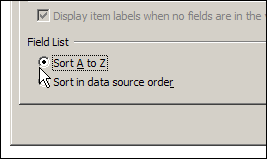
At the bottom of the Display tab, in the Field List section, select Sort A to Z, and then click OK
Later, if you want to return the field list to its original order, select Sort in Data Source Order, instead of Sort A to Z.
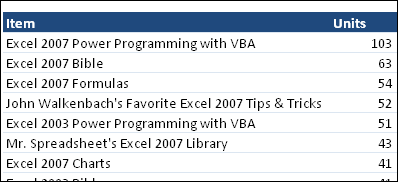
This week, John Walkenbach, aka Mr. Spreadsheet, used a pivot table report to analyze his website’s Amazon sales for 2009. Here’s a screenshot of the results, showing the top sellers, and number of units sold.
John knows a thing or two about Excel, having written over 40 Excel books, so take a look at the full list, and see if there’s something there that will help you.
Excel 2007 Power Programming with VBA
I bought a copy of John’s Excel 2007 Power Programming with VBA a couple of years ago, and highly recommend it. The book is a great reference when you’re learning VBA, or upgrading from an earlier version of Excel.
In its 1104 pages, the book covers pretty much everything you need to know about Excel VBA, and comes with a CD that contains:
Sample files for the book’s VBA tutorials
A searchable PDF version of the book
And best of all, there’s a chapter on Pivot Table Programming, that will help you get started with the new pivot table features in Excel 2007. In that chapter, you’ll discover what’s new in Excel 2007 pivot tables, and learn how to:
create pivot tables with VBA
create a complex pivot table
create multiple pivot tables
use VBA to change a summary table to a worksheet table
Chandoo, at the Pointy Haired Dilbert blog, has posted 5 Excel Pivot Table tricks today. His blog posts are always informative and entertaining, so go and take a look.
The 5 Pivot Table tricks are:
Drill Down Pivot Tables
Change Summary from Total
Slice and Dice Pivots
Difference from Last Month
Calculated Fields in Pivots
Did you know all those pivot table tricks? Learn anything new?
______________
For more information on Pivot Tables, please see the Pivot Table Tutorials on the Contextures Website.
NOTE: This contest ended in 2010, and link is no longer owned by the PowerPivot team.
The team at PowerPivot for Microsoft Excel 2010 created the Excelerators Quiz, where you can test your Excel skills. To make the challenge more exciting, they’re sponsoring a giveaway on the Contextures blog (for USA residents only).
The blog giveaway prize has a total value of over $250, and will include a Dell ST2310 23 inch flat panel monitor, keyboard, and mouse.
How to Enter
To enter the giveaway, after you take the Excelerators Quiz, go to the Contextures blog, read the rules, and add a comment. In your comment:
Create your own unique question for the Excelerators Quiz.
Make your question multiple choice, with the correct answer as one of the four options.
The Alpha Geek Challenge
The PowerPivot team has also launched an Alpha Geek Challenge for more advanced excel geeks. Donald Farmer will host a PowerPivot competition in which the Grand Prize winner will receive an all-expenses paid trip to the 2010 Microsoft BI Conference in New Orleans, LA in June.
After you finish the Excelerators Quiz, and enter the Contextures blog giveaway contest, see how you do in the Alpha Geek Challenge!
After you create a calculated field in an Excel pivot table, you might want to remove it from the pivot table layout. You can temporarily remove a calculated field, or you can permanently remove it.
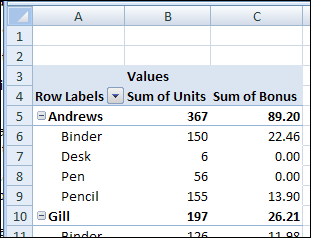
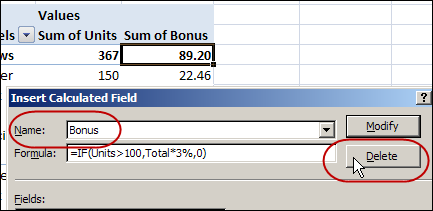
In this example, the pivot table has a calculated field named Bonus. It appears in the Values area as Sum of Bonus. You could hide the Bonus calculated field, or delete it from the pivot table.
Temporarily Remove a Calculated Field
To temporarily remove a calculated field from a pivot table, follow these steps:
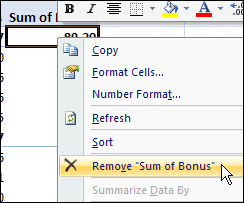
In the pivot table, right-click a cell in the calculated field. In this example, we’ll right-click the Bonus field.
In the popup menu, click the Remove command that shows the name of the calculated field.
The calculated field is removed from the pivot table layout, but remains in the PivotTable Field List.
Later, you can add a check mark to the calculated field in the PivotTable Field List, to return it to the pivot table layout.
Permanently Remove a Calculated Field
To permanently remove a calculated field, follow these steps:
Select any cell in the pivot table.
On the Ribbon, under the PivotTable Tools tab, click the Options tab.
In the Tools group, click Formulas, and then click Calculated Field.
From the Name drop down list, select the name of the calculated field you want to delete.
Click Delete, and then click OK to close the dialog box.
______________
For more information on Pivot Tables, please see the Pivot Table Tutorials on the Contextures Website.
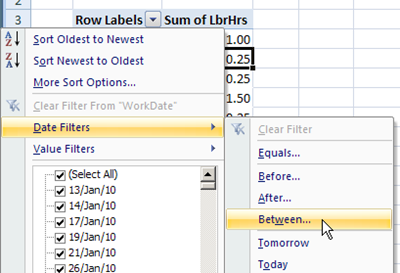
In an Excel 2007 pivot table, you can filter a date field by using the Date Filters option in the Row Labels drop down. For example, you can select all the dates between two specific dates, or filter for a dynamic range, such as Last Week.
However, when you use the row label date filters, you can only select a consecutive date range, or one specific date. You can’t select two or more nonconsecutive dates.
For example, in the screen shot above, the Work Date field is in the Row Labels area, and Labor Hours (Sum of LbrHrs) is in the Values area. In the Work Date field, you can’t use the Date Filters option to select to select January 13th, 17th and 21st.
Manually Select the Dates
Instead of using the date filter options, you can manually select items in the Row Labels drop down list. To manually filter dates in the Row Labels filter list, follow these steps:
In the pivot table, click the arrow on the Row Labels heading.
In the list of dates, remove the check mark from Select All, to remove all the check marks from the list.
Add check marks to the dates you want to see, and then click OK.
The pivot table now shows results for work done on the selected dates, and you can focus on that data.
______________
For more information on Pivot Tables, please see the Pivot Table Tutorials on the Contextures Website.