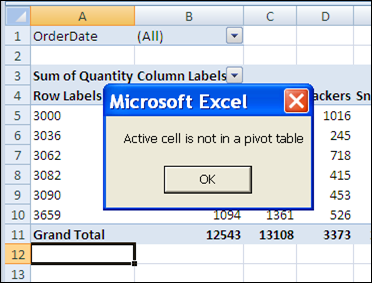
Occasionally, you might want to tear down a pivot table, and start from scratch. You don’t have to delete the pivot table though – you can clear all the fields, and then start adding the ones you want.
Clear Pivot in Excel 2010
If you’re using Excel 2010 or 2007, it’s easy to clear the pivot table, using a Ribbon command.
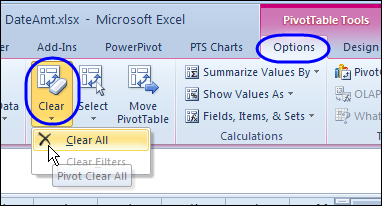
- Select a cell in the pivot table that you want to clear.
- On the Ribbon, under PivotTable Tools, click the Options tab.
- In the Actions group, click Clear, then click Clear All
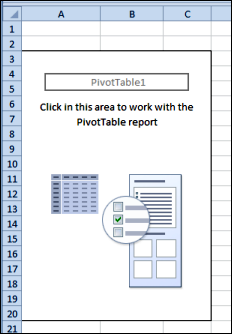
All the pivot fields are removed, and you’re left with an empty pivot table layout.
Undo the Clear
There’s no confirmation message when you click Clear All, so you can’t change your mind after you click that command.
However, you could click the Undo button, before performing any other actions, and all the pivot fields will be put back.
Clear the Pivot Table in Excel 2003
There’s no Clear All command in Excel 2003 and earlier versions, but you can manually remove the fields from the pivot table layout, either on the worksheet, or in the Pivot Table Wizard.
Clear the Pivot Table With Programming
The following code will clear all the fields from a pivot table, and make the field list visible, so you can start to rebuild it. Copy this code to a regular module in your workbook.
Note: You can’t undo the Clear All if you use this code. You could save the workbook before running the code, and then close without saving again, if you change your mind.
Sub ActiveCellClearPivot()
'clears pivot table for active cell
On Error Resume Next

Dim pt As PivotTable
Dim pf As PivotField

Set pt = ActiveCell.PivotTable
If Not pt Is Nothing Then

  pt.ManualUpdate = True

  'test version of Excel
  If CDbl(Application.VERSION) >= 12 Then
      'for Excel 2007 and later
      pt.ClearTable
  Else
    For Each pf In pt.VisibleFields
          pf.Orientation = xlHidden
    Next pf
  End If

  pt.ManualUpdate = False

  ActiveWorkbook.ShowPivotTableFieldList = True
End If

End Sub
_____________