

If you’re working with pivot table calculated fields in Excel VBA programming, or trying to use the Orientation property for data fields, you might encounter some problems. Here’s how I managed to work around an error that occurs for a pivot table calculated field removed with Excel VBA.
Two Macros for Calculated Fields
There are two macros in this article.
- The first macro deletes and re-adds calculated fields.
- If you have multiple pivot tables using the same pivot cache, use the second macro instead — it hides the calculated fields, and doesn’t affect any other pivot tables.
Strange Results for Orientation Property
I encountered the first oddity with Orientation while working with pivot table field names. I wanted to see a bit of information about each pivot field, so I wrote some Excel VBA pivot field code, to show the caption, source name, location (orientation), position, sample data, and a formula (calculated fields).
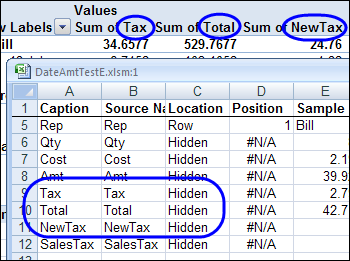
The code worked well, but the Orientation property gave some strange results for the fields in the Values area. Instead of listing the field location as Data, they were shown as Hidden. At the top of the screen shot below, you can see the field names circled in the pivot table layout, but the list says they’re hidden.
Removing the Data Fields
I experimented with the Orientation property in the code, but had no success in getting it to display correctly when looping through the PivotFields. When I tried to change the Orientation for the data fields, things got even stranger. I could change the regular data fields to xlHidden, to remove them from the pivot table layout, but those calculated fields weren’t removed.
Instead of changing the calculated field Orientation to xlHidden, Excel displayed the error message “Run-time error ‘1004’: Unable to set the Orientation property of the PivotField class”
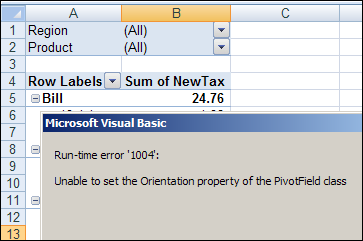
On the Excel worksheet, you can manually uncheck the calculated field boxes, and remove them from the pivot table, then check the box again, to put it back into the layout. However, if you record a macro while removing the calculated field, that recorded code shows the same error message when you try to run it.
Remove the Calculated Fields
A Google search showed that many other people had encountered this problem, and the only solution was delete the calculated field, instead of trying to remove it from the layout. That approach is okay if you want to permanently remove the calculated field, but wouldn’t be much help if you wanted to keep the calculated field in your pivot table, for use later.
So, I wrote the following code that deletes each calculated field, then immediately adds it back to the pivot table field list, but not into the pivot table layout. If you’ve had trouble removing calculated fields from the pivot table layout, please let me know if this code helps you.
Macro 1 – Removes and Restores Calculated Fields
Update: If multiple pivot tables share the same pivot cache, calculated field is removed from all. See the code in the next section, if you have multiple pivot tables based on the same cache.
Sub RemoveCalculatedFields()
Dim pt As PivotTable
Dim pf As PivotField
Dim pfNew As PivotField
Dim strSource As String
Dim strFormula As String

Set pt = ActiveSheet.PivotTables(1)
    For Each pf In pt.CalculatedFields
        strSource = pf.SourceName
        strFormula = pf.Formula
        pf.Delete
        Set pfNew = pt.CalculatedFields.Add(strSource, strFormula)
    Next pf

End Sub
Macro 2 – Hide All Calculated Fields
[Update] The code above removes the calculated field from the pivot cache, then adds it again. That works okay if only one pivot table is based on the pivot cache. However, it’s a problem if there are multiple pivot tables based on that cache. The calculated field is removed from all of them, and only added back to the layout of the active pivot table.
Thanks to Rory Archibald (in the comments below), who suggested changing the Visible property instead of deleting and re-adding the calculated fields.
With ActiveSheet.PivotTables(1).DataFields(“Sum of NewTax”)
.Parent.PivotItems(.Name).Visible = False
End With
I incorporated Rory’s code into the following macro, that will hide all the Calculated Fields from the pivot table for the active cell:
Sub RemoveCalculatedFields()
Dim pt As PivotTable
Dim pf As PivotField
Dim df As PivotField
On Error Resume Next
Set pt = ActiveCell.PivotTable

If pt Is Nothing Then
  MsgBox "Select a pivot table cell"
  Exit Sub
End If

For Each pf In pt.CalculatedFields
    For Each df In pt.DataFields
      If df.SourceName = pf.Name Then
        With df
          .Parent.PivotItems(.Name) _
            .Visible = False
        End With
        Exit For
      End If
    Next df
Next pf

End Sub
___________
Hi,
This is indeed a wonderful site with great learning tools.
The specific topic of removing calculated fields really helped me, but i have the same problem described above by Steve Kiwi :calculated fields in other PT in other sheets are being deleted as well.
Is there a solution/workaround to prevent the deletions in other tables in other sheets or get the fields back into the respective PT?
TIA
I’ve posted new code that will cancel the macro is other pivot tables share the same pivot cache.
https://www.pivot-table.com/excel-pivot-tables/check-for-shared-pivot-cache
Thanks a ton for the above code.
If some one want to delete all Data fields & Calculated fields.. I am using the below code.
Sub HidePFields()
Dim pt As PivotTable
Dim pf As PivotField
Dim pfNew As PivotField
Dim strSource As String
Dim strFormula As String
Set pt = Sheets("Agent - Daywise").PivotTables("PivotTable4")
For Each pf In pt.CalculatedFields
strSource = pf.SourceName
strFormula = pf.Formula
pf.Delete
Set pfNew = pt.CalculatedFields.Add(strSource, strFormula)
Next pf
With pt
.ManualUpdate = True
For Each PfNew In .DataFields
PfNew.Orientation = xlHidden
Next PfNew
.ManualUpdate = False
End With
Set pt = Nothing
End Sub
Thanks for the code, it was going mad trying to hide calc’d fields, figured it was something like this.
Thanks Nadeem for your code.
Here you have a small variation of it to avoid as far as possible the PivotTable´s blinking
Sub HidePFields()
Dim pt As PivotTable
Dim pf As PivotField
Dim pfNew As PivotField
Dim strSource As String
Dim strFormula As String
Set pt = Sheets(“Agent – Daywise”).PivotTables(“PivotTable4”)
For Each pf In pt.CalculatedFields
If pf.ShowingInAxis Then GoTo Continue
Next pf
Exit Sub
Continue:
For Each pf In pt.CalculatedFields
If pf.ShowingInAxis Then
strSource = pf.SourceName
strFormula = pf.formula
pf.Delete
Set pfNew = pt.CalculatedFields.Add(strSource, strFormula)
End If
Next pf
With pt
.ManualUpdate = True
For Each pfNew In .DataFields
pfNew.Orientation = xlHidden
Next pfNew
.ManualUpdate = False
End With
Set pt = Nothing
End Sub
Is it possible to combine the VBA code for hiding the calculated field and adding another calculated field with a Top/Bottom code (similar to http://www.contextures.com/excel-pivot-table-filters-top10.html)? I can get each code to function independently but not together. Thanks in advance.