Change Field Names in Pivot Table Source Data

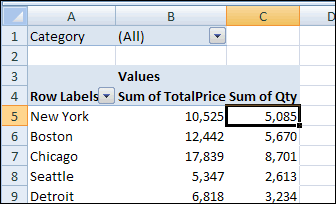
Occasionally, you might need to change a column heading in the pivot table’s source data. For example, you could change a column heading from Qty to Quantity, to make it easier to understand.
Pivot Table Field Name 01

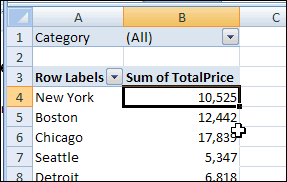
However, when you refresh the pivot table after making the changes, the renamed field will disappear from the pivot table layout. In our example, the Qty field is removed from the layout. It isn’t automatically replaced by the Quantity field, even though it’s in the same column heading cell in the source data.
Pivot Table Field Name 02

If you change the column headings, you’ll have to add the revised field to the pivot table layout again. If you had number formatting in the old pivot field, you’ll have to reapply the number formatting you had previously applied. 

Change Captions Instead

If possible, instead of changing the column headings in the source data, create custom names for the fields in the pivot table instead.

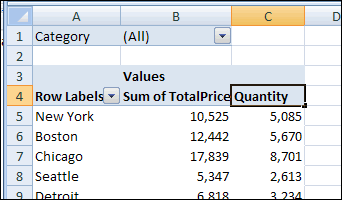
For example, to create a custom name for the Qty field:

  1. In the pivot table, click on the cell that contains the pivot field name, Qty.
  2. Type the custom name, Quantity.
  3. Press the Enter key, to complete the renaming.
Pivot Table Field Name 03

_____________________

For more information on Pivot Tables, please see the Pivot Table Tutorials on the Contextures Website.

_________________
Hide Page Items in Excel 2003 Pivot Table

In Excel 2003, and earlier versions, the items in a page field’s dropdown list don’t have check boxes to indicate which items to show and which to hide, like there are in the Report Filters for Excel 2007 and later.

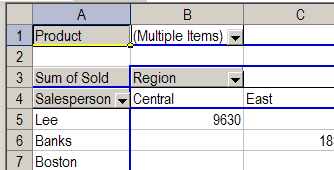
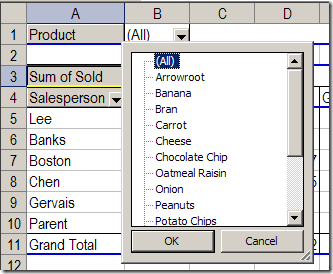
In the pivot table shown below, the Product field is in the page area.

PageHide01

It’s easy to select one product, such as Chocolate Chip. Or, you can select (All), and see the data for all the products.

However, you might want to hide some of the products instead of viewing the data for all the items. Without the check boxes, it’s not obvious how you can hide them.

Hide Some of the Page Items

Follow these steps to hide one or more of the page field items:

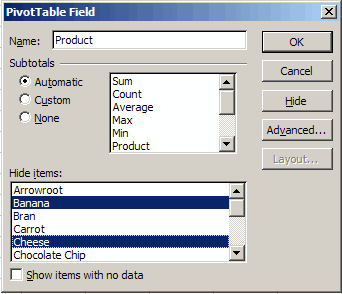
  1. Double-click the page field button to open the PivotTable Field dialog box.
  2. In the Hide items list, click on the items that you want to hide. In the screen shot below, Banana and Cheese will be hidden.

PageHide02

3.    Click OK to close the PivotTable Field dialog box.
4.    Until you unhide the items, the page field will show (Multiple Items) instead of (All), unless an individual item is selected.

PageHide03

Tip: You could temporarily move the page field to the row area, remove checkmarks for the items you want to hide, and move the field back to the page area.

_________________

Separate Pivot Table Field Items with a Blank Row

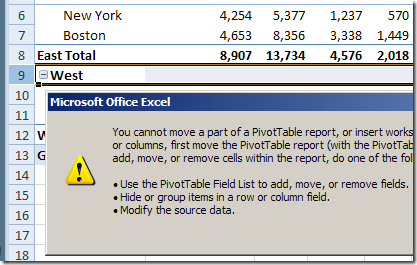
To make the pivot table easier to read, you might like each item in a pivot table field to be followed by a blank row. You can’t insert the rows manually, because Excel will display an error message if you try that method.

PTRowInsertError

However, in any of the pivot table report layouts, you can format the outer row fields, so each item has a blank row after it.

Note: All the outer row fields will be affected by this setting – you can’t limit it to one or more selected fields.

Add a Blank Row in Report Layout

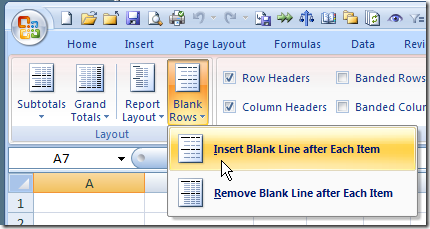
  1. Select a cell in the pivot table, and on the Ribbon, click the Design tab.
  2. In the Layout group, click Blank Rows, and then click Insert Blank Line After Each Item.

InsertBlank

Format the Row

To highlight the blank rows, you can manually add a fill color:

  1. Click at the left of one of the blank rows, to select all the blanks for that field.
  2. On the Ribbon’s Home tab, click the drop down arrow for Fill Color.
  3. Click on the color you’d like in the blank rows.

RibbonFillColor

Please visit my Contextures web site, for more pivot table formatting tips.

_________________