
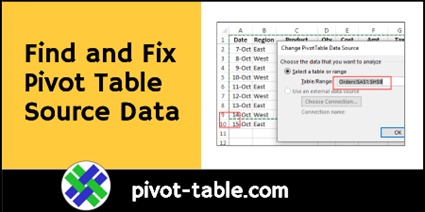
After you create a pivot table, you might add or change records in the source data. When you refresh the pivot table later, sometimes the new data doesn’t show up. Here’s how to find and fix the pivot table source data, so the correct data appears.
Author: Debra
Quickly Count Duplicates with Excel Pivot Table
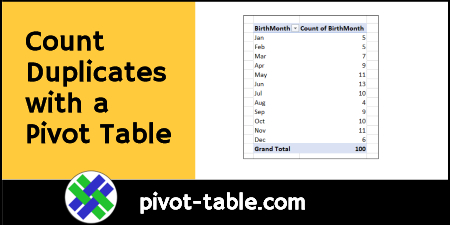
Excel is a great tool for working with a list of data, and calculating sums and counts. Use functions like COUNTIF and COUNTIFS, to get counts based on one or more criteria. But don’t forget about pivot tables, when you need a quick count or sum. With a few clicks, a pivot table will quickly show how many of each item are in a list.
Continue reading “Quickly Count Duplicates with Excel Pivot Table”
Macro to Remove Pivot Table Calculated Fields
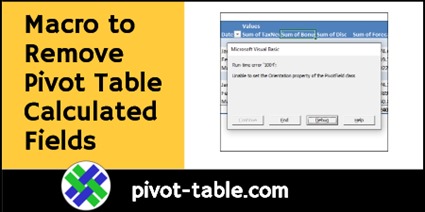
If you record a macro while you remove pivot table calculated fields, then try to run that macro later, you’ll get an error message. To solve that problem, use my macro to remove pivot table calculated fields. The code is shown below, and there’s also a sample file with the macro. To see all the steps, watch the short video.
Continue reading “Macro to Remove Pivot Table Calculated Fields”
Change All Pivot Charts with Single Cell Filter
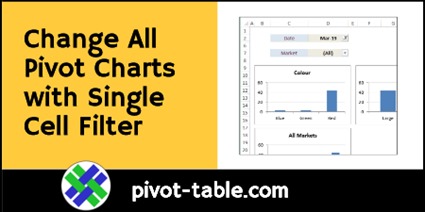
If you have several pivot charts on an Excel dashboard, and space is limited, here’s a way to change all pivot charts with a single filter cell. When you select a different date from the drop down in that cell, all the pivot charts are automatically updated. There are NO macros for this technique, just Slicers, that are stored on a different sheet.
Continue reading “Change All Pivot Charts with Single Cell Filter”
Easy Trick to Move Pivot Fields
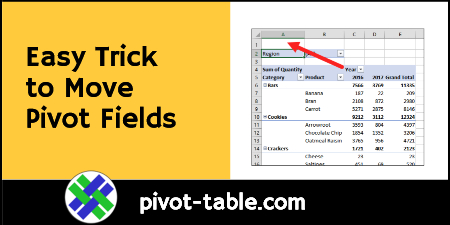
Here’s an easy trick to move pivot table fields to a different location in a pivot table, just by typing. See the steps in the short video, and there are written steps below the video, if you prefer those. Continue reading “Easy Trick to Move Pivot Fields”
Excel Macro Lists All Pivot Tables and Pivot Fields
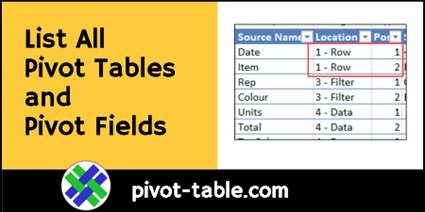
If you have a big Excel file, with lots of pivot tables, you might want to document everything that’s in the workbook. Maybe you inherited the workbook, and you’re not sure what’s in it. Or perhaps it’s a file that you only use occasionally, and it’s hard to remember what it contains. To get the details quickly, use the code shown below. This Excel macro lists all pivot tables and pivot fields in the active workbook.
Continue reading “Excel Macro Lists All Pivot Tables and Pivot Fields”
Fix Old Items in Excel Pivot Table Lists
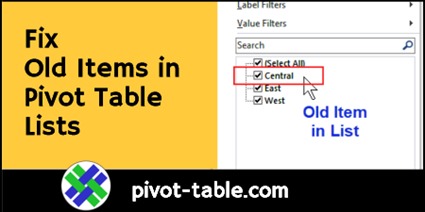
If you remove items from a pivot table’s source data, those items might still appear in the pivot table drop down lists, even after you refresh the pivot table. Here’s how you can stop those old items from appearing – watch the short video, or read the written steps below.
Create a Simple Calculated Field in Pivot Table
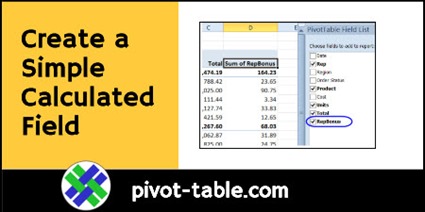
See how to create a simple calculated field in a pivot table in Excel, to show the bonus that each sales representative will receive. The formula will multiply each person’s total sales by 3%, to create a new value in the pivot table.
Continue reading “Create a Simple Calculated Field in Pivot Table”
Excel Pivot Table Sorting Macro Data Model
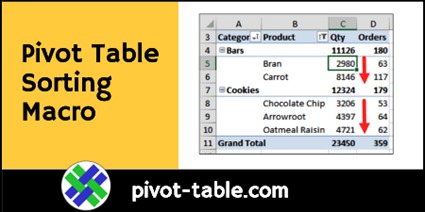
When you add fields to the pivot table row area, you can sort the items alphabetically, or by the numbers in the Values area. The sorting can be done manually or with a macro. See below for an Excel pivot table sorting macro. Data Model pivot tables can be sorted with it too.
Continue reading “Excel Pivot Table Sorting Macro Data Model”
Unpivot Excel Data With Get & Transform
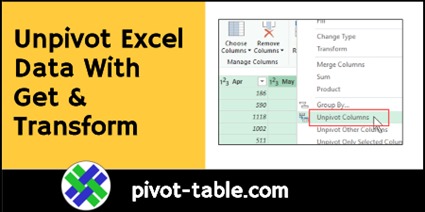
If you want to build a flexible pivot table, you might need to rearrange your source data, before you start. For example, if there is a separate column for each month’s sales, you should “unpivot” the data, to get all the amounts in one column. The good news is that you unpivot Excel data with Get & Transform, and your original data isn’t changed. If you don’t have G&T, there’s a macro that you can use instead