Default Functions in a Pivot Table

Usually, when you add a numeric field to the Values area in a pivot table, it automatically uses the Sum function. Sometimes though, a field automatically uses the Count function.

Why does Excel use different functions are used for two fields that contain similar data?

  • If there are blank cells, or non-numeric data in the field, the Count function is used as a default.
  • For fields that contain all numeric data, the Sum function is the default.

Change the Function

Unfortunately you can’t set a default summary function in a pivot table. However, after the field has been added to the Values area, you can change its summary function:

  1. Right-click a cell in the field that you want to change, and click Summarize Values By.
  2. In the Summarize by list, select one of the functions.
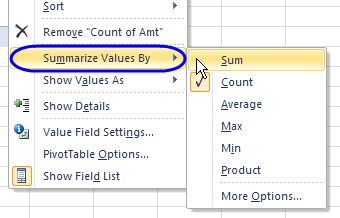
Summarize Values By

Use Programming to Change Data to SUM

If you have too many fields to change manually, you can use a macro to change the summary function automatically. There is sample code here.

Use a Pivot Table Add-In

For an even easier solution, you can use my free pivot table add-in, that already has the summary function code in it. Just download and install the add-in, and run it when you want to change several fields, all at once.

__________
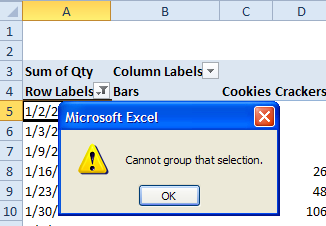
 

Error Message When Grouping Dates

In Excel 2007, you added a date field to the pivot table’s Row area, and you want to group the dates by year. However, you get an error message, “Cannot group that selection”, when you try to group the dates.

error - cannot group that selection

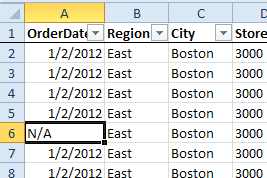
This error occurs if there are cells in the source data that contain text, instead of dates. For example, you may have entered text such as N/A, if a date was not available when the data was being entered.

Dates entered as text

How to Fix the Problem

To correct the problem, do the following:

  1. In rows contain text, such as N/A, delete the text, and leave the cell blank, or replace the text with a valid date.
  2. Refresh the pivot table, and try to group the dates.
  3. If you’re still unable to group the dates, remove the date field from the pivot table layout, refresh the pivot table, then add the date field to the pivot table again.

Note: In earlier versions of Excel, blank cells will also cause this error message. You can fill in actual dates, or use dummy dates, such as 2/2/2099, in the source data. Do not leave the cells blank if you want to group the dates.

More Pivot Table Grouping

Fix Pivot Table Problem – Cannot Group That Selection

Stop Pivot Table Date Grouping

Set Start Date For Pivot Table Grouping

Grouping Shows Items Before and After Date Range

__________________

Changing the Default PivotTable Style in Excel 2007

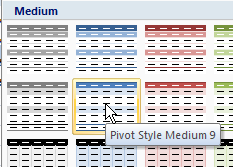
When you create a pivot table in Excel 2007 or 2010, a PivotTable Style is automatically applied.

pivot table style

If you prefer a different PivotTable Style, you can change the default PivotTable Style in a workbook, to save time when you create new pivot tables.

Follow these steps to change the default PivotTable Style:

  1. Select a cell in the pivot table.
  2. On the Ribbon, under the PivotTable Tools tab, click the Design tab.
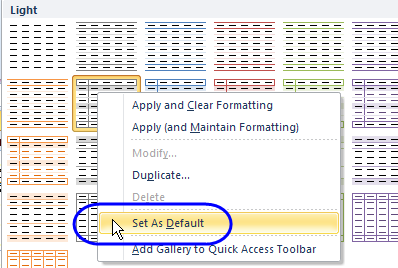
  3. In the PivotTable Style gallery, right-click on the style that you want to set as the default.
  4. In the context menu, click on Set As Default.

set default pivot table style

More Info on Pivot Table Styles

Create a Custom Pivot Table Style

Remove a Pivot Table Style

Copy A Custom Pivot Table Style


_________