Pivot Table Summary Functions: Var and Varp

Previously, we’ve looked at the pivot table summary functions:  Count, Average, Min and Max and Product. In this article we’ll look at the Var and Varp summary functions.

Var Function and Varp Function

Like the VAR.P and VAR.S worksheet functions, the Var and Varp summary functions calculate the variance for the underlying data in the Values area, and is the square of the standard deviation. Like the standard deviation, variance is a measure of how widely the values vary from the average of the values.

The VarP summary function is used when the entire population is used in the calculation. If a sample of the data is used, instead of the entire population, then use the Var summary function.

VAR.P Worksheet Function

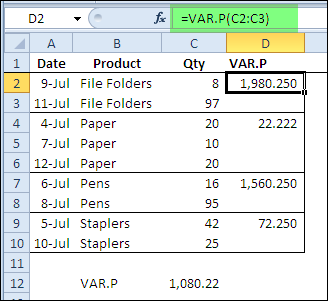
Shown below is the pivot table source data, and the VAR.P worksheet function is calculating the variance for each product type. There is a large difference between the quantities of file folders sold, and the variance is 1980.25. For the paper sales, the difference in quantity is much smaller, and the variance is only 22.22.
pivotvarp00

Pivot Table Varp Summary Function

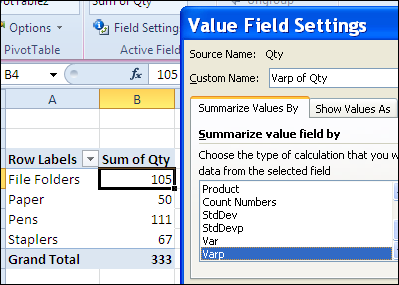
To use the Varp summary function, when the Qty field is added to the pivot table, change the summary calculation to Varp.
pivotvarp01b

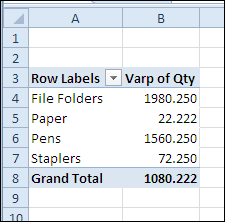
The variances shown in the pivot table are the same as those that were calculated on the worksheet.
pivotvarp02  

Note: If the count of items is one, a #DIV/0! error is displayed when using the Var summary function, because one is subtracted from the count when calculating the variance.

How the Variance is calculated

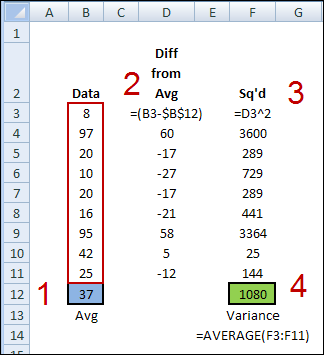
In the variance, each number is compared to the mean of the numbers. If you were to calculate the variance on the worksheet, without the VAR.P function, here’s how you would do it.

  1. Find the average of the numbers in the pivot table data.
  2. From each number, subtract the average.
  3. Square the calculated difference for each number
  4. Find the average of the squared difference.
pivotvar03

_______________
Pivot Table Summary Functions: Product

In recent blog posts, we’ve looked at the pivot table Count function, the Average function, and the Min and Max functions. In this article we’ll look at the Product function.

Product Summary Function

The Product summary function shows the result of multiplying all the underlying values in the Values area. The result is the same as using the PRODUCT function on the worksheet to calculate the multiplied values.

In all the years that I’ve worked with pivot tables, I’ve never had to use the Product summary function, and can’t imagine a situation where it would be useful. However, you can see how it works, and decide if it would be useful in any of your applications.

PRODUCT Worksheet Function

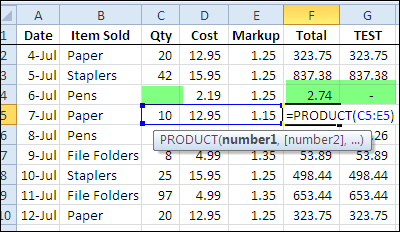
The PRODUCT worksheet function can be useful as a quick way to multiply several values in a worksheet row. For example, in this list of orders, the PRODUCT function multiplies the item quantity, times the cost, times the markup rate, to get the total price for each order.

In column G, you can see the total calculated by using the multiplier operator instead. The only case in which the results are different is where there is a blank cell, such as in row 4. The PRODUCT function treats the blank as a 1, and the multiplier operator treats the blank as a zero.

pivotproduct02 

In this scenario, the PRODUCT worksheet function shows a meaningful result.

PRODUCT Worksheet Function for Columns

However, when you’re using data  as the source for a pivot table, you aren’t multiplying rows, as you would with the PRODUCT worksheet example above. The pivot table will summarize the data from several, or even thousands of rows, so the PRODUCT function isn’t useful, in my experience.

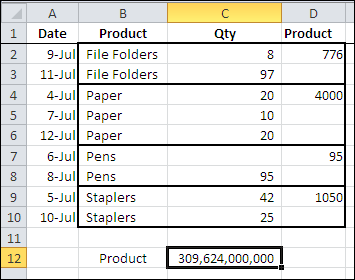
In the screen shot below, you can see the pivot table source data, with the product calculated for each type of item that’s sold, using the PRODUCT worksheet function. Instead of multiplying the values in rows, values in the same column (Qty) are being multiplied.

At the bottom of the source data is the overall PRODUCT calculation.

pivotproduct01

Unlike the previous example, these products are meaningless.

Pivot Table Product Summary Function

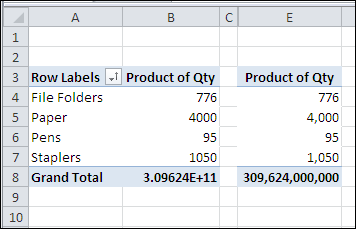
When you use the Product summary function in a pivot table that’s based on the data source shown above, the results are the same meaningless numbers.

The results of the Product function may be very large numbers and default to a Scientific number format. You can format the numbers as Number format, instead of Scientific format.

Note: Excel only stores and calculates with 15 significant digits of precision, so after the 15th character you’ll only see zeros.

 pivotproduct03

_________

Add Pivot Table Wizard in Excel 2007

The Pivot Table Wizard isn’t available on the Ribbon in Excel 2007. To open the Pivot Table Wizard, you can use the keyboard shortcut — Alt + D, P — as described in the article on creating a pivot table from multiple sheets.

Another option is to add the Pivot Table Wizard button to your Quick Access Toolbar (QAT), by following the steps below.

Customize the QAT

To add the Pivot Table Wizard to your QAT, follow these steps:

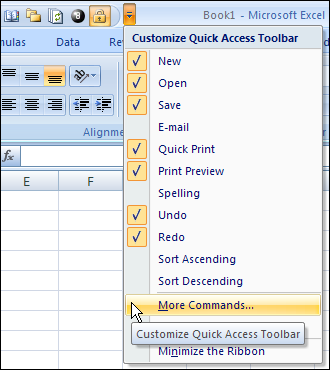
  • Click on the Customize Quick Access Toolbar button
  • Click More Commands

QATMoreCmd 

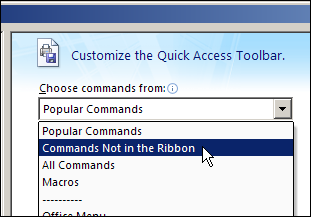
  • From the ‘Choose commands from’ drop down list, select ‘Commands Not in the Ribbon’

QATCmdsNot 

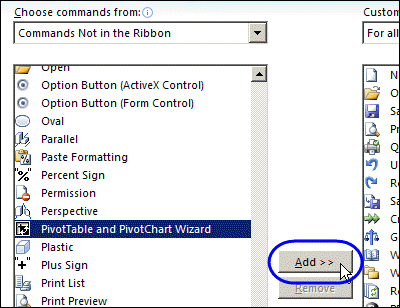
  • In the list of commands, click PivotTable and PivotChart Wizard
  • Click the Add button, then click OK

QATPivotWizard

Open the Pivot Table Wizard

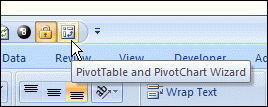
Now that the Pivot Table Wizard button has been added to the QAT, you can click it to open the Pivot Table Wizard.

QATPivotWizard2 

___________

Pivot Table Summary Functions: Max and Min

In recent blog posts, we’ve looked at the pivot table Count function and the Average function. Now we’ll look at two more functions, that are closely related — Min and Max.

Max Summary Function

The Max summary function shows the maximum value from the underlying values in the Values area. The result is the same as using the MAX function on the worksheet to calculate the maximum of the values.

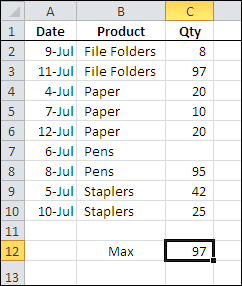
In the screen shot below, you can see the source data for a small pivot table, and the maximum quantity, using the worksheet’s MAX function, is 97.

pivotmax01

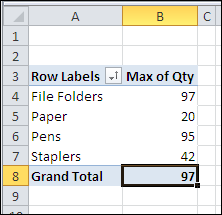
With a pivot table, you can quickly see the maximum for each product that was sold, and the grand total — 97 — which matches the worksheet maximum.

pivotmax02

Min Summary Function

The Min summary function shows the minimum value from the underlying values in the Values area. The result is the same as using the MIN function on the worksheet to calculate the minimum of the values.

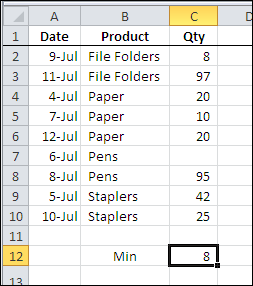
In the screen shot below, you can see the source data for a small pivot table, and the minimum quantity, using the worksheet’s MIN function, is 8.

pivotmin01

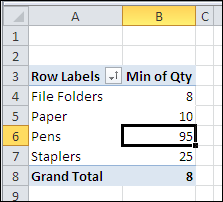
With a pivot table, you can quickly see the minimum for each product that was sold, and the grand total — 8 — which matches the worksheet minimum.

pivotmin02

In both the worksheet and the pivot table, the blank cell is ignored when calculating the minimum amount.

___________


___________

Pivot Table Summary Functions: Average

When you add a numeric data field to the Values area in a pivot table, the summary function defaults to either Sum or Count. You can change that field to use one of the other summary functions, such as Average.

The Average Function

The Average function in a pivot table works like the AVERAGE function on the worksheet to calculate the average (mean) of the values. It totals all the underlying values in the Values area, and divides by the number of values. 

pivottableaverage05 

You can use the Average function to compare amounts, such as order sizes, student grades, and project times, across a large number of instances.

Blanks and Zeros

Just as they are on the worksheet, blank cells are ignored when calculating the pivot table averages, but zero cells are included.

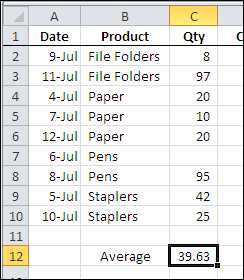
In the data source shown below, cell C7 is blank. That blank cell is not included in either the worksheet average (C12),

pivottableaverage01

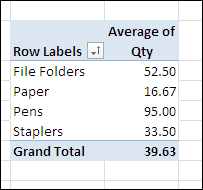
or in the pivot table average, shown below.

pivottableaverage05 

Hidden Zeros

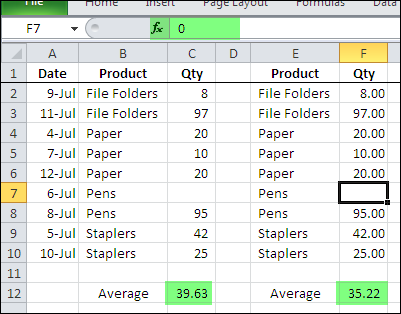
If you have formatted the worksheet to hide zero values, remember that those zero values will be included in the averages, even if the cells appear blank.

In the two data sources shown below, the overall average is different. Zeros are hidden on the worksheet, and cell F7 contains a zero. Cell C7 is blank.

pivottableaverage04

If you create pivot tables from these two data sources, the pivot table Average function would include the hidden zeros, just as the worksheet Average does.

Format the Results

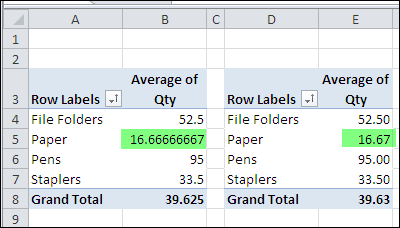
When you use the Average summary function, the results will probably show a strange mixture of decimal places, as shown in the pivot table at the left, in the screen shot below.

pivottableaverage03

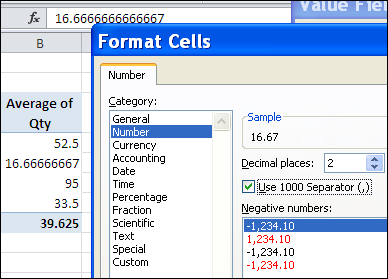
Format the field to have a consistent number of decimal places (as in the pivot table at the right, above), so the numbers are easy to compare.

pivottableaverage02

____________

Pivot Table Summary Functions: Count

When you add a field to a pivot table’s Values area, Count is the default summary function, if the field contains nonnumeric or blank cells. (If the field’s data are all numbers, Sum is the default function.)

The Count function’s name is slightly confusing, because it’s like the COUNTA worksheet function, not the COUNT worksheet function.

The pivot table Count function counts:

  • text
  • numbers
  • errors

Blank cells are not counted.

Watch What You Count

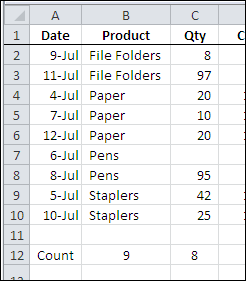
If you’re using the Count function in a pivot table, be careful which field you use for the count. For example, in the pivot table source  data shown below, cell C7, in the Qty column, is blank.

pivottablecount01

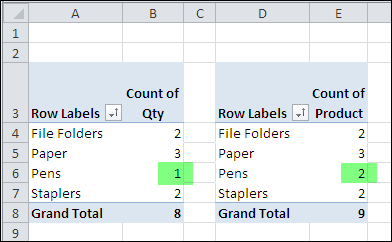
if you want to count the order for Pens, and use the Qty field, the blank cell (C7) would not be counted. The number of orders for Pens would show as 1. Instead, you could add the Product field to the Values area, and the Pens orders would show a count of 2.

In the pivot tables shown below, the one on the left uses Qty in the Values field, and the pivot table on the right uses Product in the Values field.

pivottablecount02

__________

Create an Excel 2007 Pivot Table and Show Averages

This example is based on the Work Orders workbook, used in my book, Beginning PivotTables in Excel 2007.

If you’re working through the book, this video shows the steps outlined starting on page 46.

In the video, we create a pivot table that’s based on a formatted Excel Table.

Then, the Values field is changed from SUM to AVERAGE, and the numbers are formatted so they’re easy to read and understand.

___________________
Grouping Pivot Table Dates by Months and Weeks

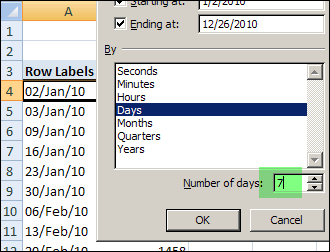
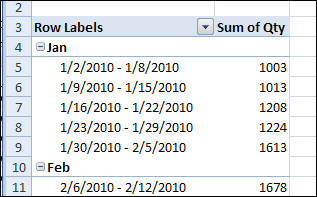
In a pivot table, there’s no built-in way to group the pivot table data by both weeks and months at the same time. If you want to show sales data by week, you can group the date field in seven-day intervals.

groupweekmonth01

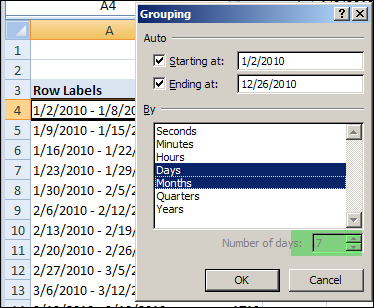
The 7 day grouping works well, but if you try to add grouping by months, the Number of Days option is disabled. If you select Month in the Grouping dialog box, the days will lose their 7 day grouping.

groupweekmonth02

Calculate the Month

Since you can’t group by both week and month, you can use a workaround instead. You could create a column in the source data, and then calculate one of the grouping levels there. Then, you could add that field to the pivot table.

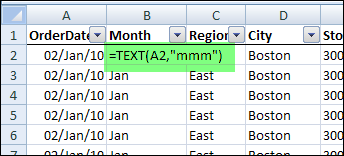
For example, you can add a column that calculates the month name for each sales order date, by using the TEXT function:

=TEXT(A2,"mmm")

groupweekmonth03

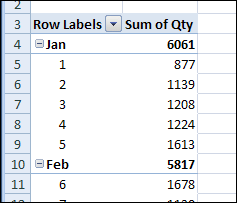
Add the Month field to the pivot table, above the weeks.

groupweekmonth04

Calculate the Week Number

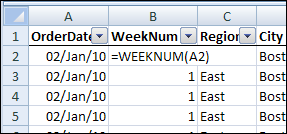
Another option is to add a column to the source data, with a formula to calculate the week number:

=WEEKNUM(A2).

groupweekmonth05

With the OrderDate field in the Row Labels area, group the dates by months. In the Row Labels area, add the WeekNum field below the OrderDate field, to summarize the data by month and week number.

groupweekmonth06

Note: If a week begins in one month and ends in another, it will appear under both months.

________________
Quickly Hide Selected Items in Excel Pivot Table

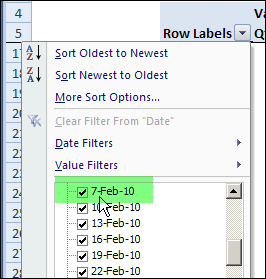
In an Excel pivot table, you might want to hide one or more of the items in a Row field or Column field. To do that, you can click the drop down arrow for the Row or Column Labels, then remove the check mark for items you want to remove.

For example, to hide the data for 7-Feb-10, you’d click on the check mark to remove it.

pivothidesel01

Video: Quickly Hide or Show Items

To see the steps for quickly hiding or keeping the selected items in an Excel Pivot Table, watch this short video. There are written steps below the video.

A Quick Method to Hide Items

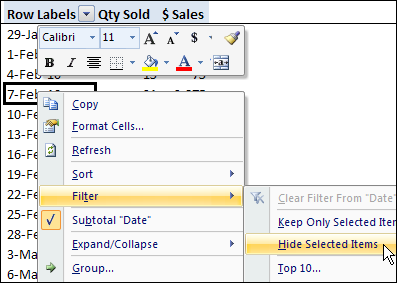
Instead of searching through a long list of items in a drop down list, you can use a quick command to hide the selected items.

  1. Right-click on an item in the Row Labels or Column Labels
  2. In the pop-up menu, click Filter, then click Hide Selected Items.
  3. The item is immediately hidden in the pivot table.

pivothidesel02

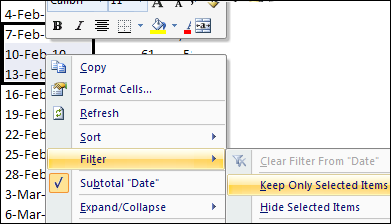
Quickly Hide All But a Few Items

You can use a similar technique to hide most of the items in the Row Labels or Column Labels.

  1. Select the pivot table items that you want to keep visible
  2. Right-click on one of the selected items
  3. In the pop-up menu, click Filter, then click Keep Only Selected Items.
  4. All but the selected items are immediately hidden in the pivot table.

pivothidesel03

____________