Problems With Pivot Table Comments

In some pivot tables, you might want to add comments to a few cells, to help the users understand what the results mean, or to explain the different pivot fields. However, if you add comments to a pivot table, you’ll run into a couple of problems.

Add a Comment to the Pivot Table

The Insert Comment command doesn’t appear in the popup menu if you right-click on a pivot table cell.

To insert a comment in a pivot table:

  1. Select the cell where you want the comment.
  2. On the Excel Ribbon, click the Review tab
  3. Click New Comment

Tooltips Block the Comments

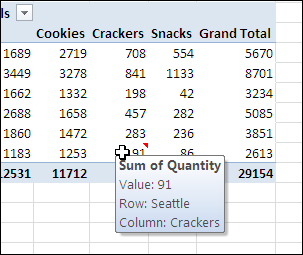
One problem with comments in a pivot table is that the contextual tooltips might appear when you point to a pivot table cell that contains a comment. In the screen shot below, you can see the red comment marker, but the comment isn’t visible.
Comments01

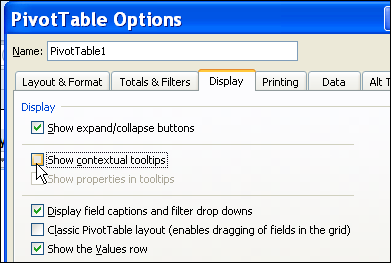
If you decide to use comments, follow these steps, to turn off the tooltips feature.

  1. Right-click a cell in the pivot table, and then click PivotTable options.
  2. In the PivotTable Options dialog box, on the Display tab, remove the check mark from Show contextual tooltips and then click OK.
Comments02

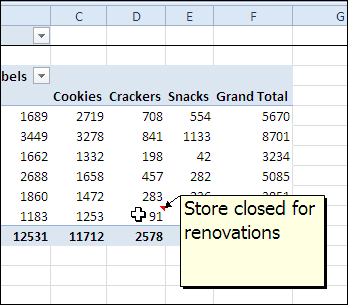
After you turn off this setting, the comment appears when you point to the cell.
Comments03

Pivot Table Comments Don’t Move

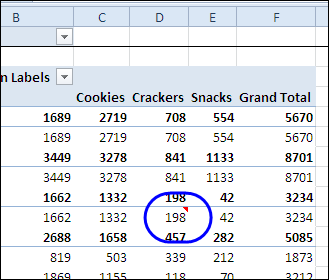
When you add comments to cells in the pivot table, the comments are attached to the Excel worksheet cell, rather than to the pivot item’s cell. If you change the pivot table layout, the comments won’t move with the item, and the comments could end up confusing the users instead of helping them.

In the screen shot below, a new field has been added to the row area. The comment was originally added to cell D10, that had a value of 91, for cracker sales in Seattle. Now the layout has changed, but the comment is still in cell D10. That cell now has a value of 198, and summarizes cracker sales at store 3074 in Detroit.
Comments04

Alternative to Comments

Instead of inserting comments in the pivot table, you could add a column to the source data, and enter brief comments there. A user who has a question about the data in the pivot table could double-click on the cell, using the Show Details feature to extract the source data and read any notes entered.

___________

Locate Pivot Table Source Access File And Query

For a pivot table that’s based on a Microsoft Access query, you might need to find out which database and query were used as the source data.

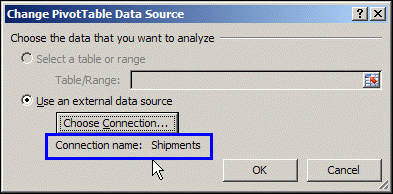
In Excel, if you click the Change Data Source command, on the Ribbon’s Options tab, you can see the connection name in the Change PivotTable Data Source dialog box. However, that bit of information isn’t too useful — it doesn’t show you the name and path of the Access file, and you can’t see which query was used to create the pivot table.

sourcequery01 

View the Connection Properties

To find the details on the source data’s Access file and query, you can follow these steps:

  • In the Excel file, select a cell in the pivot table
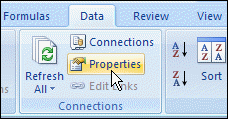
  • On the Ribbon’s Data tab, in the Connections group, click Properties.

ribbondataproperties

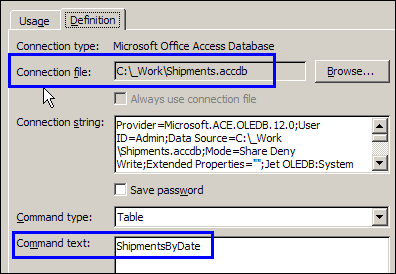
  • In the Connection Properties dialog box, click the Definition tab.
    • In the Connection File box, you can see the name and path of the database.
    • In the Command Text box is the name of the Access query.
  • Click Cancel to close the Connection Properties dialog box.

sourcequery02

______________

Apply Multiple Filters to Pivot Table Field

A powerful feature of pivot tables is that you can filter a pivot field, to see specific results. However, if you apply a different filter to that pivot field, the first filter is removed. For example, if you filter a Row field for region names starting with “East”, and then add a Top 10 filter, the “East” filter is removed.

Use the technique shown in this video to apply multiple pivot table filters at the same time. You can use a Label filter, Value filter and Manual filter simultaneously, to fine tune your pivot table reports.

__________

Special Price Today on Microsoft PowerPivot Ebook

If you’re interested in learning how to use Microsoft PowerPivot for Excel 2010, here is a bargain for you.

There’s a special price today on the ebook version of Microsoft PowerPivot for Excel 2010: Give Your Data Meaning, by Mark Russo and Alberto Ferrari.

Here’s the tweet that announced the special price:

#Ebook Deal of the Day: Microsoft PowerPivot for Excel 2010 – $14.99 (Save 46%) Code DDPVT

The link in that tweet takes you to the O’Reilly page, where it shows the full price. Just click the “Add to Cart” button for the Ebook version, and enter the special code (DDPVT).

Newer Version

Update: There is a newer version of this book available now — Microsoft Excel 2013 Building Data Models with PowerPivot

___________

PowerPivot Contest

powerpivoticon If you love the new PowerPivot add-in for Excel 2010, you can enter the latest contest on the PowerPivotPro blog.
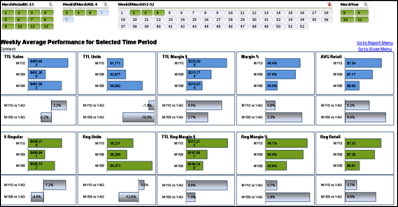

Show off your efficient PowerPivot techniques, and win one of the two top prizes — a 1 year MSDN subscription.

Send in your sample workbooks, with charts and slicers and cross-filtering enabled. Impress Rob with your PowerPivot skills, and you might win one of the top prizes, or a PowerPivot poster.

Here’s how Rob will decide the winner:

Entries will be judged on, in roughly descending order:

  1. Performance – I will compare query speed with slicer cross-filtering turned on vs. turned off.  Smaller differences are better for this contest.
  2. Polish – as I slice the report, do the charts all still look nice?  Ex:  Blank space in charts = not good.
  3. Ease – how hard is it to execute your technique?  We will turn winning entries into blog posts, and this will become a new reference technique here at PowerPivotPro.
  4. Originality – this never hurts but is not crucial.  Fun is good.  Unexpected benefits and features are even better.

I don’t see a closing date for the contest, so you’d better get started soon, and send in your entry ASAP.

Update: Contest closes Sunday October 3, 2010, at 11:59 PM US Pacific time

dashboardsheet_thumb

___________

Improve Performance When Changing Pivot Table Layout

If your pivot table is based on a large data source, it might respond very slowly when you add fields or move fields to a different area of the pivot table.

To improve performance, try the following tips:

  • Remove any pivot table styles and any other formatting, such as conditional formatting that you applied to the pivot table.
  • Calculated items can negatively impact the speed of updating. If possible, remove any fields that contain calculated items, or delete the calculated items from the fields.

Defer Layout Update

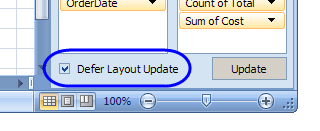
If you plan to add or move more than one field, you can use the Defer Layout Update option. When this feature is enabled, the fields are all added or moved, and then the pivot table is recalculated once. If this box is not checked, the pivot table is recalculated after each field is added or moved.

To defer the layout updates:

  • Add a check mark to the Defer Layout Update box in the PivotTable Field List.

deferlayout

  • Move or all all the fields that you want to adjust
  • Click the Update button, to the right of the Defer Layout Update check box.
  • When you’re finished changing the layout, remove the check mark from the Defer Layout Update check box.

Note: Some features, such as filtering and grouping, are not available when Defer Layout Update is activated.

_____________

Create Pivot Table from Similar Files in PowerPivot

In Excel 2010, you can use the free PowerPivot add-in to create a report from multiple Excel workbooks or worksheets. With PowerPivot, it’s easy to connect the tables using the Primary and the Foreign key, such as ‘ProductID’ in a Sales table and a Pricing table.

In some cases though, you might want to combine the data in two Excel files, or worksheets, that have an identical structure. For example, you could have sales data for the different regions, or expense data for multiple years.

Because the tables have identical structures, you can’t use a key to connect them; instead, you would need to create one combined table from all the data. The technique shown in the following video allows you to import more than a million records from Excel, despite the fact that one worksheet can only contain up to 1,048,576 rows.

Thanks to Excel MVP, Kirill Lapin, for sharing this very helpful tip. You can see more of Kirill’s work in the Contextures Blog post on Combining Data from Two Excel Files in a Pivot Table.

Detailed Instruction and Sample Files

To see detailed instructions for this technique, with more screen shots, visit the PowerPivot from Identical Structure Excel Files page on the Contextures website. That page also has a link for downloading the East and West sales data that I used in this example.

Watch the PowerPivot Video

To see the steps for combining data from multiple tables in PowerPivot, please watch this video.

Download the PowerPivot Add-In

You can download the free PowerPivot add-in from the Microsoft website: PowerPivot Download

__________

Pivot Table Calculated Field Removed with Excel VBA

If you’re working with pivot table calculated fields in Excel VBA programming, or trying to use the Orientation property for data fields, you might encounter some problems. Here’s how I managed to work around an error that occurs for a pivot table calculated field removed with Excel VBA.

Continue reading “Pivot Table Calculated Field Removed with Excel VBA”

Pivot Table From Data in Multiple Workbooks

To create a pivot table from data on different worksheets, you can use a Multiple Consolidation Ranges pivot table, but the result is a pivot table with limited features and functionality.

Previously, Excel MVP Kirill Lapin shared his macro for creating a standard pivot table from data on different worksheets.

Now Kirill has expanded that technique, and written a macro to build a pivot table from data in multiple Excel files.

Pivot Table Macro

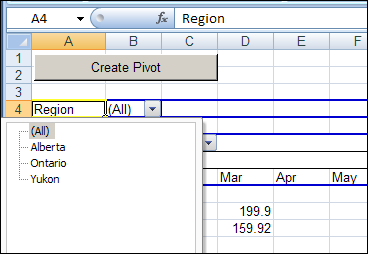
In Kirill’s example, the main file is named Report.xls. It contains the pivot table code, and a button that runs the macro. After you start the macro, it prompts you to select one or more data files, all stored in the same folder.

All of the data files must have the same structure, and the macro pulls the data stored on Sheet1 in each file.

Standard Pivot Table

The macro creates a standard pivot table based on a Union query, and not built from Multiple Consolidation Ranges, it’s a fully functioning pivot table, and you can pivot, group and filter the data, as usual. You can also refresh the pivot table, to show the latest data in the source files, as long as those files stay in their original location.

pivotwkbk04

The Union Query

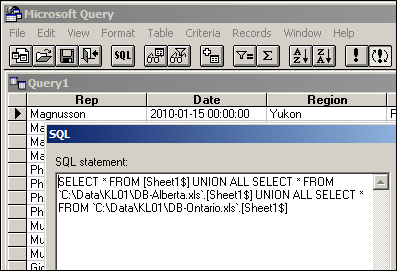
Kirill’s macro creates a Union query to combine the data from all the selected files. If you open Microsoft Query, you can see the SQL string for the Union query, and all the data from the selected workbooks.

pivotwkbk05

Download the Sample File

You can download the Pivot Workbooks example to see the sample code and create the pivot table. The zipped folder that contains the Report.xls file, and the five sample data files. Unzip the folder, and keep all the files in the same folder. When you open the Report.xls file, enable macros to run the code.

______________

Pivot Table Grouping Affects Another Pivot Table

pivotgroupcache00In Excel 2007, when you create a second pivot table from the same source data, you don’t get an option to base the new pivot table on an existing pivot table, the way you can in Excel 2003.

In Step 1 of the Excel 2003 Wizard, you can select the first option, to create an independent pivot table. Or, select the fourth option, for pivot tables that share the same pivot cache.

pivotgroupcache02

In Excel 2007, if you create two pivot tables from the same source data, they automatically use the same pivot cache of the source data. You don’t have an option to create an independent pivot table.

Grouping Problems

Because the pivot tables share the same cache, this can cause problems if you group the data in the pivot fields.

When you change the grouping in one pivot table, the same grouping appears in the other pivot table. For example, change the date grouping in the first pivot table to Months, and the dates in the second pivot table automatically group in Months.

Because you created the two pivot tables from the same source data, by default they use the same pivot cache, which is where the grouping is stored.

However, you might want different grouping in the two pivot tables. For example, you’d like Month grouping in one pivot table, and Quarter grouping in the other.

pivotgroupcache01

Create a Second Pivot Cache

To use different grouping in each pivot table, you’ll need to create a separate pivot cache for each pivot table. Use the following easy method, suggested in the Excel newsgroups by Dave Peterson.

To create a separate pivot cache for the second pivot table:

  1. Cut the second pivot table, and paste it into a new workbook.
  2. Change the grouping of the second pivot table.
  3. Cut the second pivot table from the new workbook, and paste it back into the original workbook.

Now there are two pivot caches in the original workbook, and each pivot table can be grouped independently.

Watch the Video

To see the steps for creating a second pivot cache so you can create separate grouping in the pivot tables, please watch this Excel video tutorial.

________________