The Pivot Table Song

You probably sing your own songs about the joy of pivot tables, while you work in Excel every day. If you want to add to your pivot table song repertoire, here is a new one for you.

The students in this video sing their original composition, Pivot Tables Make Everything Just Right. It’s got a catchy tune, and you can read the lyrics in the video description on the YouTube page.

Great work guys! My only suggestion is to add more screenshots of pivot tables, to convince viewers that they’re really easy to use. Maybe they’ll have more pivot table shots in the sequel. (Or should I spell that – SQL?)

____________

Include New items in Pivot Table Filter

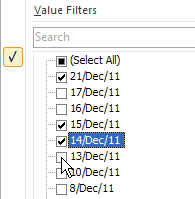
In a pivot table, you can apply a manual filter to a pivot field, by using the check boxes in the field’s drop down list.

PivotManualFilter01

In this example, there is a date field in the Row Labels area and a few dates have been selected in the manual filter.

Updating the Pivot Table Data

If you add new records in the pivot table’s source data, new dates might be added. When you update the pivot table, the new dates might appear, even if you hadn’t selected those dates in the manual filter.

Seeing the new dates could be helpful, if you want to make sure that you notice new records when they’re added. You can manually deselect the new items after they appear.

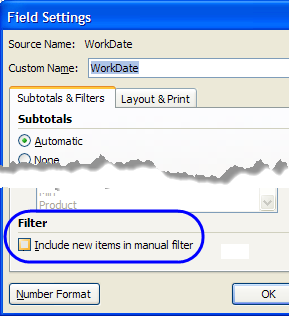
However, if you want to prevent the new dates from automatically appearing, you can change a setting in the pivot field, to specify if new items are included or not, when the field is manually filtered.

Change the Pivot Field Setting

To change the setting, and prevent new items from being included, follow these steps:

  1. In the pivot table, right-click a cell in the date field, and click Field Settings.
  2. On the Subtotals & Filters tab, in the Filter section, remove the check mark from Include New Items In Manual Filter
  3. Click OK.

PivotManualFilter02

____________

Excel PivotPower Add-in Update

The Excel PivotPower add-in on the Contextures website has been updated.

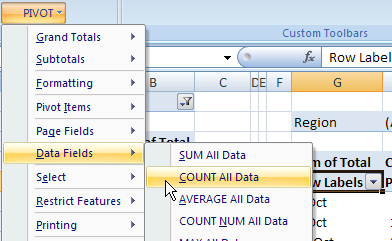
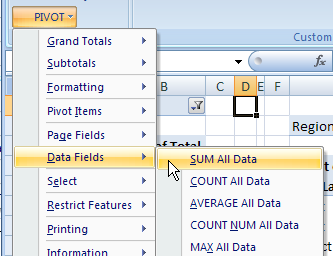
The PivotPower add-in makes it easier to change the summary functions in a pivot table, or add protection, and has several other helpful commands.

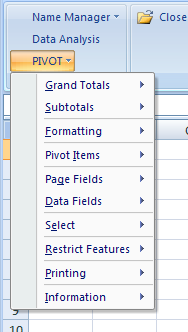
After you install the add-in, it shows up as a drop down list on the Excel Ribbon’s Add-Ins tab. In older versions of Excel, the add-in creates a PIVOT menu on the Excel menu bar.

pivotpower01

You can select a cell in a pivot table, and run a command, so the changes only affect the selected pivot table.

pivotpower02

Or, select a cell that isn’t in a pivot table, and the command will change all the pivot tables on the active sheet.

pivotpower03

To download the file, you can go to the PivotPower Add-In page on the Contextures website. You’ll find installation instructions and details on the PivotPower commands.

___________

Make Pivot Table Macros Run Faster

Pivot table macros can run painfully slowly, even if you have turned off screen updating and disabled events.

To make the code run faster, you can try adding a line that turns off automatic updating in the pivot table. For example:

     Set pt = Worksheets("PivotSales").PivotTables(1)

pt.ManualUpdate = True

At the end of the code, you can reverse the setting, to turn automatic updating on:

     pt.ManualUpdate = False

Watch the Pivot Table Video Tutorial

In this short video, you can see that the pivot table macro runs much faster when the ManualUpdate setting is changed.

Note: In Excel 2007, the macro won’t run if the Defer Layout Update setting is checked. This problem is fixed in Excel 2010.

____________

Pivot Table Calculated Field: Tasks Per Hour

Instead of creating formulas in the source data for your pivot tables, you can create formulas in the pivot table, by using calculated fields and calculated items.

In this example, we’ll create a calculated field, to show the number of tasks per hour that are completed by each worker.

Continue reading “Pivot Table Calculated Field: Tasks Per Hour”

Quickly Add Fields in Excel 2003 Pivot Table

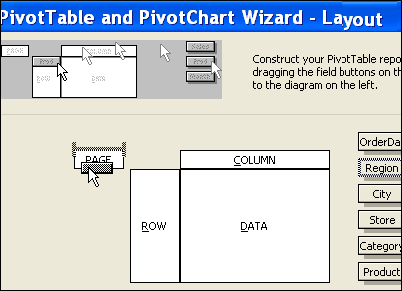
When you have a long list of fields in an Excel 2003 pivot table, it can take a long time to drag them into the pivot table layout, using the PivotTable Wizard.

pivotfieldadd00

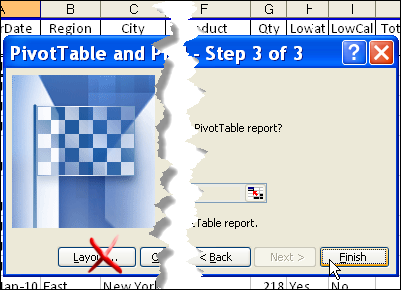
For a quicker way to add the fields, don’t go into the Layout screen in Step 3 — just click the Finish button.

pivotfieldadd01

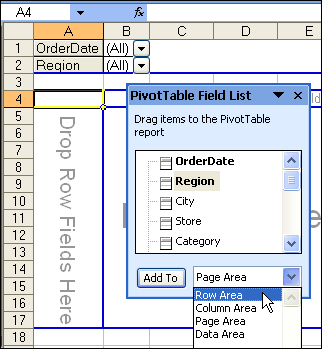
Add Fields from the PivotTable Field List

When the PivotTable Wizard closes, you’ll see a blank pivot table on the worksheet.

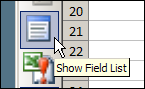
Note: If the PivotTable Field List isn’t visible, click the Show Field List button on the PivotTable Toolbar.

pivottoolbarshowfieldlist

To add the pivot fields:
  1. Then, in the Field List, select one of the layout areas from the drop down list.
    • pivotfieldadd02
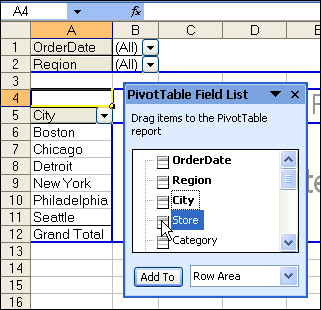
  2. In the Field List, double-click on each field that you want to add to the selected layout area.
    • pivotfieldadd03

Repeat Steps 1 and 2, for all the layout areas, leaving the Data Area to fill in last.

____________

Use Pivot Table Calculated Item

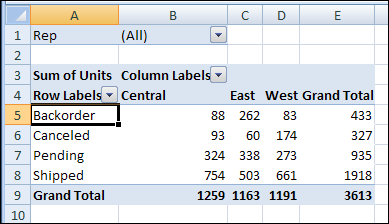
If you need to sum specific items in a pivot table field, you can create a calculated item. For example, if your pivot table contains an Order Status field, with four types of status:

  • Shipped
  • Pending
  • Backorder
  • Canceled

You could create a calculated item, named Sold, that sums the units sold, for orders with a status of Shipped, Pending, or Backorder.

Create a Calculated Item

Follow these steps to create a calculated item:

  1. In the pivot table, select a cell that contains an Order Status item. For example, select cell A5, that contains the Backorder item.calculateditem01
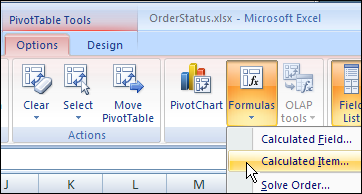
  2. On the Ribbon’s Options tab, in the Tools group, click Formulas, and then click Calculated Item.calculateditem02
  3. Type a name for the Calculated Item, for example, Sold, and then press the Tab key to move to the Formula box.
  4. In the Fields list, select Order Status, and in the Items list, double-click Shipped, and then type a plus sign (+).
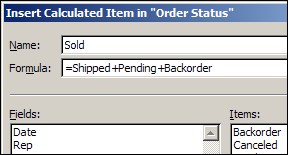
  5. Double-click Pending, type a plus sign, and then double-click Backorder. The complete formula is =Shipped+Pending+Backorder.calculateditem03
  6. Click OK, to save the calculated item, and to close the dialog box.

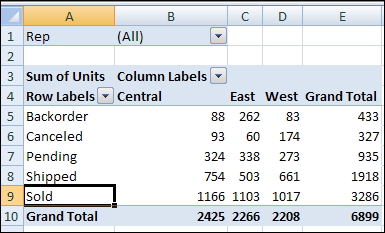
The new calculated item, Sold, is added to the Row area in the pivot table. However, the Grand Totals have increased, because the Sold item includes the values from other items.

calculateditem04

Hide the Unnecessary Pivot Items

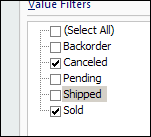
In the pivot table, you can hide the Shipped, Pending, and Backorder items, because they are included in the Sold calculated item.

calculateditem05

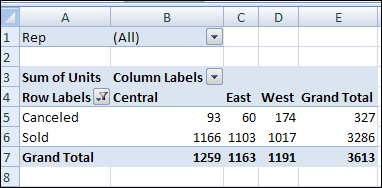
With those pivot items hidden, the pivot table will show the correct Grand Totals.

calculateditem06

Download the Sample File

To see the pivot table data and the calculated item, you can download the sample file from the calculated item page on my Contextures website.

In the Download section, click on the first item — Create a Calculated Item sample file.

The file is in xlsx format, and is zipped.

_______________

Highlight Pivot Filters With Markers

One of the benefits of using an Excel pivot table to analyze your data, is that you can use filters to focus on a specific part of the summarized results. Hiding some of the data with filters can be misleading though, if you can’t tell that filters have been applied.

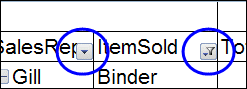
If you apply a filter in Excel 2007 or Excel 2010, the filter drop down changes to a funnel, with a tiny arrow. In the screen shot below, the ItemSold field has been filtered, to hide some of the items.

pivotfiltermarkers00

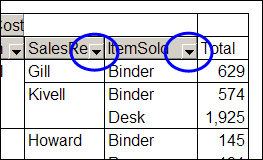
In Excel 2003, and earlier versions, if you apply a filter to a pivot field, the drop down arrow doesn’t change. The same filter was applied in Excel 2003, in the screenshot below, but both drop down arrows are the same.

pivotfiltermarkers02

Create Your Own Filter Markers

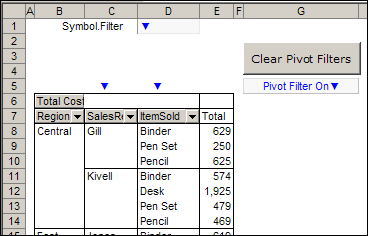
If you’d like to make it easier to tell which fields are filtered, you can use the Excel VBA code created by AlexJ, which displays a bright blue marker above each filtered field.

pivotfiltermarkers

Download the Sample File

To test the pivot table filter markers, and see the VBA code, you can download AlexJ’s sample file from the Contextures website. On the AlexJ Sample Files page, go to the Pivot Tables section, and look for:  PT0000 – Pivot Table Filter Markers

__________


Copy Pivot Table Values and Formats

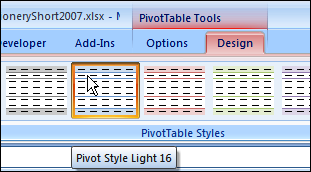
If you create a pivot table in Excel 2007 and later versions, formatting is automatically applied by the PivotTable Styles feature.

PivotStyles01

This feature makes it quick and easy to format your pivot tables, and helps you stay consistent with the Theme settings in your Excel file.

Problems with Format Copying

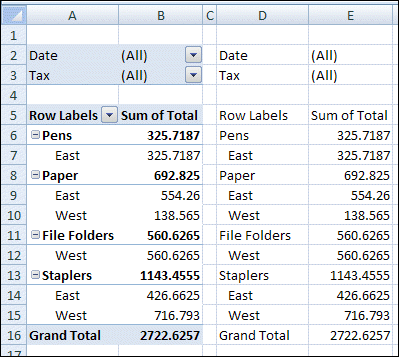
Occasionally, you might want to copy a pivot table as values, without the underlying data. Unfortunately, if you copy an Excel 2007 or later pivot table, and paste it with the Paste Special command, the PivotStyle formatting is not pasted.

In the screenshot below, the values from the pivot table were pasted into columns D:E, but pasting the formats had no effect.

pivotcopyformat

Pivot Table Format Paste Workarounds

Fortunately, there are workarounds for the problem of pasting the pivot table formatting:

  1. Use the Office Clipboard, to paste the Pivot Table formatting
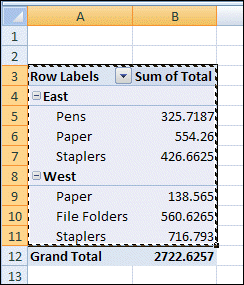
  2. Copy and paste the pivot table in a couple of steps, as shown below
  3. Programmatically copy the pivot table in a couple of steps

pivotbodycopy02 

___________

Problems With Pivot Table Comments

In some pivot tables, you might want to add comments to a few cells, to help the users understand what the results mean, or to explain the different pivot fields. However, if you add comments to a pivot table, you’ll run into a couple of problems.

Add a Comment to the Pivot Table

The Insert Comment command doesn’t appear in the popup menu if you right-click on a pivot table cell.

To insert a comment in a pivot table:

  1. Select the cell where you want the comment.
  2. On the Excel Ribbon, click the Review tab
  3. Click New Comment

Tooltips Block the Comments

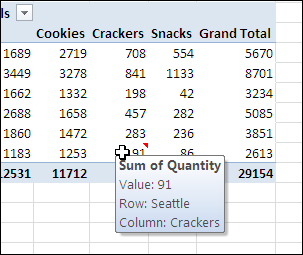
One problem with comments in a pivot table is that the contextual tooltips might appear when you point to a pivot table cell that contains a comment. In the screen shot below, you can see the red comment marker, but the comment isn’t visible.
Comments01

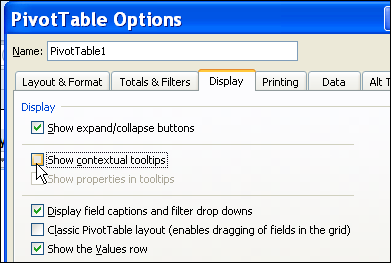
If you decide to use comments, follow these steps, to turn off the tooltips feature.

  1. Right-click a cell in the pivot table, and then click PivotTable options.
  2. In the PivotTable Options dialog box, on the Display tab, remove the check mark from Show contextual tooltips and then click OK.
Comments02

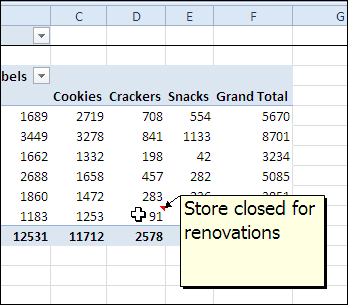
After you turn off this setting, the comment appears when you point to the cell.
Comments03

Pivot Table Comments Don’t Move

When you add comments to cells in the pivot table, the comments are attached to the Excel worksheet cell, rather than to the pivot item’s cell. If you change the pivot table layout, the comments won’t move with the item, and the comments could end up confusing the users instead of helping them.

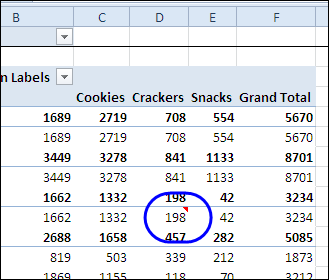
In the screen shot below, a new field has been added to the row area. The comment was originally added to cell D10, that had a value of 91, for cracker sales in Seattle. Now the layout has changed, but the comment is still in cell D10. That cell now has a value of 198, and summarizes cracker sales at store 3074 in Detroit.
Comments04

Alternative to Comments

Instead of inserting comments in the pivot table, you could add a column to the source data, and enter brief comments there. A user who has a question about the data in the pivot table could double-click on the cell, using the Show Details feature to extract the source data and read any notes entered.

___________