Change Number Format in Pivot Chart

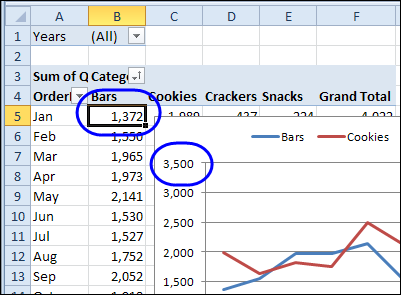
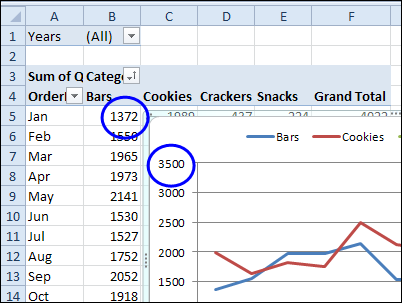
When you create a pivot chart from a pivot table, the numbers on the chart’s axis are in the same format as the pivot table’s numbers. In the screen shot below, the numbers are in General format, with no comma and no decimals.
numberformat01

Video: Change Pivot Chart Number Format

This short video shows how to change the number format for the pivot chart only, or change the number format for both the pivot chart and the pivot table. There are written steps below the video.

Change Pivot Table and Chart

To change the number format in both the Pivot Table and the Pivot Chart, you can change a setting in the pivot table value field. For example, if you want to add a comma separator, follow these steps

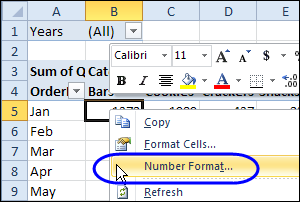
  1. In the pivot table, right-click on a cell in the value field. In this example, the Quantity field is in the Values area.
  2. In the popup menu, click Number Format
    • numberformat02
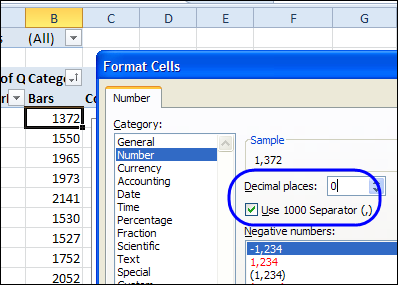
  3. In the Format Cells dialog box, click the Number category
  4. Change the number of decimals to 0, and add a check mark to Use 1000 Separator.
    • numberformat04
  5. Click OK, and the number format is applied to both the pivot table and the pivot chart.
    • numberformat05

Use Different Number Format in Pivot Chart

In some cases, you might want a different number format in the pivot chart, rather than making it the same as the pivot table. In this example, you’ll format the pivot chart to show the numbers as thousands, so the numbers take less room.

Follow these steps to change the pivot chart number format, without affecting the pivot table:

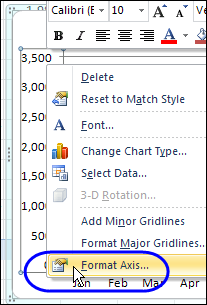
  1. In the pivot chart, right-click a number in the axis, and then click Format Axis.
    •      numberformat06
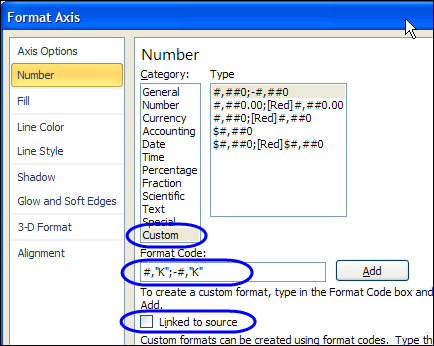
  2. In the Format Axis dialog box, click Number, in the list at the left.
    • numberformat07
  3. Click the Custom category. This automatically removes the check mark from Linked to Source, which disconnects the axis labels from the formatting in the pivot table.
  4. In the Format Code box, type a code for the formatting, such as: #,”K”;-#,”K”
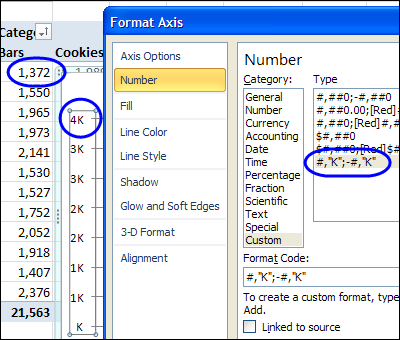
  5. Click Add, to create the custom number format code, and to apply the format. Only the pivot table has changed – the pivot table numbers are sill in the previous format.
    • numberformat08
  6. Click Close.

_________________
Calculate Differences in a Pivot Field

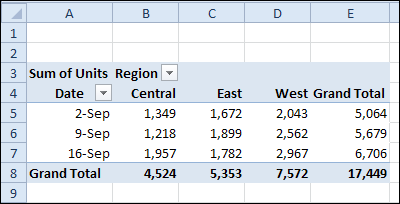
With a pivot table, you can quickly summarize data, and show the Sum or Count for thousands of records. For example, in the pivot table shown below, the weekly regional sales are shown.

differencefrom01

Besides showing a basic sum or count for the data, you can use custom calculations, to show things like a running total, or the differences between items in a pivot field.

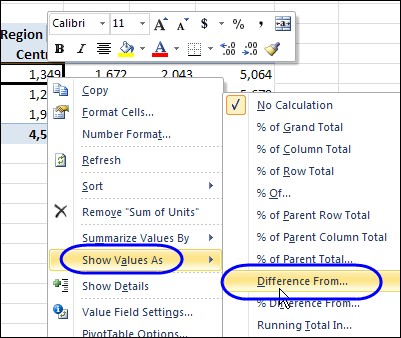
Right-click on a value cell in a pivot table, then click Show Values As, to see a list of custom calculations that you can use.

differencefrom02

Calculate the Difference

One that I use frequently is the Difference From custom calculation, that subtracts one pivot field value from another, and shows the result.

Note: If you want to show the difference between pivot fields, instead of pivot items, you can create a calculated field.

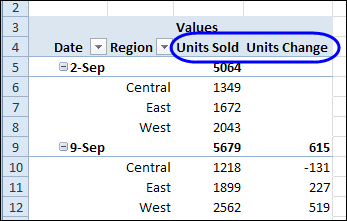
In the pivot table below, a second copy of the Units field has been added to the pivot table, and it shows the difference from the sum of one week’s sales to the next.

differencefrom05

Change the Summary Function

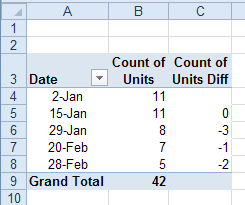
You can use different summary functions with a custom calculation — not just a Sum. In the example shown below, the Units field is added to the Values area twice.

  • Both copies of the Units field are set to show the Count summary function.
  • The second copy of the Units field is changed to a custom calculation for Difference From.

difference from count

Custom Calculation Tips

If you’re using custom calculations, here are a few tips to make them more effective.

  • To make the data easier to understand, you can change the heading from “Sum of Units” to “Units Change”.
  • You can add another copy of the Units field to the pivot table, and show both the total sales and difference in weekly sales
  • Experiment with the pivot table layout, to find the arrangement that will be easiest to read and understand.
  • Remember that a custom calculation can only calculate on items within the same pivot field. If you want to show the difference between pivot fields, instead of pivot items, you can create a calculated field.

Watch the Difference From Video

To see the steps for creating a Difference From custom calculation, please watch this short video tutorial.

Download the Sample File

To test the Difference From custom calculation, you can download the sample file from my Contextures website:  Custom Calculations

____________________
PivotPower Premium Excel Add-in

There is a PivotPower add-in that’s available on my Contextures website, which helps with your pivot table tasks.

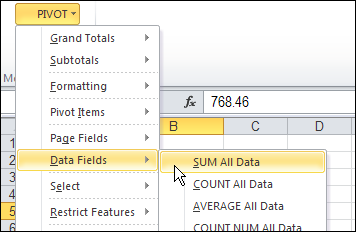
It automates some of the features that aren’t built in to an Excel pivot table, and makes some of the buried Excel pivot table features easier to access. For example, there is a command that changes all the data fields to SUM, which is handy when Excel defaults to COUNT.

pivotpowersum01

Store Favorite Settings

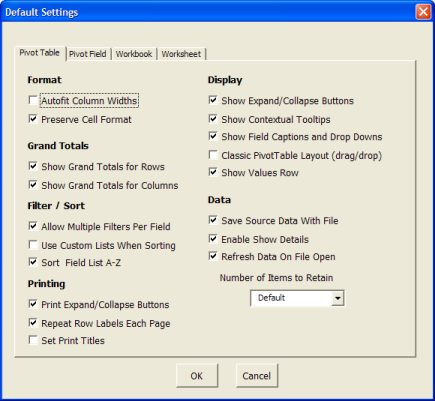
I’ve added new features to the add-in, to make it even more useful. Now you can store your favorite pivot table settings in the add-in, and then apply those settings to any pivot table, and the active sheet and workbook.

Pivot Table Default Settings

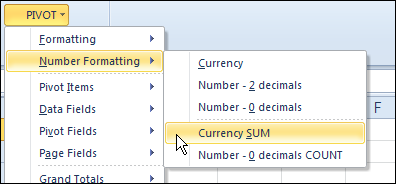
There’s a list of the new features below, and one of my favourites is Currency SUM. It changes the selected field to the SUM function, formatted as currency.

pivotpowerpremcurrencysum

Watch the PivotPower Premium Demo Video

To see a few of the new features in PivotPower Premium, you can watch this short video.

What’s New in PivotPower Premium?

The following features have been added in the new version of PivotPower Premium:

User Guide

  • Details on installing the add-in, and description of the commands

Formatting

  • Column Width Autofit On
  • Column Width Autofit Off

Number Formatting

  • Currency
  • Number – 2 decimals
  • Number – 0 decimals
  • Currency SUM
  • Number – 0 decimals COUNT

Pivot Items

  • Hide All (Blank) Items
  • Show All (Blank) Items

Pivot Fields

  • Clear All Fields
  • Field List A-Z
  • Field List Source Order

Grand Totals

  • Show All Totals and Subtotals
  • Hide All Totals and Subtotals

Cache

  • Create New Cache

Purchase the PivotPower Premium Add-in

To make your pivot table tasks easier, you can purchase the PivotPower Premium add-in, at my Contextures website.

PivotPower Premium Add-in

_______________

Show Missing Items in Excel Pivot Table

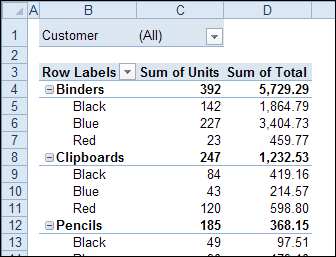
A pivot table shows a summary of the source data, and in the screen shot below you can see all the products that were sold, and the quantities for each colour.

showallpivotitems01

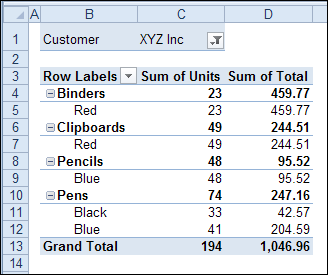
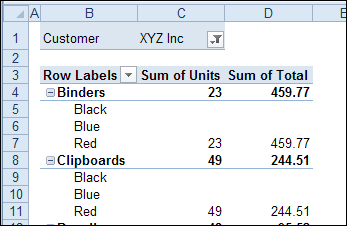
When you filter the pivot table, some of that data might disappear. For example, in the pivot table shown below, the Customer field has been filtered to show XYZ Inc. orders.

They didn’t order all the colours for each product, so the pivot table is smaller. It’s only showing the products and colours that XYZ Inc. ordered.

showallpivotitems02

Instead of having the pivot table change size, so it shows only the applicable items, you can change a field setting, to keep it consistent.

Show All Items in Excel 2010

To make all the items appear, even if the pivot table is filtered, you can change a Layout setting in the pivot table. This setting applies to a single field, so you’ll have to make the following change to each field in which you want to see all the items.

To show all items for a pivot field in Excel 2010 or 2007:

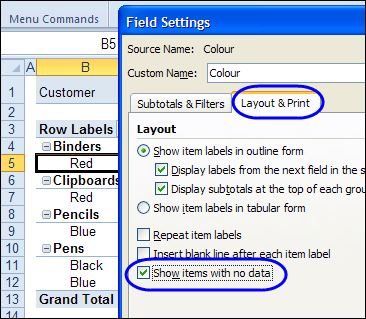
  1. Right-click an item in the pivot table field, and click Field Settings
  2. In the Field Settings dialog box, click the Layout & Print tab.
  3. Check the ‘Show items with no data’ check box.
  4. Click OK

showallpivotitems03

After the setting is changed, all the colours are listed for each product, even if they weren’t sold for the selected customer.

showallpivotitems04

To see the instructions for changing the setting in Excel 2003, please go to my Contextures website: Pivot Table Field Settings

Watch the Video

Watch this video to see the steps for changing the layout setting in Excel 2010 or 2007.

_____________________
Clear All Fields From a Pivot Table

Occasionally, you might want to tear down a pivot table, and start from scratch. You don’t have to delete the pivot table though – you can clear all the fields, and then start adding the ones you want.

Clear Pivot in Excel 2010

If you’re using Excel 2010 or 2007, it’s easy to clear the pivot table, using a Ribbon command.

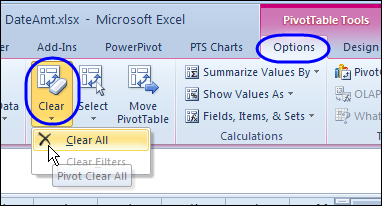
  • Select a cell in the pivot table that you want to clear.
  • On the Ribbon, under PivotTable Tools, click the Options tab.
  • In the Actions group, click Clear, then click Clear All

RibbonClearAll

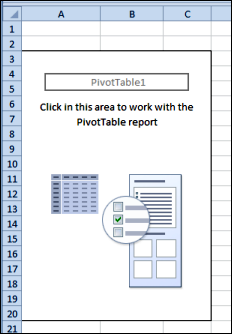
All the pivot fields are removed, and you’re left with an empty pivot table layout.

pivotempty

Undo the Clear

There’s no confirmation message when you click Clear All, so you can’t change your mind after you click that command.

However, you could click the Undo button, before performing any other actions, and all the pivot fields will be put back.

Clear the Pivot Table in Excel 2003

There’s no Clear All command in Excel 2003 and earlier versions, but you can manually remove the fields from the pivot table layout, either on the worksheet, or in the Pivot Table Wizard.

Clear the Pivot Table With Programming

The following code will clear all the fields from a pivot table, and make the field list visible, so you can start to rebuild it. Copy this code to a regular module in your workbook.

Note: You can’t undo the Clear All if you use this code. You could save the workbook before running the code, and then close without saving again, if you change your mind.

Sub ActiveCellClearPivot()
'clears pivot table for active cell
On Error Resume Next

Dim pt As PivotTable
Dim pf As PivotField

Set pt = ActiveCell.PivotTable
If Not pt Is Nothing Then

  pt.ManualUpdate = True
  
  'test version of Excel
  If CDbl(Application.VERSION) >= 12 Then
      'for Excel 2007 and later
      pt.ClearTable
  Else
    For Each pf In pt.VisibleFields
          pf.Orientation = xlHidden
    Next pf
  End If
  
  pt.ManualUpdate = False

  ActiveWorkbook.ShowPivotTableFieldList = True
End If

End Sub

_____________

Grouped and Ungrouped Dates from Same Pivot Table Source

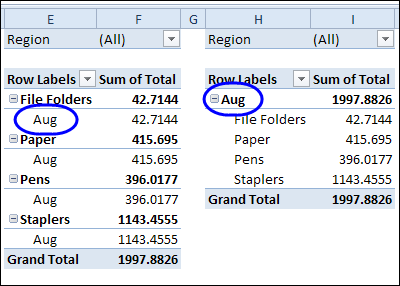
In some workbooks, you might create two or more pivot tables that are based source data. Even if they are on different worksheets, those pivot tables will share some features, such as calculated items and grouped fields.

pivotcacheshared01 

So, if you group the dates in one pivot table, the same grouping will show up in the other pivot table. This occurs because the pivot tables share the same pivot cache. You can manually create a separate pivot cache, by copying one of the pivot tables to a different workbook, temporarily. See the instructions here.

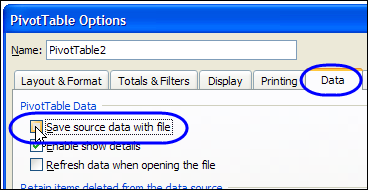
Note: If you create a separate pivot cache for one of the pivot tables, the file size might increase substantially. To reduce the effect, you can turn off the option to save the source data with the file.

pivottableoptionssavedataoff 

Create New Pivot Cache with VBA

Instead of manually creating a separate pivot cache for a pivot table, you can select a cell in the pivot table, and run the following code.

It adds a temporary sheet to the workbook, and creates a new pivot table there, based on the same data source, but in a new pivot cache. The selected pivot table is set to the same pivot cache as the new table, and then the temporary sheet is deleted.

Sub SelPTNewCache()
    Dim wsTemp As Worksheet
    Dim pt As PivotTable
    
    On Error Resume Next
    Set pt = ActiveCell.PivotTable
    
    If pt Is Nothing Then
        MsgBox "Active cell is not in a pivot table"
    Else
        Set wsTemp = Worksheets.Add
        
        ActiveWorkbook.PivotCaches.Create( _
            SourceType:=xlDatabase, _
            SourceData:=pt.SourceData).CreatePivotTable _
            TableDestination:=wsTemp.Range("A3"), _
            TableName:="PivotTableTemp"
        
        pt.CacheIndex = wsTemp.PivotTables(1).CacheIndex
        
        Application.DisplayAlerts = False
        wsTemp.Delete
        Application.DisplayAlerts = True
    End If
    
exitHandler:
        Set pt = Nothing

End Sub

_____________________
Format Pivot Table Labels Based on Date Range

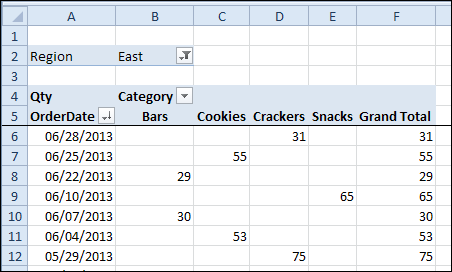
In a pivot table that contains a long list of dates, you can use conditional formatting to highlight a specific date range. In this example, the pivot table contains forecast data for 2.5 years, with dates in the OrderDate field.

pivotcondformatdates01

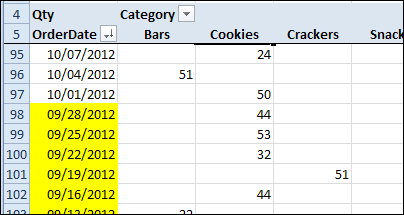
When the file opens, we’re usually interested in checking the forecast amounts for the upcoming month. It can take a bit of time and concentration to find those dates in the long list. We’ll highlight the labels in yellow, so they stand out, and are easy to find.

We’ll use dynamic conditional formatting (Next Month), so the highlighting will change each month when we open the workbook.

Highlight the Upcoming Month

Follow these steps to highlight Row Labels where the order forecast date is in the upcoming month. It’s currently August, so the September dates will be highlighted.

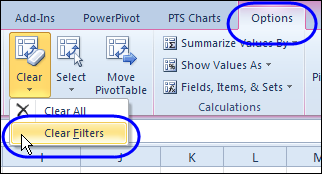
  1. In the pivot table, remove any filters that have been applied – all the rows need to be visible before you apply the conditional formatting.
    • pivotclearfilters
  2. Select all the dates in the Row Labels that you want to format.
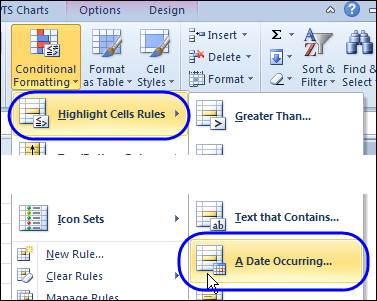
  3. On the Ribbon, click the Home tab, and then in the Styles group, click Conditional Formatting.
  4. In the list of conditional formatting options, click Highlight Cells Rules, and then click A Date Occurring.
    • pivotcondformatdates02
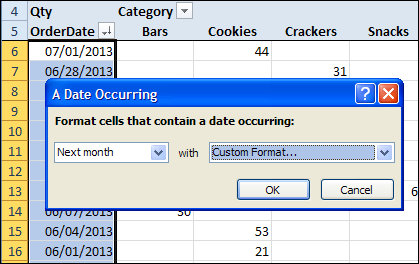
  5. In the date range drop-down, select Next Month, and then click the arrow to open the formatting drop-down list.
  6. Select one of the formatting options, or create a Custom Format. I selected Custom Format, and used a yellow fill colour.
    • pivotcondformatdates03
  7. Click OK to close the A Date Occurring dialog box.

The dates from the upcoming month are highlighted, and will stand out in the report when you open the workbook.

 pivotcondformatdates04

Conditional Formatting Warnings

This pivot table’s source data won’t change, because we don’t alter the forecast after it has be finalized.

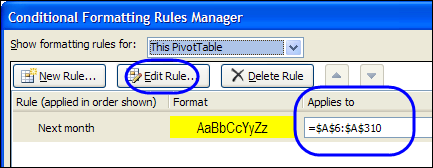
  • However, if you apply conditional formatting to a pivot table, and new data is added, it might not be included in the formatted area. Be sure to check the range, in the Manage Rules box for Conditional Formatting, and edit the rule, if necessary.
  • Also, if you change the location of the date field, the conditional formatting will not automatically move with that field. You will have to modify the conditional formatting rule, to point to the new location.

pivotcondformatdates05

___________________________-

Change Pivot Table Report Filters With VBA

With Report Filters at the top of your pivot table, you can select specific items from a field, and narrow the scope of your report.

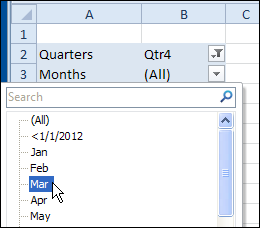
In the pivot table shown below, the order date field has been grouped, and Quarters and Months are in the Report Filter area.

reportfilterchangevba

Change Report Filters Automatically

I’ve previously posted sample code for changing one (or all) pivot table’s report filters, based on changes in another pivot table. In one of my Contextures Blog posts, Ian asked if we could change one report filter in a pivot table, based on another report filter in the same pivot table.

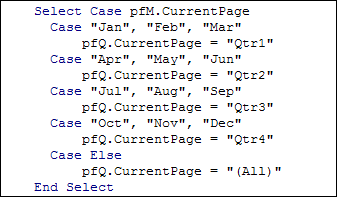
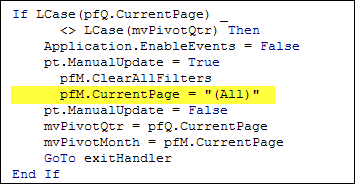
That sounded like an interesting challenge, so I’ve created code that changes the Quarters filter, when a month is selected. For example, if you select May, it will change to Qtr2. If your fiscal year is different, you could change the quarters in the code.

reportfilterchangevba02

If you select a different Quarter, the Months filter will automatically change to "(All)". Then, if you want a specific month within that quarter, you could select it.

reportfilterchangevba03

Download the Sample File

To download the sample file, please visit the Pivot Tables VBA – Report Filters page on the Contextures website. The file is in Excel 2007/2010 format, zipped, and contains macros. Enable macros when you open the file, if you want to test the code.

In the file, to see the code, right-click on the pivot table sheet tab, and click View Code.

__________________
Add Calculated Items in an Excel Pivot Table

When you add fields to a pivot table, you can show or hide that field’s pivot items. In addition to the existing items, you can create calculated items for a pivot field.

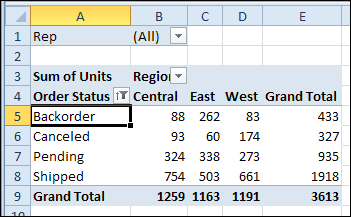
In the screen shot below, the Order Status field has 4 items – Backorder, Canceled, Pending and Shipped.

calculateditem06

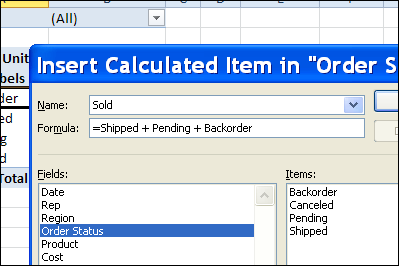
To combine the amounts for Backorder, Pending and Shipped, you could create a calculated item – Sold.

calculateditem02

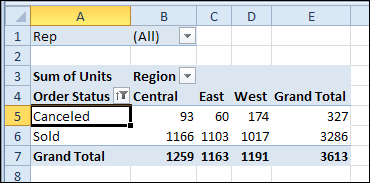
Then, hide the other items, and just show Canceled and Sold in the pivot table, under the Order Status field.

calculateditem07

Watch the Video

To see the steps for creating a calculated item, and displaying it in the pivot table, please watch this short video tutorial. You’ll also hear the disadvantages to using calculated items.

Download the Sample File

To see the written instructions, and to download the sample file, please visit the Excel Pivot Table Calculated Item page on my Contextures website.

____________________
Remove Old Items from Excel 2010 Pivot Table Drop Downs

After you create an Excel 2010 pivot table, the source data may change.  New items might be added, and old items are sometimes removed from the data.

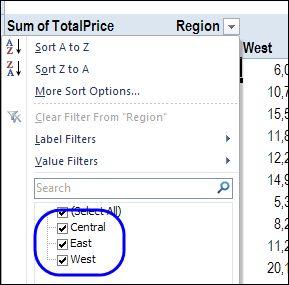
In this example, the East and Central regions are merged, and the Central region name is replaced by “East” in all the source data records.

After changing the data, if you refresh the pivot table, the Central region data disappears, but its name is still in the Region drop down.

pivottableolditems01

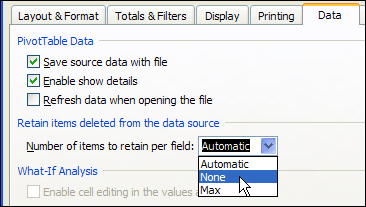
To fix the problem, you can change the Retain Items setting in the pivot table options, to clear old data from the pivot table drop downs.

pivottableolditems02

Watch the Video

To see the steps for preventing old items from appearing in the pivot table, please watch this short video tutorial. These instructions apply to both Excel 2010 and Excel 2007.

__________________________