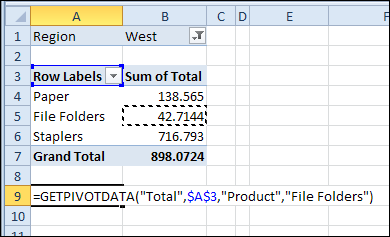
With a GetPivotData formula, you can pull data from a pivot table. For example, how many file folders were sold:
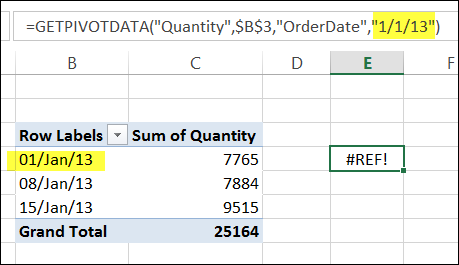
The formula works well with text fields, but you might get errors if you create a formula using dates.
In the example shown below, the formula in cell E4 refers to the date “1/1/13”, but the result is a #REF! error, even though that date is in the pivot table.
When you add fields to the row labels area in a pivot table, the field’s items are automatically sorted. See how you can manually move those labels, to put them in a different order. There’s a video and written steps below.
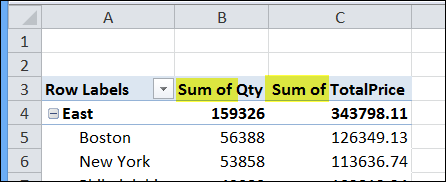
When you add fields to the value area in a pivot table, custom names are automatically created, such as Sum of Quantity or Count of Customer.
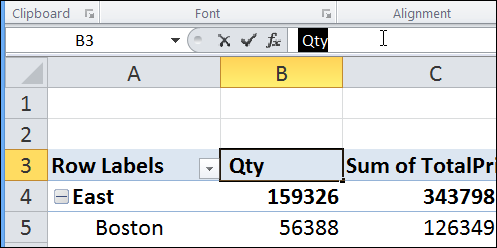
Excel won’t let you remove the “Sum of” in the label, and just leave the field name. However, you can change the heading to the field name, plus a space character, to work around this problem.
In the screen shot below, the heading has been changed to [space]Qty.
Change (Blank) Labels
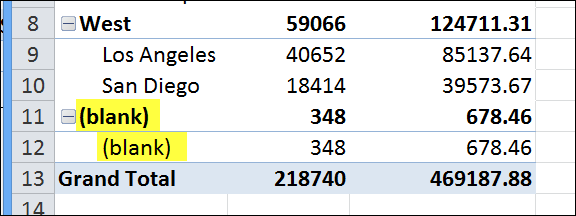
Another formatting fix that you can make is to get rid of the labels that say “(Blank”)”. These appear if cells are blank in the source data, and you add those fields to the row or column labels area.
Excel shows an error message if you just try to delete those labels, but you can use a space character to replace them.
Watch the Video
Watch this short video tutorial to see how to make these changes to the pivot table headings and labels.
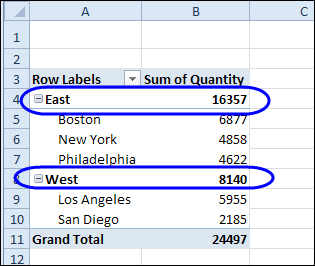
In a pivot table, you can create calculated items, in addition to the pivot items from the source data. They can create problems in your pivot table layout, such as showing cities under every region, instead of just the region in which they’re located.
In this tutorial, I’ll create a calculated item in the Category field, and then fix the problem that it creates in the City field.
Pivot Table Setup
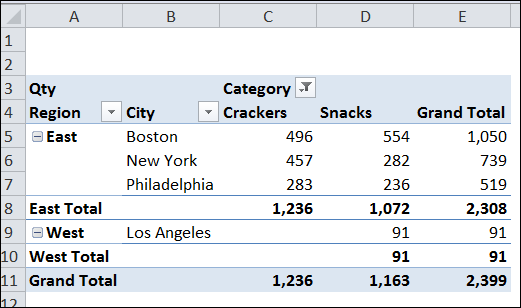
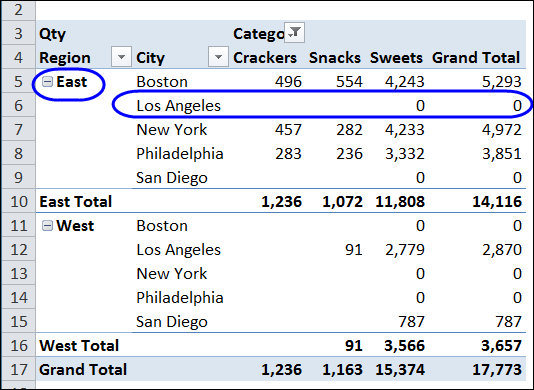
In the pivot table shown below, the Category field is in the Column headings, and it is filtered to show only two of the four categories – Crackers and Snacks.
The Region and City fields are in the Row headings, and there are 3 cities in the East and 2 cities in the West.
Create a Calculated Item
I want to add a new Category – Sweets – to show the total for the two hidden categories – Cookies and Bars.
To create the Calculated Item:
Select one of the Category heading cells, such as cell D4.
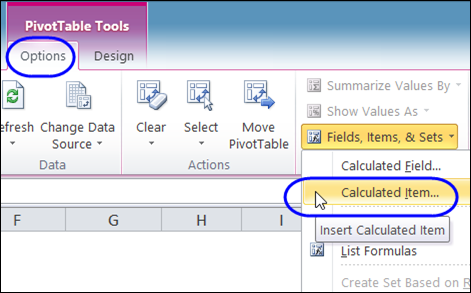
On the Ribbon, under PivotTable Tools, click the Options tab
In the Calculations group, click Fields, Items & Sets, and click Calculated Item
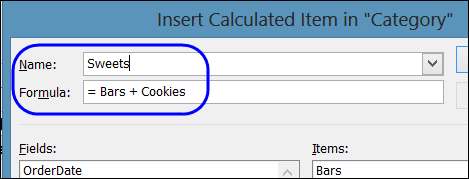
Type a name for the calculated item – Sweets
In the Formula box, enter the formula: =Bars + Cookies
Click OK, to Add the new item, and to close the Calculated Item window.
Calculated Item Problems
After you click OK, the Sweets category is added to the pivot table, in the Column Headings, as expected. However, each city is now listed under each region, with zero amounts in some rows.
What Went Wrong
When you add a calculated item, all the items are listed for fields that intersect the calculated item. The calculated item creates every possible combination of items in the intersecting fields, even if there is no data for that combination in the source data.
Unfortunately, you can’t change this behaviour – there’s no setting to turn it off. If possible, avoid calculated items, which can slow down a large pivot table, and create calculations in your source data instead.
Hide the Zero Rows
To hide the cities that are in the wrong region, you can use a pivot value filter to hide the rows with a zero total.
Note: This will also hide any other rows with zero grand total, so use this technique with caution.
Right-click a cell that contains a City row label, and in the context menu, click Filter, and then click Value Filters.
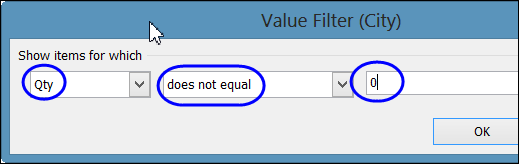
In the Value Filter window, from the first drop-down list, select Qty, which is the Values field you want to check.
In the second drop-down list, select does not equal
In the third box, type 0 (zero), and then click OK
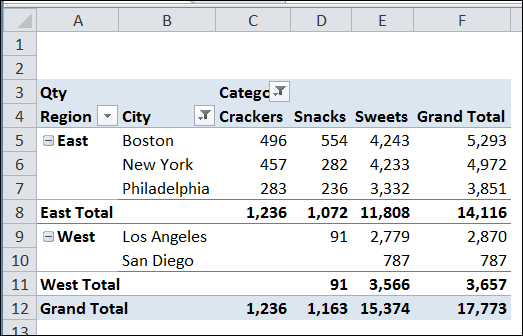
The rows where the grand total is zero are hidden, and the wayward city names disappear from each region.
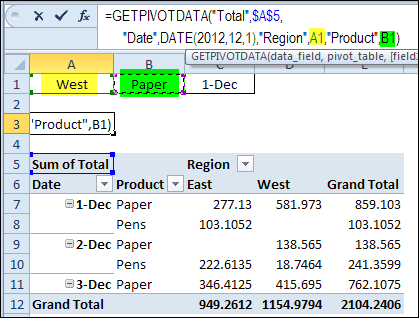
To extract data from an Excel Pivot Table, you can use the GetPivotData function. Unless you change the default settings, a GetPivotData formula is automatically created if you type an equal sign, and then click on a pivot table data cell, to link to it.
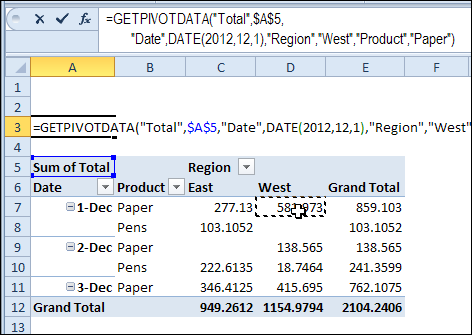
In the screen shot below, I typed an equal sign in cell A3, and then clicked on cell D7, which contains the total sales for:
Region: West
Product: Paper
Date: Dec 1st
The GetPivotData formula that was automatically created is:
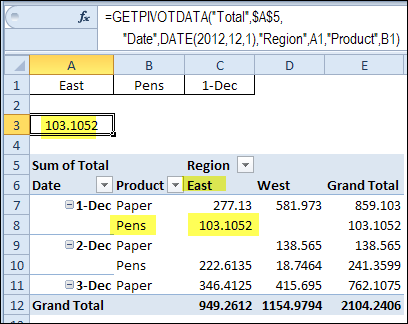
Instead of leaving the text values in the formula, you can replace those values with cell references. This makes the formula flexible, and it will show a different result, based on the values in the linked cell.
For example, I’ve entered a region name in cell A1, a product name in cell B1, and a date in cell C1.
Then, in the formula, I replaced “West” with a link to cell A1, and replaced “Paper” with a link to cell B1.
The formula result will now change automatically if I type East in cell A1, and type Pens in cell B1.
Create a Date Cell Reference
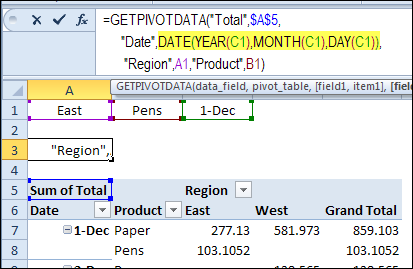
It’s a little trickier to create a cell reference for a date. Instead of just clicking on the date cell, you’ll use cell links within the DATE function.
The arguments for the DATE function are: year, month, day. In the original formula, the selected date is shown as: DATE(2012,12,1)
You can use the YEAR, MONTH and DAY functions to pull those values from the date in cell C1. The completed formula with flexible cell references is:
In an Excel file, you might have a couple of pivot tables on different worksheets. If you create a pivot chart for one of those pivot tables, you might spend a long time setting it up, with specific formatting and design settings.
It would be nice to copy that chart, and use it for another pivot table, but you can’t alter the source data for a pivot chart.
When you add fields to the Row Labels area of a new pivot table, subtotals are automatically shown at the top of each group of items, for the outer fields.
You can turn the subtotals off, or move them to the bottom of the group, if you prefer.
Watch the Video
To see how to add subtotals, and move them, you can watch this short video tutorial. You’ll also see how the pivot table’s report layout affect the subtotals in the Row Labels area.
For written instructions, and more details on working with subtotals, please visit my Contextures website: Pivot Table Subtotals
In addition to the regular items in a pivot table, you can also create calculated items, in one or more of the pivot fields.
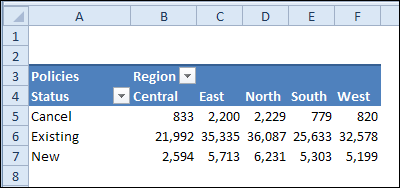
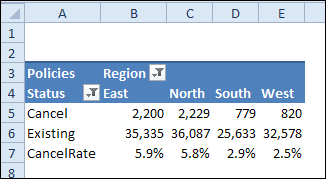
In this pivot table, we’re summarizing data about insurance policies, with the number of new, cancelled, and existing policies in five regions.
Instead of showing all the data, we need to show the cancellation rate in the Northeast and the Southwest. To do this, we’ll add three calculated items, and those formulas will overlap in some of the cells. And that can lead to some problems!
Add Calculated Item for Cancellation Rate
First, we’ll hide the “New” status, and the “Central” region, by removing the check marks for those items in the field drop down lists.
Next, we’ll create a calculated item in the Status field, for cancellation rate:
Click on one of the labels in the Status field, such as cell A6.
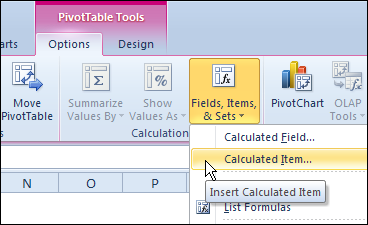
On the Excel Ribbon, under PivotTable Tools, click the Options tab
In the Calculations group, click Fields, Items & Sets, and click Calculated Item.
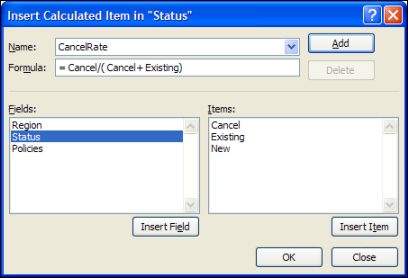
In the Insert Calculated Item dialog box:
Type a name for the calculated item – CancelRate
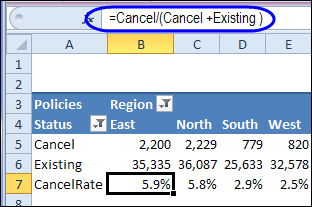
Enter the formula: = Cancel/( Cancel+ Existing)
Click OK, to add the item.
In the pivot table, the CancelRate row will appear as zeros, so format those values as percentage, with one decimal place.
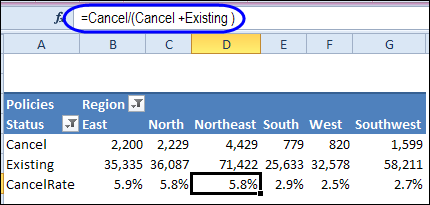
If you click on one of the cells in the CancelRate row, you’ll see the CancelRate formula that is used in the cell.
Add Calculated Item for Regions
Next, we’ll create calculated items for the Northeast and the Southwest, to show totals for the regions in those areas.
To create a calculated item for the Northeast:
Click on one of the labels in the Region field, such as cell B4.
On the Excel Ribbon, under PivotTable Tools, click the Options tab
In the Calculations group, click Fields, Items & Sets, and click Calculated Item.
In the Insert Calculated Item dialog box:
Type a name for the calculated item – Northeast
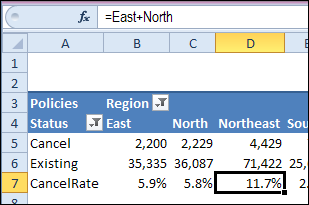
Enter the formula: = North + East
Click Add, to add the item, and keep the dialog box open.
To create a calculated item for the Southwest :
Type a name for the next calculated item – Southwest
Enter the formula: = South + West
Click OK, to add the item, and close the dialog box.
In the pivot table, drag the Northeast label to the left, so it is beside the North region.
Incorrect Cancellation Rates
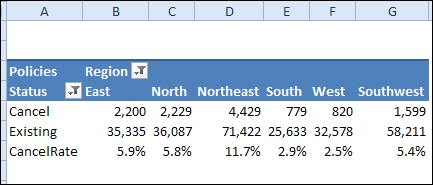
The Northeast and Southwest columns are showing totals for the Cancel and Existing values, and those numbers are correct.
However, the CancelRate item is also being summed, which is not what we want. For example, the Northeast CancelRate shows 11.7%, which is the total of 5.9% + 5.8%.
Instead, we want that rate calculated as it is in East: = Cancel/( Cancel+ Existing). The rate should be 5.8%.
If you click on the Northeast CancelRate cell, the Northeast formula is showing, instead of the CancelRate formula.
Change the Solve Order
To fix the problem, you can change the Solve Order for the calculated items:
Select a cell in the pivot table, and then on the Ribbon, under PivotTable Tools, click the Options tab
In the Calculations group, click Fields, Items & Sets, and click Solve Order.
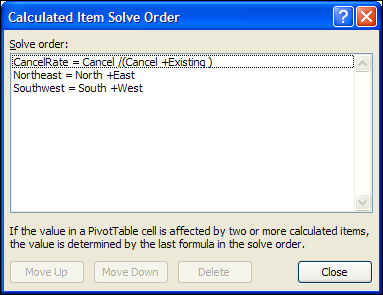
The message at the bottom of the Calculated Item Solve Order dialog box explains that the last formula listed is the one that determines the cell’s value.
We’ll move CancelRate to the bottom, so its formula will be used in the CancelRate row.
Click on the CancelRate item, and click the Move Down button, twice, to move it to the bottom of the list.
Click Close
Note: When you change the Solve Order, it affects all calculated items in the pivot table.
The Correct Results
With the Solve Order changed, the percentages in the CancelRate row are now showing the correct values – 5.8% for the Northeast and 2.7% for the Southwest.
When you click on the Northeast CancelRate cell, the CancelRate formula is showing, so the solve order change has fixed the problem.
Download the Sample File
To download the Solve Order, please visit the Calculated Item page on my Contextures website.
Watch the Video
To see the steps for creating calculated items, and changing the solve order, please watch this short video.
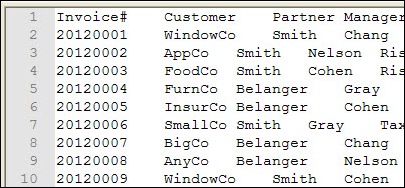
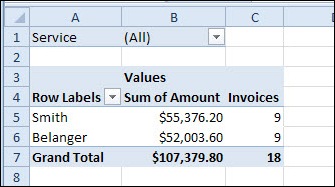
In addition to creating pivot tables from Excel data, you can also use external data sources, such as a text file, like the billing data shown below.
Import the Data
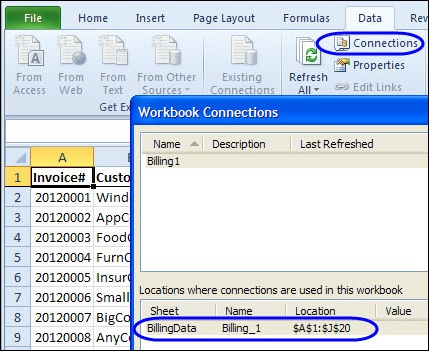
In this example, the billing data was imported to Excel from the text file, onto a worksheet named BillingData. This created an external data range with a connection to the text file.
You can create a pivot table based on the imported data, to show a summary of the billing data.
Update the Text File
If new billing records are added to the text file, they appear in the external data range when it’s refreshed. However, you might not see the new data in the pivot table that is based on the imported data.
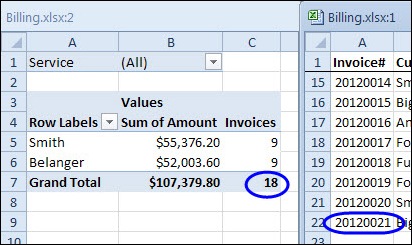
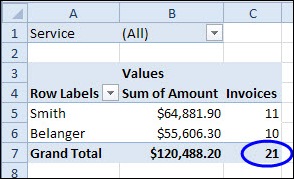
In the screen shot below, there are now 21 invoices in the imported data, but even after refreshing the pivot table, it still shows only 18 invoices. The latest data doesn’t appear in the pivot table.
Use the External Range Name
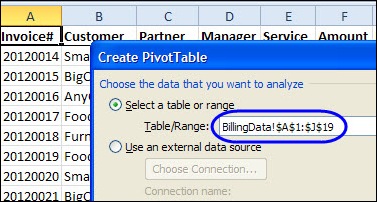
When you create a pivot table from an external data range, the default data source is a reference to a range of cells, such as BillingData!$A$1:$J$19, where the external data range is located.
If you use the external data range’s address as the pivot table source, it does not automatically expand, if new data is added to the external data range.
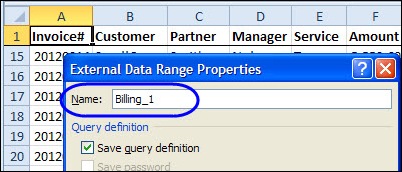
However, when you import external data to an Excel worksheet, a named External Data Range is created, and if you base the pivot table on this named range, it adjusts automatically if records are added or removed.
Change the Pivot Table Source
If a pivot table is based on a specific range of cells, you can change its data source, so it uses the external data range name.
To see the name of the external data range, right-click a cell in the external data range, and then click Data Range Properties. The range name is shown at the top of the External Data Range Properties dialog box. Click OK to close the dialog box.
To base the pivot table on this range, select a cell in the pivot table, and then click the Options tab on the Ribbon.
In the Data group, click Change Data Source.
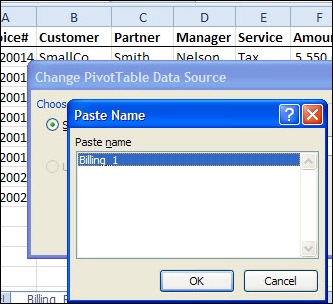
With the Table/Range highlighted, press the F3 key, and click on the external data range name, e.g. Billing_1
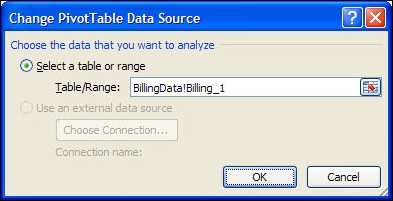
The Table/Range box will show the sheet name and the external data range name.
Click OK, to close the Change PivotTable Data Source box.
After the pivot table data source is changed to use the external data source named range, it will update automatically, if data is added or removed.
Refresh the pivot table to see the new data in the summary.
Last week, Angella emailed me, to ask if there was a way to create a copy of a pivot table, for each item in a report filter.
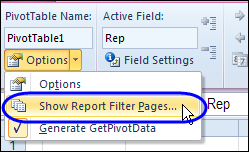
I suggested that she use a built-in pivot table feature, which is designed to do that – Show Report Filter Pages. The instructions for using this feature are shown below.
However, this built-in feature only copies the pivot table to a new sheet – it doesn’t copy any other content from the original sheet. Angella wanted the pivot table, and she wanted all the other content too.
So, I created a macro that will copy the original sheet, name the copied sheet, and select the pivot item in the copied sheet’s pivot table. You can see the sample code on my Contextures site.
If you just need a copy of the pivot table, you can do the job quickly and easily with the Show Report Filter Pages feature.
Copy Pivot Table with Show Report Filter Pages
To create a quick copy of a pivot table, for each item in a Report Filter field, follow these steps:
Select a cell in the pivot table (the pivot table must have at lease one Report Filter)
On the Ribbon, under the PivotTable Tools tab, click the Options tab
At the left, click Options, then click Show Report Filter Pages
In the Show Report Filter Pages dialog box, select one of the filters, and click OK
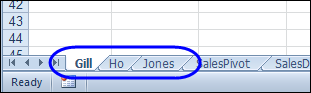
A new worksheet will be added for each* pivot item, named for the pivot item. (*see exceptions below)
Note: If a sheet with the item’s name already exists, another sheet will be added, with a number added at the end.
Report Filter Page Exceptions
When you run the Show Report Filter Pages command, it might not create a new sheet for each item in the Report Filter. The results will be affected by
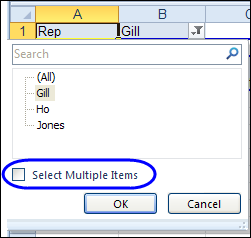
the setting for Select Multiple Items
which items are currently selected in filter
Select Multiple Items Turned Off
If (All) is selected, a sheet should be created for each item.
If a specific item is selected, a sheet will not be created for that item. I guess that Excel assumes that since you already have a pivot table with that item’s data, you don’t need another one.
Select Multiple Items Turned On
If (All) is selected, a sheet should be created for each item.
If one item is selected, a sheet will be created for that item only.
If two or more items are selected (Multiple Items), a sheet will be created for each selected item.
Note: Select Multiple Items is turned off in the pivot table copies, even if it is turned on in the original pivot table.
Use VBA to Copy the Entire Worksheet
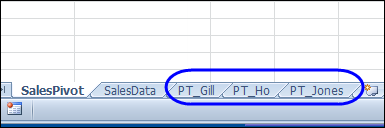
If you want to copy all the other content from the original worksheet, along with the pivot table, you can sample code on my Contextures site on my Contextures site. My code adds a “PT_” prefix to the sheets, and deletes any existing “PT_” sheets, if necessary.