Calculated Field vs Calculated Item

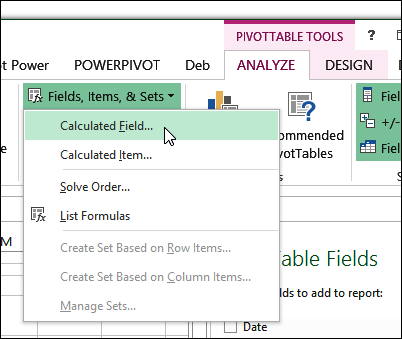
After you create a pivot table, you can enhance the results by writing your own formulas, to create calculated fields and calculated items. e When you’re getting started with formulas, it might not be clear what the difference is. When should you use a calculated field and when should you create a calculated item?
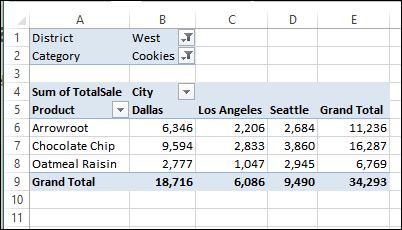
calculateditemfield06

We’ll take a look at a pivot table that uses both types of formulas, and see where and how they work. You can also find more information on each type of formula on my Contextures website:

Continue reading “Calculated Field vs Calculated Item”

Format a Pivot Table in Excel 2003 Classic Style

Last week, someone asked me how to make an Excel 2010 pivot table have the same look as the default settings in Excel 2003.

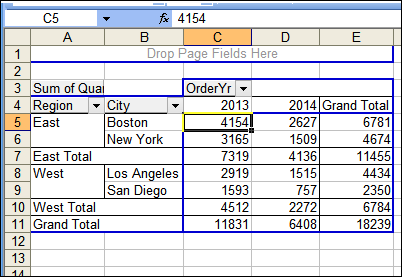
You might have forgotten what those pivot tables looked like, or maybe you never used that version of Excel. In the screen shot below, you can see the pivot table that I created, with Region and City in the Row area, Order Yr in the Column area, and Quantity in the Data area.

pivotclassic01

Continue reading “Format a Pivot Table in Excel 2003 Classic Style”

Sort Items in Excel Pivot Table Report Filter

When you add new items to a pivot table, they might not appear in alphabetical order in the Report Filter drop down. This can make the items hard to find, if there is a long list.

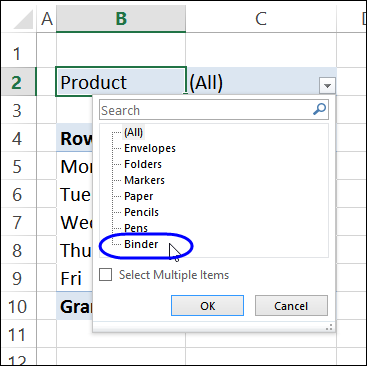
In the drop down list below, Binder is a new product that was added to the source data. It appeared in the pivot table, after it was refreshed, but it’s at the bottom of the list, instead of the top.

new item not in A-Z order

Continue reading “Sort Items in Excel Pivot Table Report Filter”

Accidentally Create Calculated Items

In a pivot table, you can create calculated fields and calculated items, by inserting following a few steps, to insert formulas. There are detailed instructions on my web site

But did you know that you can accidentally create a calculated item too, without going through all the usual steps?

Continue reading “Accidentally Create Calculated Items”

Manually Clear Old Items in Pivot Drop Down

If you remove an item from your pivot table’s source data, it might still show up in the drop downs, even after you refresh the pivot table.

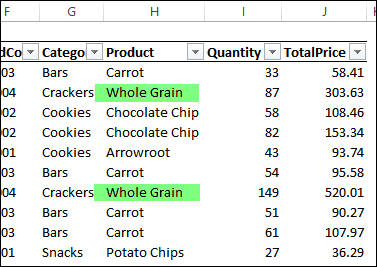
In this example, a product name was originally “Whole Wheat”. In the source data, all the records for that product were changed to the new name, “Whole Grain”.

clearolditemsmanually02

Continue reading “Manually Clear Old Items in Pivot Drop Down”

Find the Source Data for Your Pivot Table

After you create a pivot table, you might add new data, or change the existing data. When you refresh the pivot table, it might not show all the new records, or pick up the changes.

To find the problem, you can check the pivot table’s data source. It might not include all the rows, and you’ll have to adjust it.

Continue reading “Find the Source Data for Your Pivot Table”

Turn Repeating Item Labels On and Off

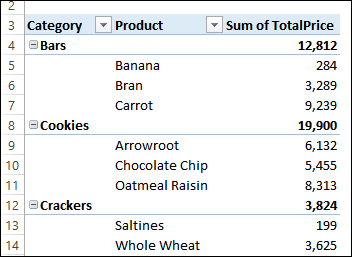
When you set up a pivot table, the outer field names each appear once, at the top of the group. In the screen shot below, The category names are in the left column, and the products for each category are listed below the headings.

itemlabelsrepeat01

Show Repeating Labels

In Excel 2010, and later versions, you can change a pivot field setting, to show the field names in every row, instead of just once. This is useful if the the lists are long, and you can’t see the headings as you scroll down. You can also do lookups from the pivot table, if the names are filled in.

Continue reading “Turn Repeating Item Labels On and Off”