

If you plan to build a pivot table, check the source data first, to make sure you have it set up correctly. If there is a heading for each month’s sales, instead of just one column where all the amounts are stored, that won’t work well in a pivot table. You need to “unpivot” your data first, and you can unpivot Excel data with a macro.
Author: Debra
Remove Sum Of From Pivot Table With Macro

When you put value fields into a pivot table, it automatically adds text to the headings, such as “Sum of Quantity”, if the field name is Quantity. You can manually change those headings, to remove the extra text, if there are only a few of them. If there are lots of fields to change, it’s quicker to remove that text with a macro.
Continue reading “Remove Sum Of From Pivot Table With Macro”
Show Tenths of Second in Pivot Table Times

If you try to show hundredths of second, or tenths of second in pivot table, you might have trouble. Usually, the times are rounded, and there is a zero, instead of numbers, for the tenths and hundredths.
See how to fix that pivot table time problem, so that the numbers are displayed correctly.
Continue reading “Show Tenths of Second in Pivot Table Times”
How to Fix a Pivot Chart All Columns One Color

After you create a pivot table, you can insert a pivot chart, based on that pivot table. In this example, the chart shows sales data, per city, over two years. See how to change the chart layout, after you build it.
Continue reading “How to Fix a Pivot Chart All Columns One Color”
Pivot Table Top 10 Filter From Worksheet Values

Top 10 Filters are a quick and easy way to focus on key items in a pivot table. Instead of looking at all the data, hide everything except a set number of top or bottom items.
In the screen shot below, you can see the Pivot Table Top 10 Filter dialog box. There are four drop down lists, where you can change the settings, but Excel won’t let you link to a worksheet cell, like it does in some dialog boxes.
Continue reading “Pivot Table Top 10 Filter From Worksheet Values”
Change Pivot Table to Outline Layout With VBA

When you create a new pivot table in Excel, it uses the Compact Layout, by default. That layout has all the row fields in a single column, with each field slightly indented from the previous field. You can read more about the Compact Layout on my Contextures website.
NOTE: If you have my PivotPower Premium add-in installed, you can select a layout in your Preference Settings. That makes it easy to apply all your favourite settings to a new pivot table, or any existing pivot tables.
Continue reading “Change Pivot Table to Outline Layout With VBA”
Combo Column Line Pivot Chart in Excel 2013

Long ago, there was a Chart Wizard in Excel, and it had some built-in Combination Chart Types, like Column-Line. The Chart Wizard disappeared in Excel 2007, along with the combo chart type options.
Continue reading “Combo Column Line Pivot Chart in Excel 2013”
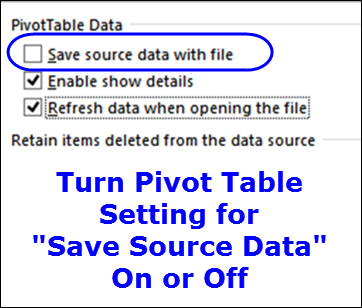
Saving Source Data with Pivot Table File

When you create a pivot table in your workbook, the source data records are saved in a special memory area – a pivot cache. Then, when you close the file, Excel can save the source data in this pivot cache, or clear that memory.
Keep reading, to see how you can change this setting, and learn the advantages and disadvantages of either choice.
Note: If you want to re-create the source data, see: Re-create the Source Data
Pivot Table From Data on Multiple Sheets

A frequent question about pivot tables is how to create one from data on different worksheets, or even in different file. Last week, I updated my page on this topic, which shows several ways you can accomplish this goal.
- Multiple Consolidation Ranges
- Microsoft Query
- Power Query
Give Your Excel Pivot Table a Makeover

When you create a pivot table, do you just slap it together, and hope for the best, or do you spend time experimenting with different calculations, layouts and field arrangements?
Yes, it’s easy to fall into a rut, and create the same type of pivot table, each time that you build one. That makes it quick and easy to get the job done, but you might not be presenting the data in the best way possible.
It’s time to give your pivot table a makeover, so it looks better, and its data is easier to read and understand.