
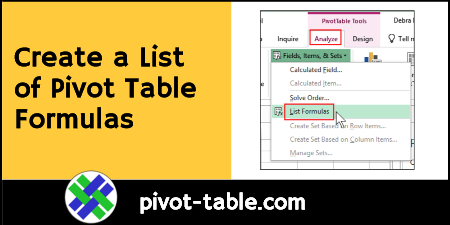
With a built-in pivot table command, you can quickly list pivot table calculated fields and calculated items. This helps if you’re starting to use a pivot table that someone else built, or even for documenting a pivot table that you built yourself. Continue reading “List Pivot Table Calculated Fields in Excel”
Author: Debra
Excel Pivot Table Error Cannot Group That Selection
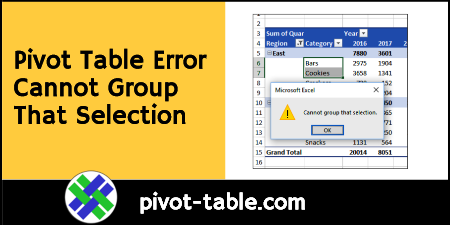
When you try to group dates in an Excel pivot table, or other pivot table items, you might get a pivot table error, “Cannot group that selection.” In Excel 2010, and earlier versions, that error was usually caused by blank cells in your source data, or text in the number or date columns. If you’re using Excel 2013 or later, there’s another reason that might prevent you from grouping pivot table items. Continue reading “Excel Pivot Table Error Cannot Group That Selection”
Show Distinct Count in Data Model Pivot Tables
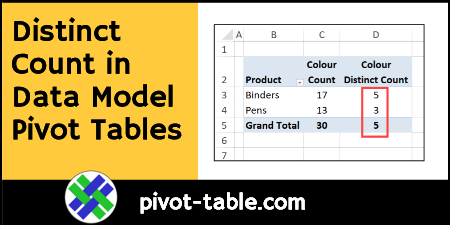
In a pivot table you might want to see a distinct count (unique count) for some of the data, instead of an overall count.
For example, if pens and binders are sold in different colours, how many unique colours were sold for each product? Here’s how to show a distinct count in Data Model pivot tables.
Continue reading “Show Distinct Count in Data Model Pivot Tables”
Stop Pivot Table Date Grouping
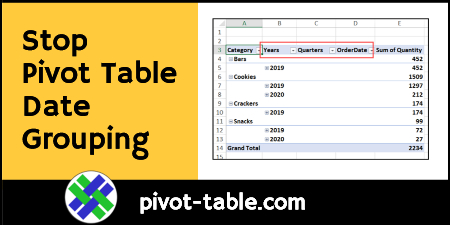
When you add a date field to your Pivot Table, Excel automatically groups the dates into a hierarchy, such as years and months.
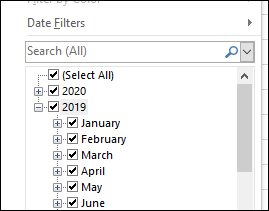
See how to stop pivot table date grouping in the latest versions of Excel, and a couple of workarounds for Excel 2016. You can also read about why this feature was added, and watch a date grouping video.
Continue reading “Stop Pivot Table Date Grouping”
Pivot Table Value Errors
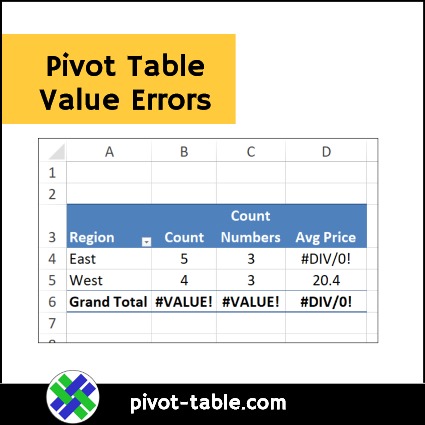
If there are errors in an Excel table, you might see those errors when you summarize that data in a pivot table. See which Summary Functions show those errors, and which ones don’t (most of the time!)
Excel Pivot Table Name Rules
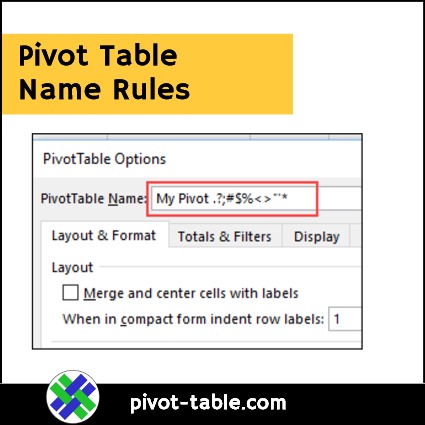
When you build a pivot table, Excel automatically creates a numbered name for it, such as PivotTable1. You can leave that automatic name as it is, or change an Excel pivot table name to something more meaningful, such as “SalesPivot”.
Pivot Table Options List Macro
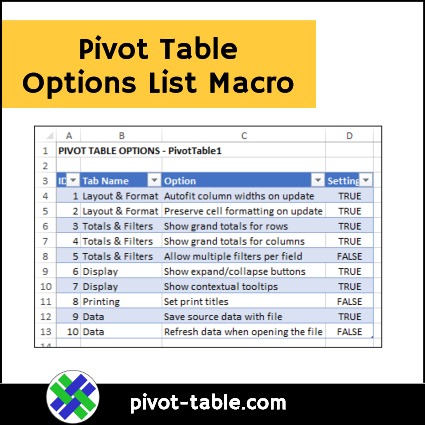
When you’re setting up a pivot table, you can use the Ribbon commands to change its appearance, and the source data, and several other settings. There’s another place where you can control the pivot table’s behaviour too – in the Pivot Table Options. See how to access that dialog box, and run this pivot table options list macro to see the current settings, for a few of the key options.
Copy Pivot Table Values and Formatting
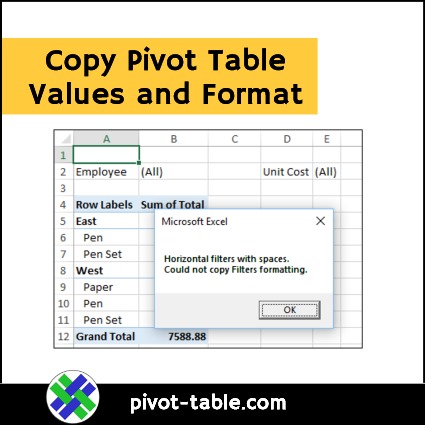
In some situations, you might want to send someone a copy of a pivot table, but as values only, not an interactive pivot table. That would give them a summary of the data, but without access to the underlying details, which might be confidential. If you want to copy the pivot table formatting too, it requires extra effort, and the manual steps are shown below, as well as a macro which makes it easier to copy pivot table values and formatting.
Change a Pivot Table Calculated Field Formula
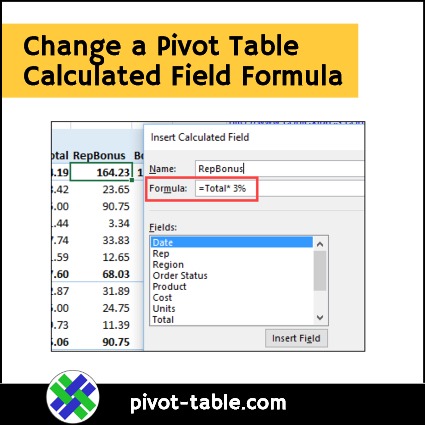
Pivot tables are a great way to summarize a large amount of data, without complex formulas. But if you need to, you can create formulas within a pivot table, with calculated fields and calculated items. After you create one, here’s how to change a pivot table calculated field formula. Continue reading “Change a Pivot Table Calculated Field Formula”
How to Revise Pivot Table Macros
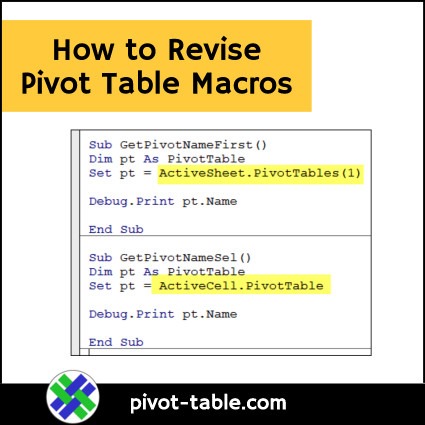
There are lots of pivot table macros on this blog, and some of them affect the first pivot table on the worksheet only. Other macros make changes to the selected pivot table only, based on the active cell. See how to pivot tables macros, so the macros make changes to a specific pivot table, or all the pivot tables in a worksheet or workbook.