

It would be nice to automatically refresh an Excel pivot table, whenever its source data changes. Unfortunately, there isn’t a built-in way to make that happen. However, here are 3 ways you can refresh a pivot table, after you make changes to the source data.
No Built-In Automatic Refresh for Pivot Table
If you add new records, or delete records, or edit the existing data, the pivot table doesn’t show the revised data right away. There isn’t any setting the you can change, to make Excel automatically refresh a pivot table, as soon as the data changes.
As a result, to keep the pivot table up-to-date, you have 3 choices:
- Manually refresh the pivot table
- Use a macro to automatically refresh an Excel pivot table
- Change a pivot table setting, to get some automatic updates
Manually Refresh
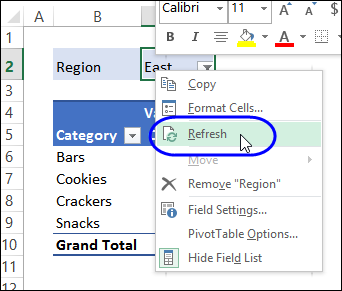
No, this isn’t automatic, but a quick and easy way to refresh the pivot table after the data changes is to manually update it:
- Right-click any cell in the pivot table, then click on Refresh.
Pro: This is a simple way to instantly refresh the pivot table
Con: It’s not automatic. You have to remember to do this, every time the data changes!
Automatically Refresh When File Opens
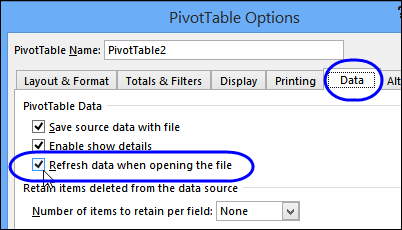
One way to automatically refresh is to set the pivot table to refresh when you open the file that it’s in. With this method, you’ll get partial automation, without having to add macros to the file.
Any time you close, and then re-open the file, the pivot table will be refreshed.
To set up this refresh method:
- Right-click any cell in the pivot table
- Click PivotTable Options
- In the PivotTable Options window, click the Data tab
- In the PivotTable Data section, add a check mark to Refresh Data When Opening the File
- Click OK to close the dialog box.
Pro: Any time you close, and then re-open the file, the pivot table will automatically refresh
Con: The pivot table does not refresh automatically while you have the workbook open
Automatically Refresh With Macro
The final way to update the pivot table is with a macro. You can set up an Excel macro to automatically refresh a pivot table when its worksheet is activated.
If this is something that you haven’t done before, there are instructions on my Contextures website, for copying VBA code to your own files.
Macro for One Pivot Table
Put the following code on the worksheet module, if there is one pivot table on the sheet:
Private Sub Worksheet_Activate()
   Application.EnableEvents = False
   Me.PivotTables(1).RefreshTable
   Application.EnableEvents = True
End Sub
Note: If the pivot table sheets are protected, go to this article for help with pivot tables on a protected sheet.
Macro for Multiple Pivot Tables
If there are two or more pivot tables on the sheet, with different source data, use this code, pasted onto the worksheet module. This will automatically refresh all the pivot tables on the sheet:
Private Sub Worksheet_Activate()
   Dim pt As PivotTable
   Application.EnableEvents = False
   For Each pt In Me.PivotTables
      pt.RefreshTable
   Next pt
   Application.EnableEvents = True
End Sub
Video: Pivot Table Troubleshooting
Before you add macros, it might help to get a list of all the pivot tables in your workbook, with details on where they’re located,
This video shows a macro that creates that list for you, and you can get the sample file from my Contextures website, to follow along.
More Information
Excel Pivot Table — Dynamic Data Source
Automatically Include New Data in a Pivot Table
_______________________________
I have a Pivot table in where the data needs to be arrange based on the priority of the item, however every time that i refresh the pivot table it was not automatically arranged based on the priority. Could you suggest a fix on this please. Thank you!