

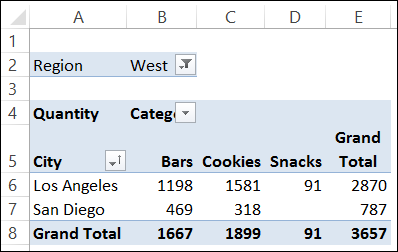
When you create a pivot table it groups the items from your data, and calculates a total for each group. In the screen shot below, you can see the total sales for each category, in each city in the West region.
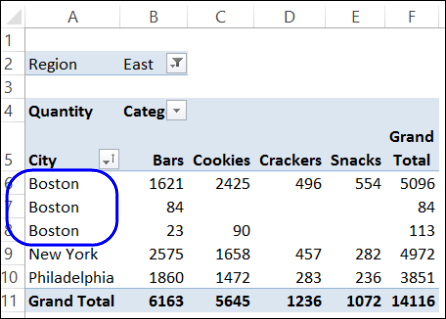
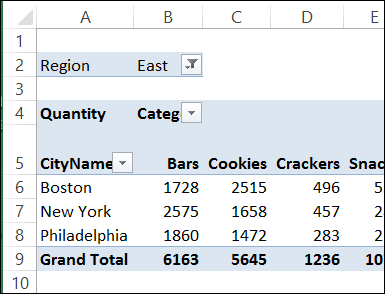
Occasionally though, you might see duplicate items in the pivot table. For example, when the East region is selected, Boston appears 3 times, instead of just once.
Check the Source Data
Even though these items look like duplicates, there is something different about them, and that’s why they’re appearing on separate rows in the pivot table. Usually, the problem in trailing spaces – one or more space characters are at the end of some items in the data, but not all of them.
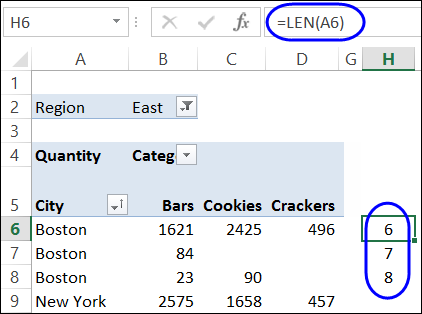
To check the Boston entries, you can use the LEN function, to find the length of each item. It shows that the first instance, in cell A6, has 6 characters, and there are extra characters in cells A7 and A8.
Find the Problem Data
To get rid of the duplicates in the pivot table, you’ll need to clean up the source data. However, the filters in an Excel table ignore trailing spaces, so it’s not easy to find the problem entries.
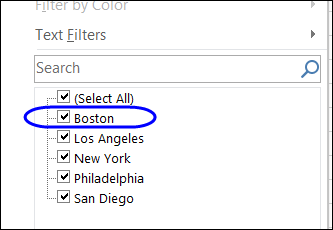
If you use the drop down filters to check the source data, you’ll only see only entry for Boston, even though some of those rows have space characters at the end.
One-Time Cleanup
If the records were manually entered, and you just want to do a one-time cleanup, follow these steps:
- Filter the table to show just the Boston records
- Type “Boston” in the first record, to overwrite the existing City entry
- Select that cell, and point to the fill handle, at the bottom right corner of the cell
- Double-click on the Fill Handle, to copy the entry down to the last filtered record. (Scroll down to make sure that all the records were changed.)
- Clear the filter on the City column
- Refresh the pivot table, and the duplicate items will disappear.
Add a New Column
If the records were imported from another source, and you expect that the problems with trailing spaces will be ongoing, you can use a TRIM formula to clean up the data. It will remove any leading or trailing space characters, and any multiple space characters between words.
Follow these steps to add a new field:
- Insert a new column in the source data, with the heading CityName.
- In Row 2 of the new column, enter the formula =TRIM(C2).
-
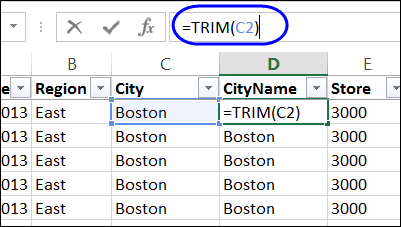
TRIM formula in source data table
-
- Copy the formula down to the last row of data in the source table. If the source data is stored in an Excel Table, the formula should copy down automatically.
- Refresh the pivot table
- Remove the City field from the pivot table, and add the CityName field to replace it.
Video: Remove Duplicates in Excel List
To see the steps for removing duplicates from a worksheet list in Excel, you can watch this 4-minute video. Remember to make a backup of the Excel file, or the worksheet list, before you start to remove duplicates.
Note: The timeline is listed below the video.
Video Timeline
- 0:00 Excel List With Duplicate Items
- 0:21 Make Backup Copy of Excel List
- 0:42 Use Remove Duplicates Tool
- 1:24 Excel List – Two Column Duplicates
- 1:58 Select Columns
- 2:50 Excel List – Multiple Column Duplicates
- 3:42 Excel List – Multiple Column Example 2
________________
Excellent point on the fill handle. I was losing my cool and that solved everything. Thank You!
Your response is unmatched and not found amongst anyone at Microsoft.