
When you update a pivot table’s source data in Excel, the pivot table does not update automatically. You can set the pivot table to update when the Excel file opens, but that doesn’t help if you’re making changes after the file opens. If you can use macros in your Excel file, you can use an event procedure to force the pivot table to refresh automatically if the source data changes.
Macro to Refresh Automatically
If you usually make minor changes to the existing data, you can add event code to the data sheet, which will force the pivot table to refresh automatically after each change.
NOTE: This solution is not ideal if you make numerous changes to the data sheet.
In this example, the source data is on a sheet named “Forecast”, and the pivot table is on the “Product” sheet. To add the event code, follow these steps:
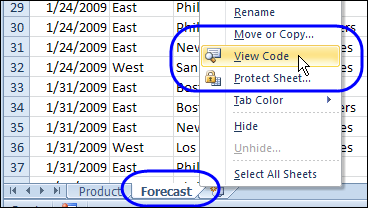
Right-click on the the sheet tab for the Forecast sheet, and click View Code
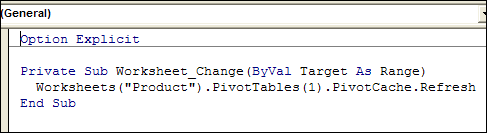
Copy the following code to the Forecast worksheet module, to force the pivot table to refresh automatically
Private Sub Worksheet_Change(ByVal Target As Range)
  Application.EnableEvents = False
  Worksheets("Product").PivotTables(1).PivotCache.Refresh
  Application.EnableEvents = True
End Sub
The worksheet module in your workbook might not have Option Explicit at the top. You can type that line in, if it’s missing.
Unprotect the Worksheet
If the pivot table worksheet is protected, you can add code to unprotect it, refresh automatically, and then protect it again.
Private Sub Worksheet_Change(ByVal Target As Range)

    With Worksheets("Product")
        Application.EnableEvents = False
        .Unprotect Password:="yourpassword"
        .PivotTables(1).PivotCache.Refresh
        .Protect Password:="yourpassword"
        Application.EnableEvents = True
    End With

End Sub
Test Refresh Automatically Code
To test the pivot table refresh code, make a change to the data on the Forecast sheet.
- Making the change will trigger the Forecast sheet’s Change event.
- In the Event code, the pivot cache for the Product sheet’s pivot table will refresh automatically
More Information
There’s more information on Excel pivot tables and pivot table source data on my Contextures website.
- Create a Pivot Table in Excel 2007
- Excel Pivot Table — Dynamic Data Source
- Automatically Include New Data in a Pivot Table
___________________
This got me stuck in a loop. Better to use below.
Private Sub Worksheet_Change(ByVal Target As Range)
Application.EnableEvents = False
Worksheets(“Product”).PivotTables(1).PivotCache.Refresh
Application.EnableEvents = True
End Sub