
Double-clicking on a number cell in a pivot table creates a new sheet in the workbook, showing the records included in that number. Sometimes the list doesn’t look the way you’d like it to, and the numbers aren’t formatted the way they are in the source data.
For example, the source data might have sales amounts formatted as currency, or dates in a long format.
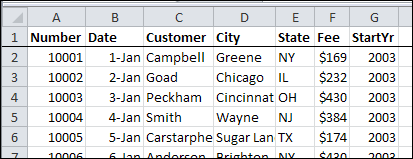
Unfortunately, those formats aren’t used in the new sheet.
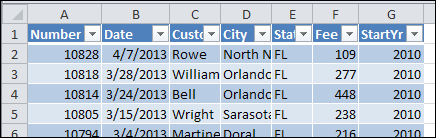
You don’t have much control over the default formatting in the drilldown details list, but here are a couple of things you can do.
Change the Default Table Style
The drilldown details list is formatted as a named Excel Table, in the default style selected in the workbook. If you change the default Table Style, new lists will use the new default style.
To change the default Table Style:
- Select a cell in any Excel Table in the workbook. If there aren’t any tables, double-click a pivot table data cell, to create one.
- In the Ribbon’s Design tab, click the More drop down arrow for Table Styles
- Right-click on the style that you want as the default Table Style
- Click Set As Default
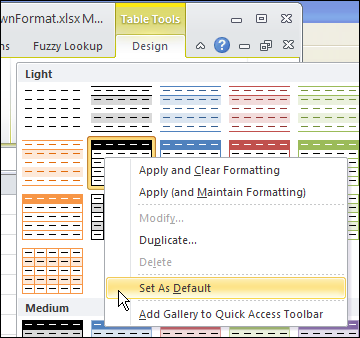
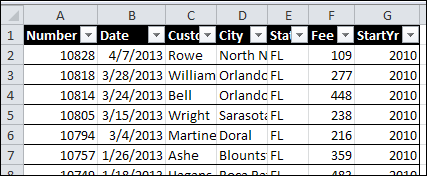
Now, when you double-click a number cell in the pivot table, the new default style is used.
Change the Normal Style
If you’re seeing strange number formatting in the drilldown details, such as dates in Currency format, the Normal Style can be adjusted.
When you select a Theme in an Excel workbook, or use the default Theme, it uses specific fonts, colours, and other format settings.
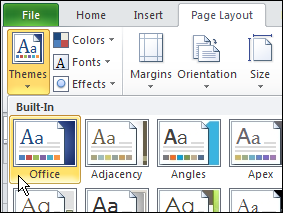
The Normal style is affected by the selected Theme, and you can make further adjustments to the Normal style. The drilldown details list will use the font and number formatting from the Normal style.
To change the Normal style:
- On the Ribbon’s Home tab, click Cell Styles
- Right-click on Normal, and click Modify
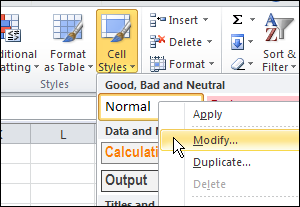
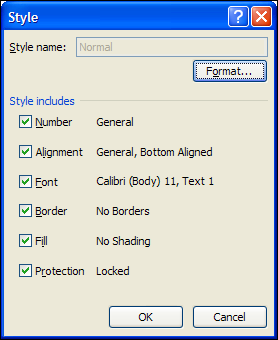
- Click the Format button, and change any of the Cell formatting options.
- Click OK, twice, to close the dialog boxes.
TIP: For number formatting, select General, so dates and numbers will look best. If you select Currency, or another specialized format, all the numbers, including dates, will get that format.
______________
I am wanting to drill down to the source data in a pivot table chart by double clicking the column. I entered the suggested VBA, which is working in a pivot table but not in the chart. Is there a way to drill down in a pivot chart?