
The Pivot Table Wizard isn’t available on the Ribbon in Excel 2007. To open the Pivot Table Wizard, you can use the keyboard shortcut — Alt + D, P — as described in the article on creating a pivot table from multiple sheets.
Another option is to add the Pivot Table Wizard button to your Quick Access Toolbar (QAT), by following the steps below.
Customize the QAT
To add the Pivot Table Wizard to your QAT, follow these steps:
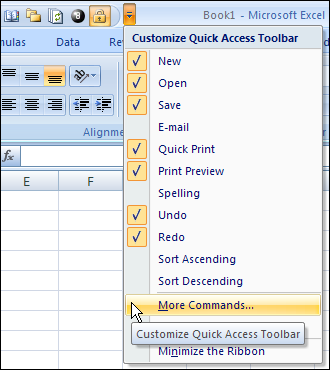
- Click on the Customize Quick Access Toolbar button
- Click More Commands
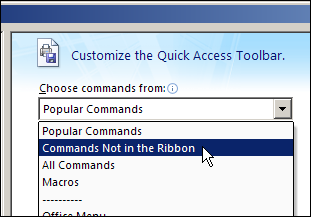
- From the ‘Choose commands from’ drop down list, select ‘Commands Not in the Ribbon’
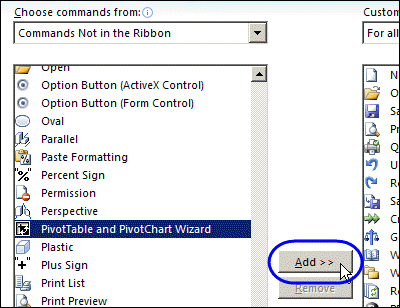
- In the list of commands, click PivotTable and PivotChart Wizard
- Click the Add button, then click OK
Open the Pivot Table Wizard
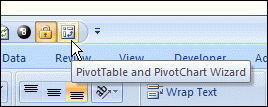
Now that the Pivot Table Wizard button has been added to the QAT, you can click it to open the Pivot Table Wizard.
___________
When I add the pivot table wizard I am still unable to go to Layout which is what i need to see.
To be able to use Pivot Table – Layout feature in Excel 2007
In the pivot table, right click. Select the third option from the bottom of the menu
which should be “Pivot table options”.
A window will pop up. Select the third tab “Display”
Look down the list to “Show Classic Pivot Table Layout”
Press OK
On “PivotTable and PivotChart Wizard – Step 3 of 3,” there is an action button called “Layout” that opens the “PivotTable and PivotChart Wizard – Layout” screen, which was heavily used in Microsoft Excel 2003. This is what cleveland is asking for help in accessing. I am scouring the web looking for the same information and keep finding dumb responses like this. It’s not the classic view of the pivotTable he needs, it’s the the layout design dialogue.
You’re right — the Layout screen is gone, even if you manage to open the PivotTable Wizard in Excel 2007.
Were there some actions that you could do there, that you can’t replicate in the PivotTable Field List?
As “pretty” as the “PivotTable Field List” is, it’s not as user friendly as the Layout screen. Support for it reminds me of how everyone is saying how nice Google+ will be to go to from Facebook because of less privacy concerns and easier to understand TOS. I’ve used Google +. It’s not as great as hoped for in actual use. In Excel 2003, the layout screen has a preliminary view of how your information will be laid out. In addition, and of lesser priority, while the PivotTable Field List brings this about “real-time” (and not in the classic view the initial responder wrongly ascribed to in responding to cleveland’s request), creating P&P for slides is oppressive with it. Also, you can edit and format all the values fields you needed to right away in the layout screen, enabling less mouse “travel.” The more people use computers, the more the user-friendly applications will succeed. iWork is improving. Microsoft need be aware, especially with the growing market share of OS X.
Thanks for describing the features that you prefer in the Layout screen. I’ve been using Excel 2007 for a while, and it’s hard to remember all those little things about Excel 2003.
You can right-click on a field in the drop zones at the bottom of the PivotTable field list. Then, change the field settings, similar to what you did by double-clicking on a field in the Layout Screen. And you’re right, it’s more mouse travel, but changing the settings in the field list is probably quicker than doing it in the pivot table.
One advantage to the field list, over the Layout Screen, is in a pivot table with lots of fields — it’s easier to see the list of field names. They can be tough to read on those Layout Screen buttons!
People in my company are still on excel 2003. My group was moved up to Excel 2007 only because we look at hundreds of thousands of rows of data while Excel 2003 only allows less than 66k per worksheet. But there are things missed from Excel 2003 that are now less intuitive in Excel 2007, PivotTable creation being one of them.
I disagree with the last statement. My fields are not even showing up on the field list. The 2003 layout view showed you the table exactly as you would see it. The field list is not in the same order or view so you have to try items to see what happens. It is alot more time consuming than the layout view. The answer to reading the layout buttons is to make the box bigger not take away the view and replace it with something that is harder to use.