
In recent blog posts, we’ve looked at the pivot table Count function and the Average function. Now we’ll look at two more functions, that are closely related — Min and Max.
Max Summary Function
The Max summary function shows the maximum value from the underlying values in the Values area. The result is the same as using the MAX function on the worksheet to calculate the maximum of the values.
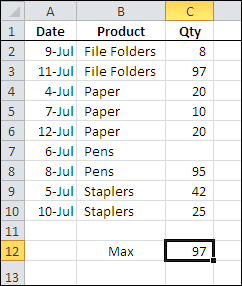
In the screen shot below, you can see the source data for a small pivot table, and the maximum quantity, using the worksheet’s MAX function, is 97.
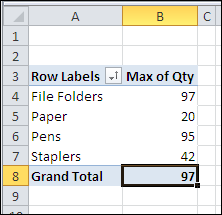
With a pivot table, you can quickly see the maximum for each product that was sold, and the grand total — 97 — which matches the worksheet maximum.
Min Summary Function
The Min summary function shows the minimum value from the underlying values in the Values area. The result is the same as using the MIN function on the worksheet to calculate the minimum of the values.
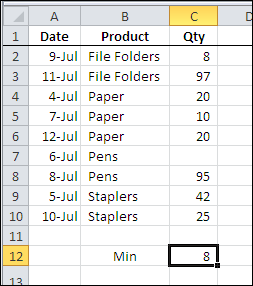
In the screen shot below, you can see the source data for a small pivot table, and the minimum quantity, using the worksheet’s MIN function, is 8.
With a pivot table, you can quickly see the minimum for each product that was sold, and the grand total — 8 — which matches the worksheet minimum.
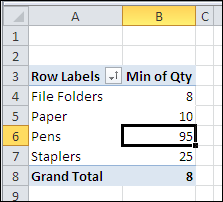
In both the worksheet and the pivot table, the blank cell is ignored when calculating the minimum amount.
___________
___________
I have 3 items in a pivot that are pulling max amount for each from the data. How do I get the top summary to total the sum of the max items without changing the condition to Sum?
Example:
Currently
Total 4 This is showing the max
Cumbustor 2 (this is max)
Extractor 4 (this is max)
Exhaust 2 (this is max)
Need
Total 8 NEED TOTAL OF MAX
Cumbustor 2 (this is max)
Extractor 4 (this is max)
Exhaust 2 (this is max)
Question, how do you actually locate the first column value of the maximum value? Like the first example you did, the correct result should be “11-JUL”. I tried to use hlookup and max together but it doesn’t work unfortunately.
@Stan, you can use INDEX and MATCH functions to get the value from the first column. There are examples on my Contextures website:
http://www.contextures.com/xlFunctions03.html#IndexMatch
Thank you Debra
Needing your help please…. I need to come up with a formula that will calculate the following:
Oct. 12 Tab
Max YTD: – Cell D: 85,902
Max Date (peak occurred): – Cell E: 10/15/12
Nov. 12 Tab
Current month: – Cell B: 85,011
Date occurred: -Cell C: 11/13/12
Nov. 12 Tab
Max YTD: – Cell D: 85,902
Max Date (peak occurred): – Cell E: 10/15/12
Dec. 12 Tab
Current month: – Cell B: 79,433
Date occurred: – Cell C: 12/3/12
Dec. 12 Tab
Max YTD: – Cell D: 85,902
Max Date (peak occurred): – Cell E: 10/15/12
The Max YTD is a # gathered for the highest peak total (85,902) which Starts at Fiscal Year Oct. 12. This highest peak # took place during Oct. 12 which happened to be on 10/15/12.
I need to come up with a formula that will calculate the following:
I need to take the Max Oct.12 YTD Cell D: 85,902 + Max date Cell E:10/15/12 and the Nov. 12 current month Cell B:85,011 + date Cell C:11/13/12 max these two #s’ and two dates then input new data into Nov. 12 Max YTD Cell D: + Max Date Cell E:
This process keeps reaping each month until end of Fiscal Year Sept. 13
For each month starting with (Oct – Sept) if the Max YTD is greater than (85,902) the new highest peak # has to be carried over to the next month along with the date it occurred and this keeps reapting every month. Even if the Max YTD does not change it still has to be carried over to the next month until end of Fiscal Year Sept.13.
I am working with Excel 2010 and very new at this.
Could you please help me figure out how to get the max of activity period below either in excel or pivot?
Award ID End Date Activity Period
A123456 1/31/2021 01
A123456 1/31/2021 02
A135679 8/31/2022 03
A135679 8/31/2022 04
Thank you,