
After you create an Excel pivot table, you might want to know how many unique customers placed an order for each product. However, when you add the Customer field to the pivot table’s Value area, it shows the number of orders, not the number of unique customers.
[Note: In Excel 2010 you can use PowerPivot to create a unique count]
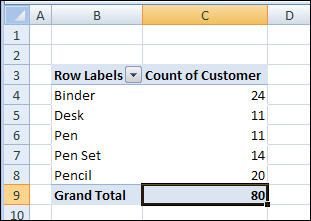
Unfortunately, a pivot table doesn’t have a built-in function to calculate a unique count. As a workaround, you could add a column to the source data, then add that field to the pivot table.
Add a Field to the Source Data
In this example, we want to count the number of unique Customer who ordered each product. We’ll add a column to the pivot table source data, with the heading ‘CustProd’.
In the CustProd column , we’ll enter a formula that refers to the customer (B) and product (E) columns.
=IF(SUMPRODUCT(($B$2:$B2=B2)*($E$2:$E2=E2))>1,0,1)
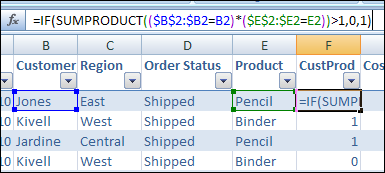
With this formula, if the row contains the first instance of a customer/product combination, the result is 1. For subsequent instances, the result is 0.
Add the Field to the Pivot Table
After you create the new field in the source data, copy the formula down to the last row of data.
Then add the CustProd field to the pivot table Values area using the Sum function. In the screenshot below, you can see the Sum of CustProd field.
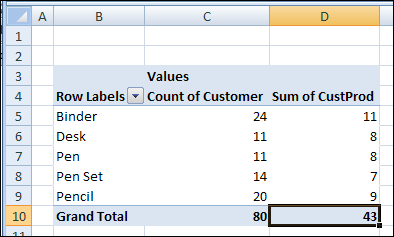
Based on the new CustProd field, we can see that 11 unique customers placed orders for a Binder, and only 7 unique customers ordered a Pen Set.
Video: Show Distinct Count in Excel 2013 With PowerPivot
[Update] To see the steps for setting up the pivot table, and creating the formula, please watch this video.
Video: Count Unique in Excel Pivot Table
[Update]In this short video, I show how to count unique items (distinct count) in a Microsoft Excel pivot table. This method works in Excel 2013 and later versions.
_______________
Thanks Debra. Your post really helps.
This is very useful ! Thanks a ton !!
This worked for me as well. I used it to get a count of unique vendors that had submitted invoices for a specific month. I used the formula combination on Vendor # and Submission Month, and when I made it a General data type format, I got the 0s and 1s described above. Nice Tip!
Thank you It’s worked for me