
Usually, things go smoothly when you when you try to create a pivot table. However, occasionally you might see a pivot table error, Excel Field Names not Valid, if you try to build a new pivot table, or refresh an existing pivot table.
Updated Jan. 1, 2019 – macro to help with troubleshooting the pivot table error
Pivot Table Data
In the screen shot shown below, there’s a list of sales orders, and we’d like to create a pivot table from that data.
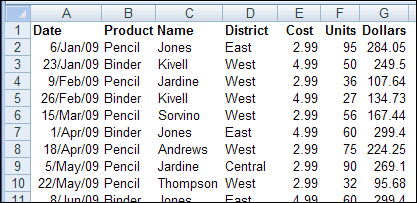
Everything looks okay in the source data, but when you try to insert a pivot table, a confusing (and very wide!) error message appears:
“The PivotTable field name is not valid. To create a PivotTable report, you must use data that is organized as a list with labeled columns. If you are changing the name of a PivotTable field, you must type a new name for the field.”

The message is confusing because the source data is in a list with labeled columns, and you aren’t trying to change the name of any fields.
Fix the Field Name Problem
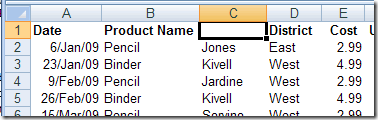
This error message usually appears because one or more of the heading cells in the source data is blank. To create a pivot table, you need a heading for each column.
Tip: If you create an Excel Table from your data, column headings are automatically added to columns with blank heading cells, and you can avoid this error.
To find the problem, try these steps:
- In the Create PivotTable dialog box, check the Table/Range selection to make sure you haven’t selected blank columns beside the data table.
- Check for hidden columns in the source data range, and add headings if they’re missing.
- If there are any merged cells in the heading row, unmerge them, and add a heading in each separate cell.
- Select each heading cell and check its contents in the formula bar; text from one heading may overlap a blank cell beside it. In this example, the Product Name heading overlapped the empty heading cell beside it.
- If there are no blank heading cells, and you are using Excel 2003 or earlier, check for long headings – there is a limit of 255 characters in those versions
Existing Pivot Table
The “field name is not valid” error message can also appear if you try to refresh an existing pivot table, or if you click the Refresh All command in an Excel workbook.
In some cases, you might not know which pivot table is causing the problem, because the pivot table error does not show the name.
Troubleshooting With a Macro
To help identify the problem pivot table, use the “List All Pivot Table – Headings” macro from my Contextures website. Copy the code from that page, and paste it into a regular code module, then run the macro.
The macro lists each pivot table in the file, with the following information:
- Worksheet name
- Pivot Table name
- Pivot Cache index number
- Source Data name or range address
Also, if the source data is a list in the same Excel workbook, it shows details about the source data:
- Number of records
- Number of columns
- Number of heading cells that contain values
- Fix — an X if number of columns does not match number of headings
- Latest refresh date for the pivot cache

More Pivot Table Errors
Problem: Pivot Table Duplicate Items
_________________
Thank you for saving my sanity!
Who knew a dag-nabbed empty header field could cause so much trouble?
(Well, you did.)
Thanks!
You’re welcome! Thanks for letting me know that it helped
Thank you. My sanity this close to Christmas is most precious.
My error was generated because I added a column to a master spreadsheet (~5600 rows by 18 columns) which I had already started to split into subsets (5 done, 11 to go) separated by repeated column headers and all range named to make generating and maintaining the pivot tables easy. It was only when I filtered for an original column header then looked across the sets that I found the gaps for the subsets. Problem was I’d made the change to the top set of headers but not all lower sets of headers. Doh!
Thanks for the pointers. They still work years after the original post. 🙂
Thanks Debra
Another Issue that I have come across is when your datatable contains formulas as headings in columns it can have the same impact as no heading
Thank you….. your help…Managed to solve the issue
found the blank; my harsh is mellowed
Whew! Thanks for letting me know that it helped.
Debre