
Usually, things go smoothly when you when you try to create a pivot table. However, occasionally you might see a pivot table error, Excel Field Names not Valid, if you try to build a new pivot table, or refresh an existing pivot table.
Updated Jan. 1, 2019 – macro to help with troubleshooting the pivot table error
Pivot Table Data
In the screen shot shown below, there’s a list of sales orders, and we’d like to create a pivot table from that data.
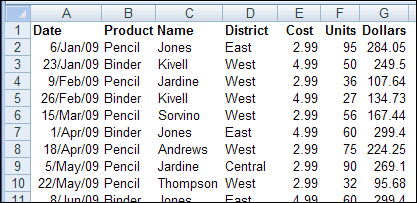
Everything looks okay in the source data, but when you try to insert a pivot table, a confusing (and very wide!) error message appears:
“The PivotTable field name is not valid. To create a PivotTable report, you must use data that is organized as a list with labeled columns. If you are changing the name of a PivotTable field, you must type a new name for the field.”

The message is confusing because the source data is in a list with labeled columns, and you aren’t trying to change the name of any fields.
Fix the Field Name Problem
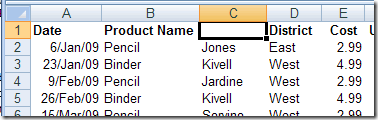
This error message usually appears because one or more of the heading cells in the source data is blank. To create a pivot table, you need a heading for each column.
Tip: If you create an Excel Table from your data, column headings are automatically added to columns with blank heading cells, and you can avoid this error.
To find the problem, try these steps:
- In the Create PivotTable dialog box, check the Table/Range selection to make sure you haven’t selected blank columns beside the data table.
- Check for hidden columns in the source data range, and add headings if they’re missing.
- If there are any merged cells in the heading row, unmerge them, and add a heading in each separate cell.
- Select each heading cell and check its contents in the formula bar; text from one heading may overlap a blank cell beside it. In this example, the Product Name heading overlapped the empty heading cell beside it.
- If there are no blank heading cells, and you are using Excel 2003 or earlier, check for long headings – there is a limit of 255 characters in those versions
Existing Pivot Table
The “field name is not valid” error message can also appear if you try to refresh an existing pivot table, or if you click the Refresh All command in an Excel workbook.
In some cases, you might not know which pivot table is causing the problem, because the pivot table error does not show the name.
Troubleshooting With a Macro
To help identify the problem pivot table, use the “List All Pivot Table – Headings” macro from my Contextures website. Copy the code from that page, and paste it into a regular code module, then run the macro.
The macro lists each pivot table in the file, with the following information:
- Worksheet name
- Pivot Table name
- Pivot Cache index number
- Source Data name or range address
Also, if the source data is a list in the same Excel workbook, it shows details about the source data:
- Number of records
- Number of columns
- Number of heading cells that contain values
- Fix — an X if number of columns does not match number of headings
- Latest refresh date for the pivot cache

More Pivot Table Errors
Problem: Pivot Table Duplicate Items
_________________
I think it’s 200 characters with spacing.
Thanks It worked….
Hi-
Thanks for your article.
I have 50 or more pivot tables in my Excel 2007 file (Windows 7 32 bit) and sometimes will get this error when I refresh all pivot tables but the error message does not tell me which pivot table is experiencing the error. I’m very confident that it is because of a blank heading (many of my individual worksheet data sources are pulled from external sources and sometimes they do not have headings).
Any tips on how to debug the error/file to find out _which_ pivot table(s) is(are) experiencing the error?
I end up going through each worksheet by hand to find the blank heading – very inefficient.
Thanks so much or any help you can provide.
-Michael
Thank you for this help – I was going to pull my hair out !!n I realised that indeed one of my columns had dropped it’s title (or perhaps it got deleted in error…) in any case you kept me sane.
@Debbie, you’re welcome! Thanks for letting me know that it helped you solve the problem.
Thaaaaaaaaaaaaaaaanks
it worked 🙂
@Michael, I am having ther same problem, has anyone created something to debug the whole workbook and locate the error?
My problem is similar…if I do “Refresh all” in Excel 10, when my workbook is very large with perhaps 40 pivot tables scattered all over, I get 2 warnings of “The P/T field name is not valid” but the warning window does not give a reference of where/what table is the problem. Is there a way to debug this without going to each individual table to do a “refresh” to locate it??
Thanks
Joe
I’m in the same boat as Michael, Suzy and Joe. I have no blank cells in my headers and no merged cells. My source data is correctly assigned as a name, and the dozens of pivot tables that I have use the name as their source data. So I’d imagine that any issues would be either in the source data range or in the named range, both of which look correctly setup. Oh, and another thing…this issue didn’t exist months ago…it popped up recently, but there has been no changes to the sheet that contains the source data.
I have an update for my last post. I went through my spreadsheet deleting one tab at a time (saved the file as a test file) to see which tab, if any, would make a difference. I was fortunate to find one tab that was causing the issue. Some of my tabs have multiple pivot tables and some only have one, so I wasn’t sure how this witch hunt was going to turn out.
Sometimes I’ll copy a tab with a pivot table because I want the same basic info but I want to do something different with it…and I’m too lazy to start a new tab from scratch and configure everything all over again. I believe this is what happened here, except part of the table somehow became severed (and it was in a hidden column which was really weird). So the main table that I was using on this particular tab was functioning fine, but the hidden, severed, table was the culprit! And when I say severed, I guess I mean that there was a remnant of a table, but it only occupied a single column, and when I clicked on it, it did not bring up the pivot table menus off tot he right.
So this does not address an easy way of troubleshooting the issue, but maybe this will help others figure something out.
Thanks Jason, that may indeed help someone else.