
Beginning Pivot Tables in Excel 2007


Your worksheet formulas can create traffic-light charts, highlight chart elements, assign number formats, and more.


Categories


Learn how to create Excel dashboards.

Count Unique Items in an Excel Pivot Table

After you create an Excel pivot table, you might want to know how many unique customers placed an order for each product. However, when you add the Customer field to the pivot table’s Value area, it shows the number of orders, not the number of unique customers.

[Note: In Excel 2010 you can use PowerPivot to create a unique count]
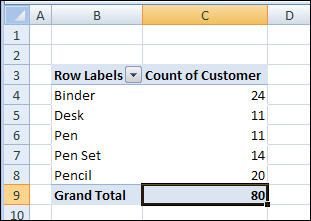
CountUnique01

Unfortunately, a pivot table doesn’t have a built-in function to calculate a unique count. As a workaround, you could add a column to the source data, then add that field to the pivot table.

Add a Field to the Source Data

In this example, we want to count the number of unique Customer who ordered each product. We’ll add a column to the pivot table source data, with the heading 'CustProd'.

In the CustProd column , we’ll enter a formula that refers to the customer (B) and product (E) columns.

=IF(SUMPRODUCT(($B$2:$B2=B2)*($E$2:$E2=E2))>1,0,1)
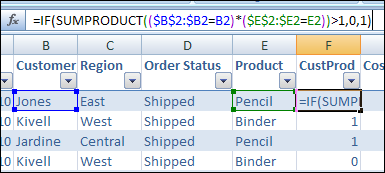
CountUnique02

With this formula, if the row contains the first instance of a customer/product combination, the result is 1. For subsequent instances, the result is 0.

Add the Field to the Pivot Table

After you create the new field in the source data, copy the formula down to the last row of data.

Then add the CustProd field to the pivot table Values area using the Sum function. In the screenshot below, you can see the Sum of CustProd field.
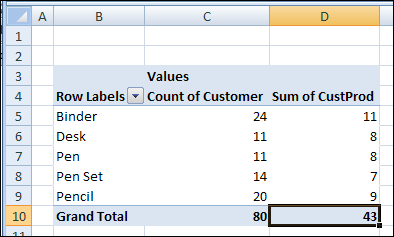
CountUnique03

Based on the new CustProd field, we can see that 11 unique customers placed orders for a Binder, and only 7 unique customers ordered a Pen Set.

_______________

Related Posts Plugin for WordPress, Blogger...

18 comments to Count Unique Items in an Excel Pivot Table

  • Guy

    Hi. many thanks for this tip it helped solve a tricky problem. Now I’m getting greedy! How would I show two dimensions of ‘uniqueness’? If I have 3 products and multiple customers, in multiple sales regions how would I show how many unique customers in london bought pencils and binders. I tried adding another column to the source data that used customer and product as the SumProduct arrays and I suspect the resulting pivot table is ok but the data is presented in a really confusing way that would make no sense to the casual reader; e.g. it shows 65 customers in london (Good), but the total transactions add up to greater than 65 as some customers bought both products. Hope this makes sense and would appreciate any help! Many thanks.

  • Kalin

    Thank a lot. Very useful hint !

  • Emma

    Hi,

    I found your count unique values in a pivot table formula…which was exactly what I was looking to do, however there are lines showing up for a given part number the the ‘sum of the customer count’ shows a value of 0…when I blow this out into it’s own worksheet it does in fact show only 1 line of data against that part number. Why will it not show a qty of 1 which is really what it should be based on how the data is displayed. Can you help?

  • @Emma, if you see items with 0 sum, you might have applied a filter, so the first item (the one with the 1 result) isn’t visible.

    This formula is just a workaround, so it doesn’t adapt to changes, the way the other summarized amounts do.

  • Oliver

    Hello,

    The formual works great, but i tend to want to understand what i use. I do get what the formula does but do not understand how the syntax works.

    -what does the following statement cause insside the funtion$Q$2:$Q2=Q2
    -why do i need to use th * rather than the , between ($Q$2:$Q2=Q2)*($S$2:$S2=S2)

    Thanks

    Oliver

  • @Oliver, the formula looks in the cells starting in row 2, down to the active row. It checks for values that match the value in the current row.

    This SUMPRODUCT formula uses only two columns, so the * operator multiplies the TRUE/FALSE results in those columns.

    If you’re using SUMPRODUCT with more than 2 columns, you can separate with commas, as shown in the example here:

    http://www.contextures.com/xlFunctions01.html#SumProduct

    Also, Bob Phillips has good information and examples for SUMPRODUCT:

    http://www.xldynamic.com/source/xld.SUMPRODUCT.html

  • D

    Thanks!! It worked for me..

  • D2

    What if you just want to look for unique values in ONE column?

  • D3

    What if I want to find unique values within a time range?
    Lets say that I have in column A multiple dates and in column B multiple records that could be repeated among the dates but I want to find how many unique values were during each day, how would do that ?

    Thanks in advance

  • Debra Dalgleish …thanks for replying to Oliver. It really helped me as well.
    Marilyn

  • Guiomar

    Thank you! it is an easy way to work around the problem of counting unique values :O)

  • gerry

    thanks. best solution i’ve read.

  • Fred

    Yess! Exactly the solution I was looking for! I tried so many other places, but this is the one! Good job and a Big Thanks!

  • D3

    In response to my own question (if anyone cares), just download Powerpivot….it will make your life easier (distinct count and DAX language)

    best

  • Andrew

    Hmmmmm Not sure about this but have tried this and the formula gives me a false rather than a value….

  • Ryan

    I can’t believe it’s so hard to count unique entries. This workaround does not allow for filtering. I have 10,000 records spanning a year’s worth of data. If I want to see how many unique clients I had in January, this formula doesn’t work. It will only show unique clients for the entire data set. If all of my clients have been with me since the beginning of the data set, then I will show zero unique clients for January of this year, which is incorrect. If I modify the formula to start the count over each month then I am inflating my overall unique count for the year by an unknown factor.

    It just amazes me that something so easy for me to do (though tedious) is near impossible to do in Excel. It also amazes me that over the 20 year history of Microsoft Excel, Microsoft has not deemed the “unique entries” problem to be worth addressing… It further amazes me that if I add my clients’ names to the rows, IT SHOWS ME THE UNIQUE ENTRIES!!! So it’s already doing the hard part (finding the unique entries), the problem is that it just won’t count them!!! This totally baffles me!!!

  • D3

    Ryan,

    Just download Powerpivot! that’s all you need to get better pivot tables and actually use the distinct counts and much more, don’t forget that Powerpivot its a Microsoft product developed by the SQL Server Team.

    Hope this helps,

  • @Ryan, I agree, it should be easy to create a unique count in an Excel pivot table. For now, if you’re using Excel 2010, you can use the PowerPivot add-in, as @D3 mentioned.

    You can find instructions in my article Unique Count in Excel Pivot Table With PowerPivot

Leave a Reply


You can use these HTML tags

<a href="" title=""> <abbr title=""> <acronym title=""> <b> <blockquote cite=""> <cite> <code> <del datetime=""> <em> <i> <q cite=""> <strike> <strong>