
As much as I love Excel pivot tables, there are a few annoying problems that you’ll run into, while working with them. I made a list of my top 5 annoyances, and you might have other problems to add to the list.

1: Old Items in the Drop Downs
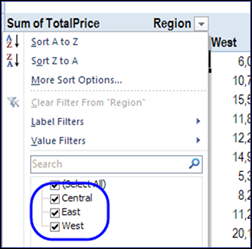
If you remove or change data in the pivot table’s source, then refresh the pivot table, those old items might still appear in the drop down lists. For example, after the Central region is merged with the East region, it still appears in the Region heading drop down, even though all the sales records were changed.
To fix this, you can change a pivot table setting, so no old data is stored in the pivot cache.
2: GetPivotData Formula
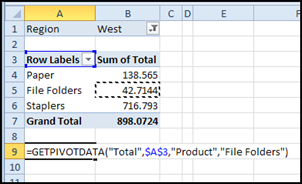
If you try to link to a value cell in a pivot table, a GetPivotData formula appears, instead of a simple link. This is a very useful function, but you might prefer to have a simple link most of the time.
To fix this, you can change an Excel setting, so the GetPivotData formula doesn’t appear automatically.
3: Change Values from Count to Sum
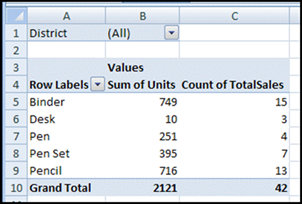
When you add fields to a pivot table’s Values area, they’re usually calculated as a Sum. Sometimes though, the fields are calculated as a Count, which might not be what you want.
To fix this, you manually change the field to Sum, after it’s in the pivot table. Or, fix your data, so it doesn’t contain blanks or text data in that field.
4: New Data Doesn’t Appear
When you add new records to the pivot table’s source data, then refresh the pivot table, you expect to see all the new data. Unfortunately, that doesn’t always happen.
To fix this, make sure that the source data is in a dynamic range, that will grow and shrink automatically, when data is added or removed.
5: All Items Not Listed
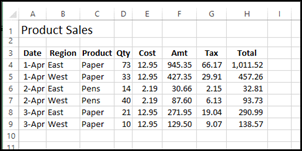
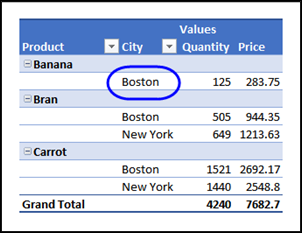
If you put two or more fields in the Row area, all the items might not appear in each section. For example, if a product wasn’t sold in a specific city, that city doesn’t appear under the product heading. To keep the layout consistent, you might want to see all the items, in each section.
To fix this, you can change a pivot table setting, so the items with no data appear, along with the other items.
Pivot Table Frequently Asked Questions
If you didn’t see your top pivot table annoyance in this list, there are other common problems, and their solutions (in most cases), on the Pivot Table FAQ page on my Contextures website.
And for a list of all the pivot table tutorials and videos on my site, take a look at the Pivot Table Index page.
Watch the Slide Show
Here is a slide show that I made, summarizing the 5 Annoying Pivot Table Problems. In the last slide, there is a link to my PivotPower Premium Add-in, which helps you solve most of these problems.
Or watch on the SlideShare website: 5 Annoying Pivot Table Problems
__________________
I have my pivot table created from 2 named tables, relationship created. Initial data is reflected. Trying to add new rows to each table but the refresh all is not reflecting the changes on the pivot table… Any suggestions would be very welcome.
Every month I add following formulas to pivot table
VAL GRTH (MAT 14) =’MAT NOV”14’/’MAT NOV”13’*100-100
VAL GRTH (MAT 15) =’MAT NOV”15’/’MAT NOV”14’*100-100
VAL GRTH (MAT 16) =’MAT NOV”16’/’MAT NOV”15’*100-100
is there any way in which this formula will get change automatically like for dec month formula will automatically get changed to
VAL GRTH (MAT 14) =’MAT DEC”14’/’MAT DEC”13’*100-100
VAL GRTH (MAT 15) =’MAT DEC”15’/’MAT DEC”14’*100-100
VAL GRTH (MAT 16) =’MAT DEC”16’/’MAT DEC”15’*100-100
“Old items in the dropdown” also includes old items showing up in Slicers on the PivotTable report. That problem vexed me for several months. Thanks for pointing out the solution.