Stop Pivot Table Column Widths From Changing

It’s a little thing, but it can be frustrating if your pivot table column widths keep changing. In the screen shot below, I’ve made column B narrow, so the pivot table takes up less room across the worksheet.

But, when I select a customer name, instead of showing all the customers, the column width adjusts to fit the selected name.
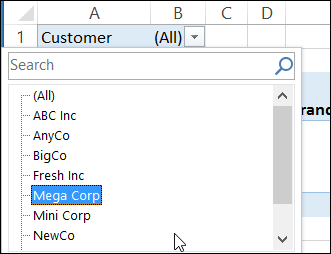
pivotautofit01

Now, column B is much wider, and it’s hard to read the numbers in that column, because they’re off to the right of the heading.
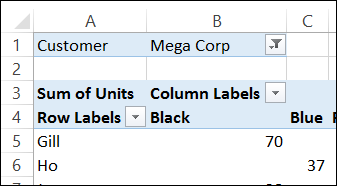
pivotautofit02

This automatic adjustment of the column width is useful sometimes, but for other pivot tables, where the column layout is fairly static, it’s not so helpful!

Change the Autofit Setting

If you have adjusted your pivot table column widths, and you want them to stay that way, you can change a setting in the pivot table options.

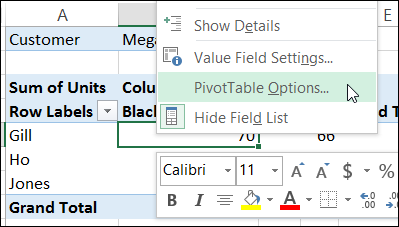
  1. Right-click any cell in the pivot table, and click PivotTable Options
    • pivotautofit03
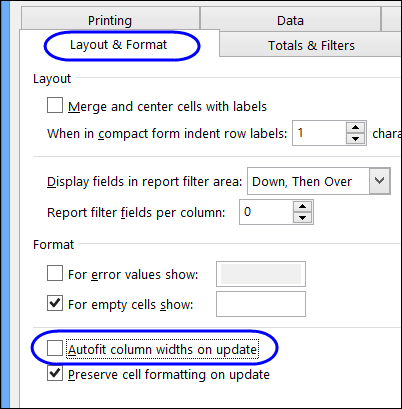
  2. In the PivotTable Options window, click the Format tab
  3. In the Format section, remove the check mark from Autofit column widths on update
    • pivotautofit04
  4. Click OK, to close the PivotTable Options window.
With the Autofit setting turned off, the column widths will stay the where you set them.

If you want the Autofit feature back on at any point, go back to the PivotTable Options, and add a check mark for Autofit columns.
____________
Pivot Table Percent Running Total

It’s easy to create a running total in a pivot table, and it’s usually used to show how quantities accumulate over time.

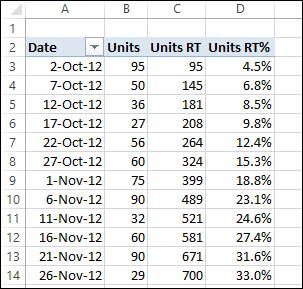
In this example, there are three Value fields in the pivot table, showing the number of units sold on each date.

  • In column B, the Sum of Units is shown, with no calculation. This is the number of units sold on each date listed.
  • In column C, the Sum of Units is shown, as a Running Total for Date. This is the total units sold, up to and including each date.
  • In column D, the Sum of Units is shown, as % Running Total for Date (new in Excel 2010). This is the total units sold, up to and including each date, divided by the grand total of units sold.

runningtotalyears01

Running Total for Date

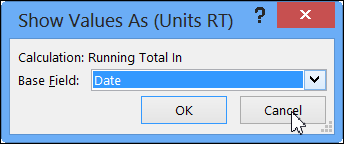
When you select either Running Total In or % Running Total In, you have to select a Base Field. The running totals will be accumulated at each change in that Base Field.

We want a running total down the list of dates, so Date is the Base field in this example.

runningtotalyears02

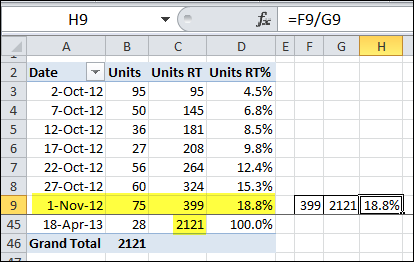
By November 1st, a running total of 399 units have been sold, and the % Running Total is 18.8% of the 2121 overall total units sold.

runningtotalyears04

End of Year Problems

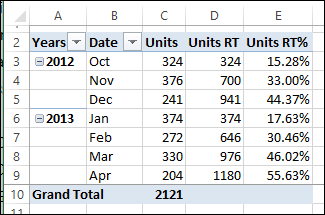
The running total works for a continuous list of dates, but doesn’t flow down the whole list if you group the dates by years and months. In the pivot table shown below, the date has been grouped by Years and Months.

Now the running totals stop at December 2012, and start again in January 2013.

runningtotalyears05

It can be a little difficult to understand the running totals in this layout, so be sure to label the pivot table headings, or add a title to explain it.

______________

Count Blank Entries in Pivot Table

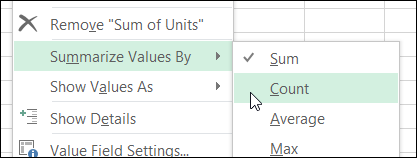
It’s easy to count things with a pivot table – just drop a field into the pivot table’s Values area, and change the summary function to count.

summarycount

Sometimes you don’t even need to change the function to Count – it automatically uses the Count function if the field contains text cells or blank cells.

Watch for Blanks

If you’re using a pivot table to count items, be careful to use a field in which there is an entry in every row in the source data. Excel doesn’t count empty cells when summarizing in a pivot table, so you might not get the result that you expected.

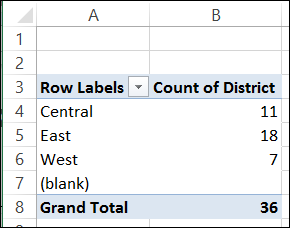
For example, if the source data has the District name missing in some records, we can use a pivot table to count those records. Put the District field in the Row area, and another copy of the District field in the Values area.

countblank01

The pivot table correctly counts the records where there is a District name, but can’t count the records where the District name field is blank.

Video: Count Blank Entries in Pivot Table

This 3-minute video shows the steps for correctly counting blank items from the source data for a pivot table.

Get the sample Excel file, and written steps, on the Count Blank Cells in Pivot Table page on my Contextures site.

Fix the Blanks Problem

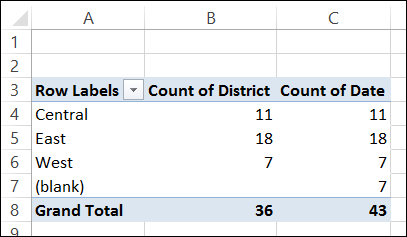
To correctly count records where the District field is blank, use another field in the Values area. In this example, there is a date field in the source data, and it has an entry in every row.

When you add the Date field to the Values area, you can see that it counts correctly, and shows how many records have a blank District field.

countblank02

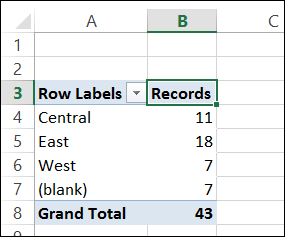
Next, we can remove the District field from the Values area, and change the heading for the Count of Date field.

countblank03

The pivot table shows the correct counts, and the headings are easy to understand.

_________________

Group Pivot Table Numbers by Tens

Instead of showing a long list of items in a pivot table, you can group dates or numbers, and even text, to create a shorter list.

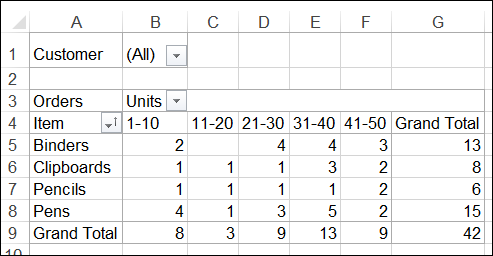
In this example, the units have been grouped by tens, so there are only 5 columns of summarized data, instead of 50.

pivotgroupnumbers01

The starting number for the grouping has been set at 1, and the upper limit has not been set. If higher number are added to the source data, those number would appear in new groupings.

Watch the Grouping Video

To see the steps for grouping numbers, you can watch this short video tutorial.

Download the Sample File

For more information on grouping data in a pivot table, and to download the sample file, please visit my Contextures website: Pivot Table Grouping

_________

Block Selection of All in Report Filter

With a pivot table’s Report Filters, you can select one or more items, and see the summarized results for those items only. For example, you might want to see the sales in one region, or on a specific date.

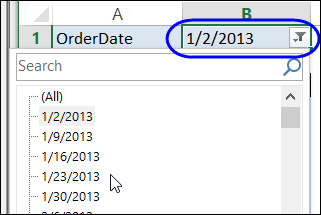
You can also click on “(All)”, at the top of the items list, to see the overall results.

vbablockall03

Block Selection of “(All)”

In some pivot tables, you might want to prevent people from selecting the "(All)" option in a Report Filter.

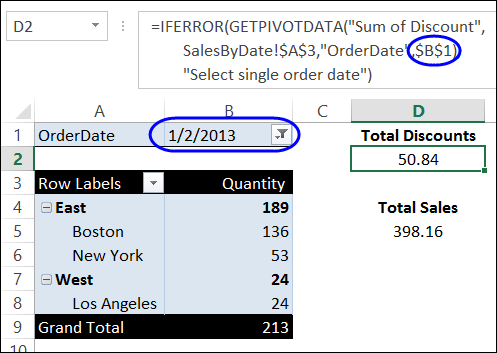
In this example, the worksheet shown below has GetPivotData formulas that refer to the Report Filter selection in cell B1. If (All) is selected in cell B1, the formulas show a message, instead of the dollar amounts.

vbablockall02

Use Programming to Block “(All)”

Unfortunately, you can’t remove the (All) option from the report filter’s drop-down list, but you can use Excel VBA to block users from selecting it.

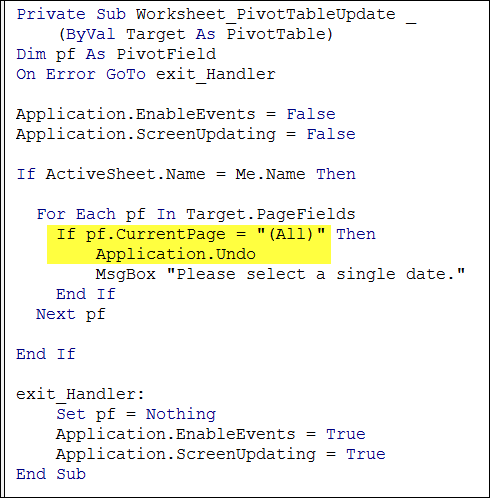
The code shown below will undo the report filter change, if (All) is selected or if someone checks multiple items in the filter. They’ll also see a message that explains what to do — "Please select a single date."

vbablockall04

This code is stored on the pivot table’s worksheet module, and can be activated by selecting from the filter drop down list.

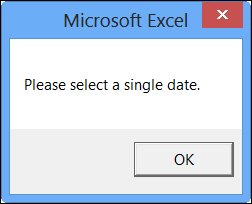
If someone selects “(All)” from the OrderDate report filter’s drop-down list, they’ll see the warning message.

vbablockall

Download the Sample File

To download the sample file, which contains the pivot table and VBA code, please visit my Contextures website: Pivot Table Report Filters VBA.  The zipped file is in Excel 2007/2010 format, and you will have to enable macros when you open the file.

_________________

Refresh Pivot Table on Protected Sheet

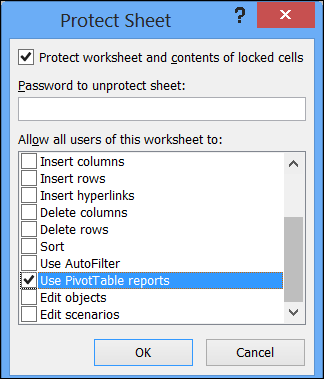
When you protect a worksheet in Excel, you’ll see a list of items that you can allow people to use, while the sheet is protected.

One of those options is ‘Use PivotTable reports’, and if you add a check mark to that option, things might not work exactly as you expected.

refreshpivotprotectedsheet03

Limited Use of Pivot Tables

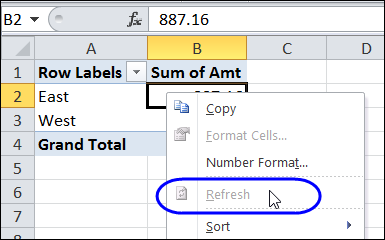
When the sheet is protected, even if you have allowed pivot table use, you can’t create a new pivot table. Another restriction is that you won’t be able to refresh a pivot table on the worksheet. If you right-click in a pivot table cell, the Refresh command is disabled.

refreshpivotprotectedsheet02

Refresh on Protected Sheet

If you need to refresh a pivot table on a protected sheet, you could

  • manually unprotect the worksheet
  • refresh the pivot table
  • protect the sheet again

Another option, if you would prefer to refresh the pivot table programmatically, is to create a macro that does these steps for you. The following macro will refresh the first pivot table on the active sheet, which has a password – “mypassword”

Sub UnprotectRefresh()
On Error Resume Next

With Activesheet
  .Unprotect Password:="mypassword"
  .PivotTables(1).RefreshTable
  .Protect Password:="mypassword"
End With

End Sub

Connected Pivot Tables

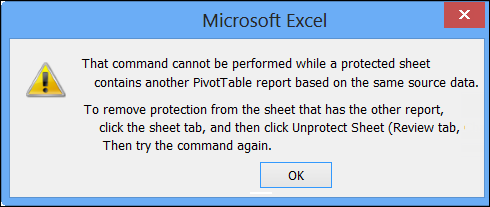
If other pivot tables are connected to the same pivot cache are on protected sheets, you won’t be able to refresh a pivot table, even if it is on an unprotected sheet.

refreshpivotprotectedsheet01

In this situation you will have to unprotect the sheet(s) where those other pivot tables are located, and then do the refresh.

There is sample code to unprotect all the sheets, and do a refresh all, on my Contextures website: Refresh Pivot Table Connected to Protected Sheet

_______________________

Show Value Weight With Pivot Table Index

You might have used one of the Custom Calculations in a pivot table, such as % of Column or Running Total. There’s another Custom Calculation – Index — that isn’t used very often, but provides an interesting look at the pivot table values.

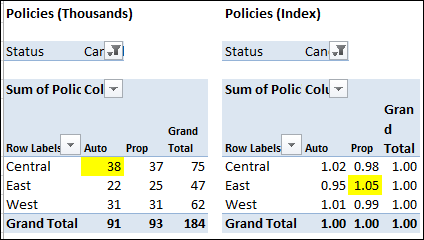
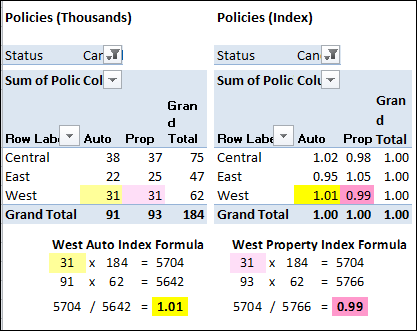
In the screen shot below you can see the original data in the pivot table, and the same date using the Index custom calculation. Even though Central Auto is the highest value in the table at the left, East Property has the highest Index value.

customcalculationindex01

Using the Index custom calculation gives you a picture of each value’s importance in its row and column context.

  • If all values in the pivot table were equal, each value would have an index of 1.
  • If an index is less than 1, it’s of less importance in its row and column
  • If an index is greater than 1, it’s of greater importance in its row and column.

The Index Formula

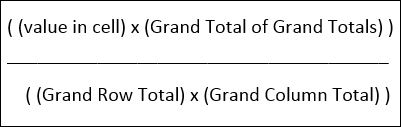
Even if two cells have the same value, they may have a different index. The Index formula is:

customcalculationindex05

So, in this example, in the West region, the values for Auto and Property are almost equal, but the index for the Auto is 1.02 and Property is 0.98.

Because the grand total is higher for the Property column, the Grand Column Total in the Index formula is larger. The West Property amount is divided by this larger number, and its resulting index is smaller.

customcalculationindex06

Read more about Index and the other Pivot Table Custom Calculations on my Contextures website.

______________________

Hide Drop Down Arrows in Pivot Table Headings

When you add a field to the Row Label or Column Label area of the pivot table, its heading cell shows a drop down arrow. When you click the arrow, you’ll see Sort and Filter options, for the selected field.

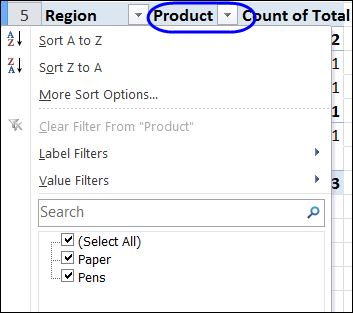
In the screen shot below, you can see the sort and filter options for the Product field, and the check boxes for manually filtering the list.

labelfilter01

Hide the Arrows

If you want to prevent manual filtering, you can hide the drop down arrows, by using a bit of Excel VBA programming.

The following code will hide the drop down arrow for every field in the first pivot table on the active worksheet.

Sub DisableSelection()
Dim pt As PivotTable
Dim pf As PivotField
Set pt = ActiveSheet.PivotTables(1)
  For Each pf In pt.PivotFields
      pf.EnableItemSelection = False
  Next
End Sub

Sorting and Filtering Still Available

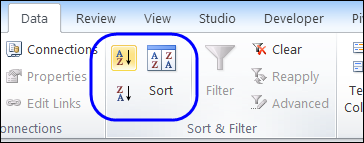
After you hide the arrows, you will still be able to sort the pivot items, by using the commands on the Ribbon.

ribbonsort01

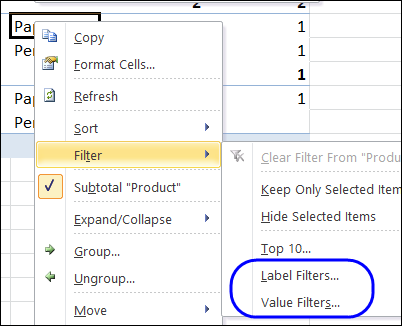
You’ll also be able to use the Label Filters and Value Filters, if you right-click on an item in the disabled field.

labelfilter02

Show the Arrows

After you hide the arrows, you can use similar code to show them again — just change the EnableItemSelection setting to True.
The following code will show the drop down arrow for every field in the first pivot table on the active worksheet.

Sub EnableSelection()
Dim pt As PivotTable
Dim pf As PivotField
Set pt = ActiveSheet.PivotTables(1)
  For Each pf In pt.PivotFields
      pf.EnableItemSelection = True
  Next
End Sub

Video: Apply Multiple Filters to Pivot Field

To see the different types of filters – label, value and manual – please watch this short video tutorial.

Or watch on YouTube: Apply Multiple Filters to Pivot Table Field

________________

Create Custom Ribbon Tabs for Workbooks

If you’re creating workbooks with pivot table reports, you might have macros in those files, to make it easier to work with the pivot tables, or to navigate through the workbook sheets.

Instead of creating buttons on the worksheets, to run the macros, you can create a custom tab on the Excel Ribbon, with buttons to run the macros.

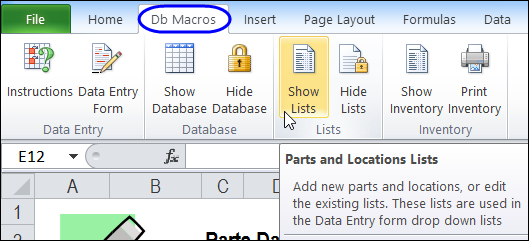
For example, this sample file lets users enter parts data in a UserForm, and summarizes the current inventory in a pivot table. The “Db Macros” tab appears when this workbook is active, and disappears when it’s not active.

ribbonpartdb01b

Getting Started with Custom Ribbon Tabs

In the following video, you can see how to view the code for a custom Ribbon tab, and make a minor change. The written instructions are on my Contextures website, where you can also download the sample file: Excel Ribbon – Getting Started.

Create Your Own Custom Ribbon Tab

In the next video, you’ll see how to start from scratch – add a custom tab, create the code, and modify it. Then, make a slight change to the macros in Excel, and the Ribbon buttons will run your macros. The written instructions are on my Contextures website, where you can also download the sample file: Excel Ribbon – Add a Custom Tab.

_________________

Number of Records in Pivot Table Source

When you create a pivot table, it is based on a pivot cache, with all of the records from the source data table. You can’t see the pivot cache, but with some programming, you can get information about the cache.

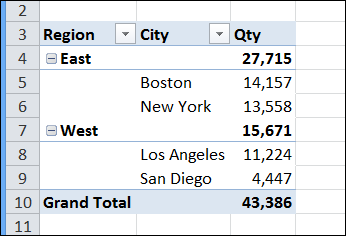
pivotcacherecordcount01

In the pivot table shown above, you can see the total quantities for all the records in the source data. To see how many records are in that source data, you can create a User Defined Function.

Create a User Defined Function

To create the User Defined Function, copy the following code, and paste it into a regular code module.

Function GetRecords(rngPT As Range) As Long
'pivot table tutorial by contextures.com
  Dim pt As PivotTable
  Set pt = rngPT.PivotTable
  GetRecords = ActiveWorkbook _
    .PivotCaches(pt.CacheIndex).RecordCount
End Function

This creates a function named GetRecords, and it requires a cell reference as its argument. If the referenced cell is in a pivot table, the function will show the record count for that pivot table’s pivot cache.

Note: If you save this file, make it a macro-enabled file type.

User a User Defined Function

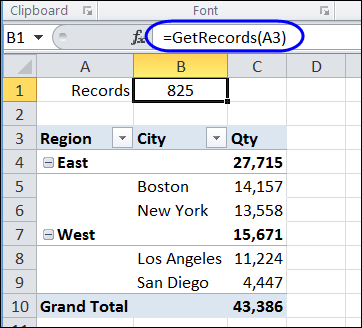
Then, on a worksheet in that workbook, enter a formula that uses the function name, and refers to a cell in the pivot table. For example, enter the following formula in cell B1, referring to the pivot table in cell A3:

=GetRecords(A3)

pivotcacherecordcount02

The formula result is 825, which is the number of records in the source data. You can see the last record in the screen shot below. It’s in row 826, and if you subtract 1 for the heading row, that is record number 825.

pivotcacherecordcount03

______________