Allow Excel Pivot Table Use on Protected Sheet

In some workbooks, you might want to allow users to make changes to a pivot table, but you need to protect formulas or data in other areas of the worksheet.

If you protect the worksheet and enable pivot table use, users will be able to modify the pivot table, but won’t have access to other locked parts of the worksheet.

Prepare the Worksheet

The first step is to unlock cells where changes can be made. Then, turn on the worksheet protection.

  1. Select any cells in which users are allowed to make changes. In this example, users can make changes to cell E2.
  2. On the Ribbon, click the Home tab.
  3. In the Cells group, click Format. If the Lock Cell command is enabled, click Lock Cell to unlock the selected cell.LockCell

Protect the Worksheet

Next, protect the worksheet:

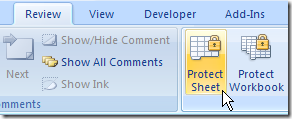
  • On the Ribbon, click the Review tab, and in the Changes section, click Protect Sheet.

ProtectSheet

  • If desired, enter a password.
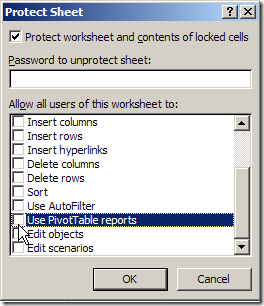
  • Add a check mark to Use PivotTable reports, and check any other items you want enabled on the protected worksheet.

UsePivotTableReportsOn

  • Click OK and confirm the password, if you entered one.

Test the Worksheet

Because the worksheet is protected, and Use PivotTable Reports was selected, users will be able to make changes to the pivot table. For example, they will be able to move fields, add fields, and use the drop-down lists.

However, some pivot table features won’t be available while the worksheet is protected, including:

  • Refresh
  • Group and Ungroup
  • Report Layout
  • Calculated Field

Other pivot tables, based on the same Excel Table as the pivot tables on a protected sheet, will have some features disabled, such as Refresh.

Tip: To refresh a pivot table on a protected sheet, temporarily unprotect the worksheet, refresh the pivot table, and then protect the sheet.

Watch the Video

In this short video, you can see the step by step instructions for preparing and protecting the worksheet.

_____________________


Block Excel Pivot Table on Protected Sheet

In some workbooks, you might want to prevent users from making any changes to a pivot table. You want them to see the pivot table, but not change it. However, users might need to make changes to data in other areas of the worksheet.

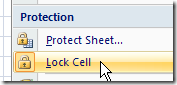
If you protect the worksheet without enabling pivot table use, users won’t be able to modify the pivot table, but will have access to other unlocked parts of the worksheet.

Prepare the Worksheet

The first step is to unlock cells where changes can be made. Then, turn on the worksheet protection.

  • Select any cells in which users are allowed to make changes. In this example, users can make changes to cell E2.
  • On the Ribbon, click the Home tab.
  • In the Cells group, click Format. If the Lock Cell command is enabled, click Lock Cell to unlock the selected cell.
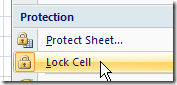
LockCell

Protect the Worksheet

Next, protect the worksheet:

  • On the Ribbon, click the Review tab, and in the Changes section, click Protect Sheet.
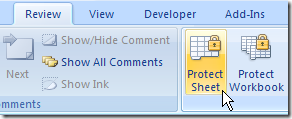
ProtectSheet

  • If desired, enter a password.
  • Remove the check mark for Use PivotTable reports, and check any other items you want enabled on the protected worksheet.
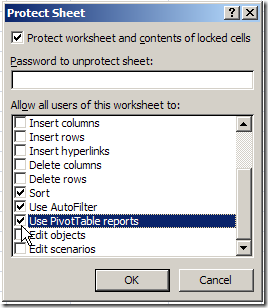
UsePivotTableReportsOff

  • Click OK and confirm the password, if you entered one.

Test the Worksheet

Because the worksheet is protected, and Use PivotTable Reports was not selected, users won’t be able to make changes to the pivot table, and the field list will be hidden.

NOTE: Other pivot tables, based on the same Excel Table as the pivot tables on a protected sheet, will have some features disabled, such as Refresh.

Tip: To refresh a pivot table on a protected sheet, temporarily unprotect the worksheet, refresh the pivot table, and then protect the sheet.

Watch the Video

In this short video, you can see the step by step instructions for preparing and protecting the worksheet.

_____________________
 

Create an Excel Table in Excel 2007

An Excel Table is a new feature in Excel 2007, similar to the List feature in Excel 2003. An Excel Table makes it easy for you to sort, filter, and review your data, whether it’s a few rows and columns, or thousands.

You can also use an Excel Table as the source for a Pivot Table, and new data will automatically be included in the Pivot Table source.

Arrange Your Data

Prepare your data before creating an Excel Table:

  • Enter your data on a worksheet, in rows and columns, with headings in the first row.
  • Remove any blank rows or columns within the data
  • Leave at least one blank row and one blank column between your data, and any other data on the worksheet. Ideally, keep your data on a separate sheet.

Create the Excel Table

To create an Excel Table:

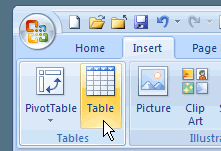
  • Select a cell in your data, and on the Ribbon, click the Insert tab.
  • In the Tables group, click the Table command.
  • RibbonInsertTable
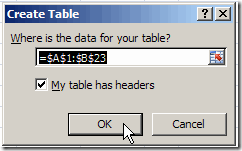
  • In the Create Table dialog box, the range for your data should automatically appear, and the My table has headers option is checked. Click OK to accept these settings.
  • CreateTableOK

Explore the Excel Table Features

After you have created an Excel Table, you can test some of its useful features:

  • Sort Data — Click drop down arrow in the heading cells, and click to sort data in ascending or descending order.
  • Quick Filters — Click drop down arrow in the heading cells, and check or uncheck items to show or hide.
  • Visible Headings – If headings in row 1 are no longer visible, column letters are replaced by Excel Table headings.
  • New data automatically included–Add data at the end of an Excel table, and the table automatically expands to include it.
  • Table Name –An Excel table is automatically named, e.g. Table1, when it is created. You can refer to this name when creating a pivot table. You can also change the name to something better, such as SalesData.

Excel Table Tutorial Video

If you’re working with lists of data in Excel 2007, be sure to use the new Excel Table feature, to make it easier to manage your data.

To see a quick demonstration of creating an Excel Table, and testing a few features, please watch this short video tutorial.

____________

Rename a Pivot Table Data Field

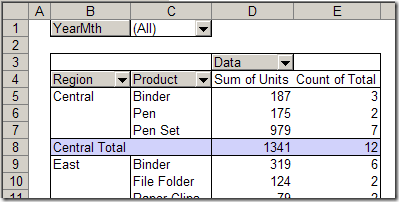
When you add a field to the pivot table Data area, it automatically gets a custom name, such as Sum of Units or Count of Units. You can rename a pivot table data field, either manually or with a macro.

PivotDataNames01

Instead of “Sum of Units”, you might want the name to show as “Units”, so it’s easier to read and the column is narrower.

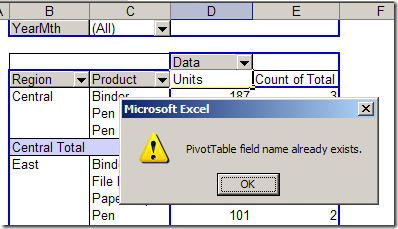
Unfortunately, if you select the cell and type Units, you’ll see an error message: “PivotTable field name already exists.”

rename a pivot table data field

When you try to use a custom name that’s identical to a field name in the source data, you’ll see that error message. In this example, one of the fields in the source data is named Units, so you can’t use Units as a custom name in the pivot table.

Use a Slightly Different Custom Name

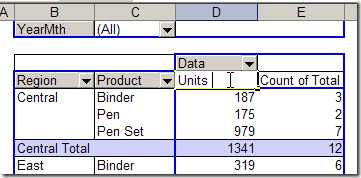
To avoid this problem, you can add a space character to the end of the custom name, and it will be accepted.

In the screen shot below, I’ve added a space after typing Units. When I press the Enter key, the name will be accepted, without an error message.

PivotDataNames03

Use a Macro to Rename a Pivot Table Data Field

If you have lots of Data field names to change you could use a macro, to make the job easier. For example, the following macro will change all the Data field captions in the first pivot table on the active sheet.

Sub ChangeCaptions()
Dim pf As PivotField
Dim pt As PivotTable
Set pt = ActiveSheet.PivotTables(1)
For Each pf In pt.DataFields
    pf.Caption = pf.SourceName & " "
Next pf
End Sub

There are instructions here for adding code to your workbook, and running it. This code would go onto a regular module.

There are more code samples on my Contextures website, for changing headings in:

  • all pivot tables on the active worksheet
  • all pivot tables in the active workbook.

___________________________

Copy a Custom PivotTable Style

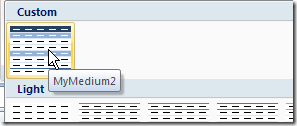
You can create custom PivotTable Styles in an Excel 2007 workbook, to fine tune the appearance of your pivot tables. If you’ve invested a lot of time in create a custom style, you might like to copy that style to a different workbook.

PivotCustomStyleMed

Unfortunately, there isn’t a built-in command that will let you copy PivotTable Styles from one workbook to another. However, you can follow a few simple steps to copy your styles to any workbook.

Copy a PivotTable Style

To copy a custom PivotTable style, you can temporarily copy a formatted pivot table to a different workbook. In this example, we’ll copy a custom PivotTable Style – MyMedium2 – from the MyOld.xlsx workbook to the MyNew.xlsx workbook.

  1. In the MyOld.xlsx workbook, select a cell in the pivot table that has the custom style applied.
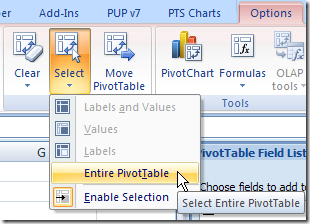
  2. On the Ribbon’s Options tab, in the Actions group, click Select.PivotTableSelect
  3. Click the Entire Pivot Table command.
  4. On the Ribbon’s Home tab, click Copy.
  5. Switch to the MyNew.xlsx workbook.
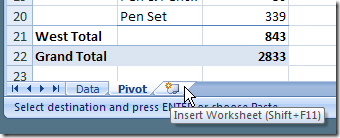
  6. Select a blank worksheet, or insert a new blank worksheet.SheetInsert
  7. Select cell A1 on the blank worksheet.
  8. On the Ribbon’s Home tab, click Paste.
  9. Delete the sheet that contains the pasted copy of the pivot table.

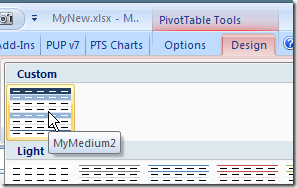
Your custom PivotTable style now appears in the PivotTable Styles gallery.

PivotCustomStyle

Select any pivot table in the workbook, and apply your custom PivotTable Style.

Watch the Video

_____________________

For more information on Pivot Tables, please visit Pivot Table Topics index on the Contextures Website.

_____________________
Sorting a Pivot Field With Hidden Items

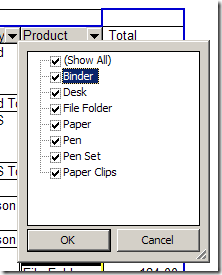
A common problem in an Excel pivot table is that new items are added at the end of a drop down list. For example, in the following list, the Paper Clips item is at the end of the list, instead of appearing in alphabetical order.

ListOrder01

This problem can be solved by sorting the field as described in my previous article – New Items at End of Pivot Table Drop Down Lists.

Error Message For Hidden Items

Usually, sorting the list quickly solves the problem, but I recently had an email from Martin tePoele, who had received an error message while trying to sort a field in his pivot table.

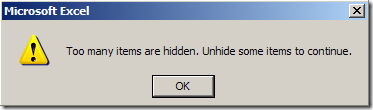
The message said: “Too many items are hidden. Unhide some items to continue.”

Pivot table too many items hidden

The field that Martin was trying to sort had over a thousand items, and only about 40 were selected. All the rest were hidden.

Limits in Excel 2003

I did some testing in Excel 2003, and discovered that 512 items seems to be the limit. If more than 512 items are hidden, you’ll get the error message when you try to manually sort the field.

However, I was able to programmatically sort the field, with 1000+ items hidden, without any problems. You could try this if you have more that 512 items hidden, and you don’t want to unhide them in order to sort the pivot field.

For example, the following code will sort all the pivot fields in ascending order.

‘==========================

Sub PivotSort()
Dim pt As PivotTable
Dim pf As PivotField
Set pt = ActiveSheet.PivotTables(1)

    For Each pf In pt.PivotFields
        pf.AutoSort xlAscending, pf.Name
    Next pf

End Sub

‘==========================

Hidden Items in Excel 2007

With the increased limits to pivot tables in Excel 2007, the problem seems to be fixed. I was able to hide 1000+ items in a pivot field, and could manually sort the field without getting the error message.

_____________________
 

Separate Pivot Table Field Items with a Blank Row

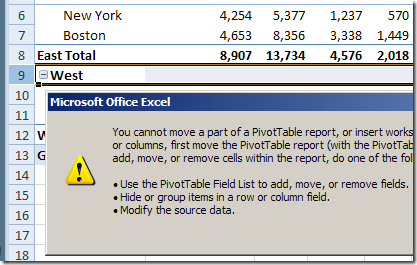
To make the pivot table easier to read, you might like each item in a pivot table field to be followed by a blank row. You can’t insert the rows manually, because Excel will display an error message if you try that method.

PTRowInsertError

However, in any of the pivot table report layouts, you can format the outer row fields, so each item has a blank row after it.

Note: All the outer row fields will be affected by this setting – you can’t limit it to one or more selected fields.

Add a Blank Row in Report Layout

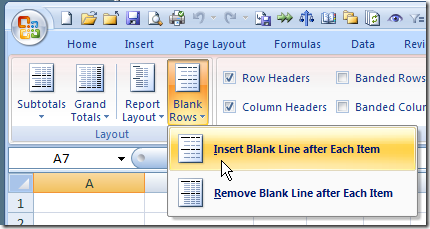
  1. Select a cell in the pivot table, and on the Ribbon, click the Design tab.
  2. In the Layout group, click Blank Rows, and then click Insert Blank Line After Each Item.

InsertBlank

Format the Row

To highlight the blank rows, you can manually add a fill color:

  1. Click at the left of one of the blank rows, to select all the blanks for that field.
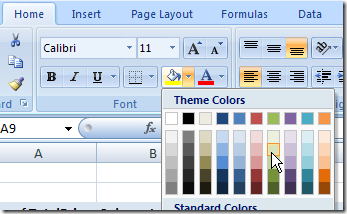
  2. On the Ribbon’s Home tab, click the drop down arrow for Fill Color.
  3. Click on the color you’d like in the blank rows.

RibbonFillColor

Please visit my Contextures web site, for more pivot table formatting tips.

_________________

Turning Off Pivot Table Subtotals in Excel 2003

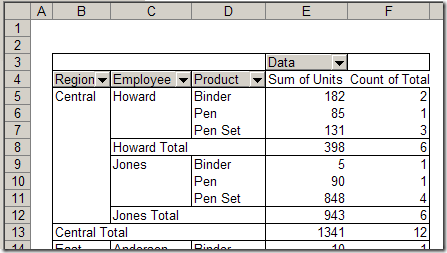
When you add multiple fields to the row or column area, the outer fields automatically get subtotals. For example, in this pivot table, Region and Employee are the outer fields, and a Total row was added for each item.

PTSubtotals

Sometimes these subtotals are useful, but in other pivot tables you might want to stop them from appearing.

Manually Turn Off the Subtotals

Unfortunately, here’s no setting you can change to stop the subtotals from automatically appearing for outer row and column fields. However, you can manually turn them off after they appear:

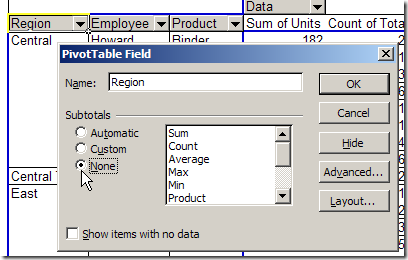
1. Double-click the field button.

2. For Subtotals, select None, then click OK.

PTSubtotalsNone

Programmatically Turn Off the Subtotals

If you frequently turn off the subtotals, you might find it easier to use a macro to do the work for you. You can create your own code, or purchase my Pivot Power Premium add-in

It has commands to show or hide the Row, Column, or all Subtotals in a pivot table.

_______________________
Refreshing All Pivot Tables in a Workbook

If there are several pivot tables in your workbook, you might want to refresh all of them at the same time instead of refreshing each pivot table individually.

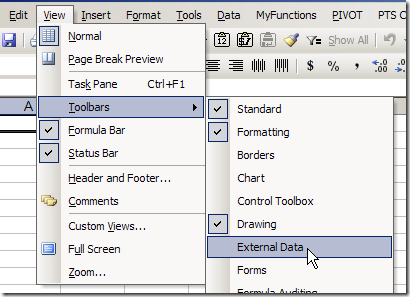
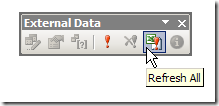
To refresh all the pivot tables in the active workbook at the same time, display the External Data toolbar, and click the Refresh All button.

RefreshAllButton

Note: Using the Refresh All command will also refresh all external data ranges in the active workbook, and affects both visible and hidden worksheets.

Display the External Data Toolbar

  1. Click the View menu
  2. Click Toolbars, then click External Data

ExternalDataToolbar

Add the Refresh All Button to the PivotTable Toolbar

Instead of displaying the External Data toolbar, you can add the Refresh All button to the PivotTable toolbar:

  1. Select a cell in a pivot table, then click the Toolbar Options arrow at the end of the PivotTable toolbar.
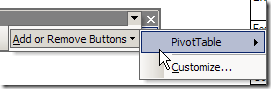
  2. Click Add or Remove ButtonsAddRemoveBtns
  3. Click Pivot Table.AddRemovePT
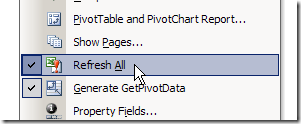
  4. Click Refresh All to select it (a checkmark will appear beside each selected button).AddRemoveRefreshAll
  5. Click outside the list to close it.
    ___________________________
    For more information on pivot tables, see the Pivot Table Topics on my Contextures web site.

    ___________________________