

Do you love Excel pivot tables? And have you tried Excel’s new PIVOTBY function?
With just one formula cell, PIVOTBY can summarize annual sales by year, region, and category!
But is PIVOTBY better than Excel pivot tables?

Video: PIVOTBY – Quick Start
In Excel 365, you can use the PIVOTBY function to create quick, flexible summaries, using a single formula in one cell.
In this short video, I show 4 examples to help you get started with the Excel PIVOTBY Function.
Does PIVOTBY Replace Pivot Tables?
No! The PIVOTBY function is a great addition to Excel, but this new function will NOT replace Excel pivot tables!
- ✔️ Pivot tables have built-in features that make them easy to build, simple to format, and a snap to sort and filter.

- ❌ The PIVOTBY function can be difficult to use, and it doesn’t have built-in formatting features

PIVOTBY – Two Best Features
However, PIVOTBY does have a couple of winning features, that make it better than pivot tables, in some cases.
Here are the two main reasons that I use the PIVOTBY function sometimes, instead of pivot tables.
1) Automatic Refresh
✔️ PIVOTBY formula
- In a PIVOTBY formula, the results are refreshed automatically, as soon as the source data is changed.
- You don’t have to remember that important step, or add “refresh” macros to your workbook.
❌ Pivot Table
- In a normal pivot table, you have to refresh a pivot table manually, or with a macro, if you change its source data.
- If you forget to refresh the pivot table, it shows “stale” results, and that could cause problems!
2) Refer to Spill Range
✔️ PIVOTBY formula
- With the PIVOTBY function, the data is summarized by one formula, in a single cell, e.g. B4
- In other formulas, you can refer to the formula’s spill range, e.g. =B4#
❌ Pivot Table
- The only Excel function that recognizes a pivot table is the GETPIVOTDATA function.
- It returns a specific value in a pivot table, based on a reference to any pivot table cell
- For all other Excel functions, there’s no easy way to refer to an entire pivot table range on the worksheet
Note: I chose a cubist art style (Wikipedia link) for this “distracted boyfriend” meme, in honour of Excel CUBE functions.

Pivot Table Benefits
So yes, those are 2 great reasons to use the PIVOTBY function sometimes.
But PIVOTBY won’t replace pivot tables!
Here are 3 of my top reasons to keep using Excel pivot tables for summary reports, and I’m sure you can think of many more!
1) ✔️ Easy Drag and Drop Setup
Unlike the complex PIVOTBY function, there’s built-in help for setting up a pivot table.
- Go to the Insert tab, and click the PivotTable command, to get started.
- OR, click Recommended PivotTables, scroll through the suggestions, and double-click on one.

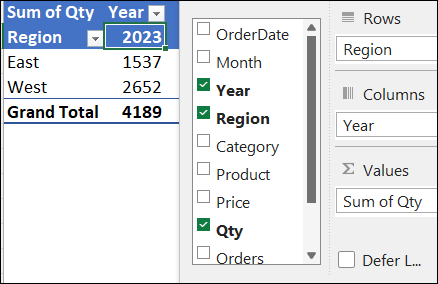
Later, it’s easy to make changes to the pivot table layout, by using the PivotTable Fields List.
2) ✔️ Filter with Slicers
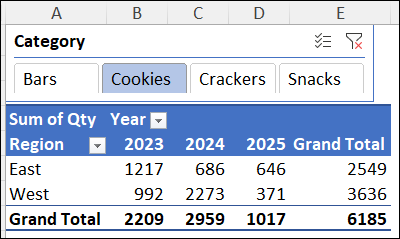
With pivot tables, you can easily add one or more slicers, to quickly filter the data.
In the screen shot below, I added a slicer for the Category field, and the Cookies category is selected.
- For the PIVOTBY function, you’d need to change the formula, if you want the data filtered differently.
3) ✔️ Quick Formatting
You can manually format the results of a PIVOTBY formula, but it won’t automatically adjust if the number of rows or columns changes.
For a pivot table, there’s built-in formatting, which adjusts with any layout changes
Styles: When you create a pivot table, the workbook’s default PivotTable Style is automatically applied.
- In the screen shot above, the style makes the headings and totals bold, with a line above the grand totals.
- The formatting makes it easy to read the summarized data, and looks polished, instead of a data dump.
Number Format: It’s easy to apply number formatting to any of the pivot table’s Value fields.
- For example, format the numbers with a thousand separator, so the large numbers are easier to read.
- If the pivot table layout changes, the formatted numbers will keep that setting!

Keep Your Pivot Tables!
So to summarize, you should keep using your pivot tables, for most summary reports!
- It’s quick and easy, and has a polished look.
Occasionally, you can work with the PIVOTBY function, if you:
- need automatic refresh
- want to refer to summarized data from another formula
PIVOTBY is trickier to set up though, and takes effort and maintenance to look good.
Get the Excel File
For details on my video’s PIVOTBY examples, and to get the Excel sample file, go to the PIVOTBY Function page on my Contextures site. The video’s examples are in the Required Arguments file.
The zipped Excel file is in xlsx format, and does not contain any macros.
More Pivot Table Tips
Pivot Table Field List – Move the field list, change its layout, sort the fields
GetPivotData Function – Get specific data from pivot table, or turn off GetPivotData
Pivot Table Time Formats – Prevent pivot table time rounding, fix pivot table total time amounts
________________________________
Is Excel PIVOTBY Function Better Than Pivot Tables?

________________________________