
If you have a big Excel file, with lots of pivot tables, you might want to document everything that’s in the workbook. Maybe you inherited the workbook, and you’re not sure what’s in it. Or perhaps it’s a file that you only use occasionally, and it’s hard to remember what it contains. To get the details quickly, use the code shown below. This Excel macro lists all pivot tables and pivot fields in the active workbook.
List of Pivot Table and Pivot Fields
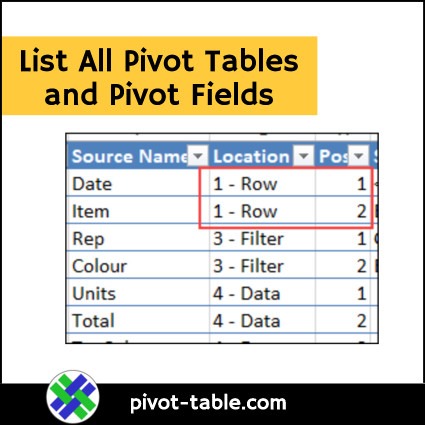
The macro (shown below) adds a new sheet to the active workbook. On that sheet, the macro creates a list of all the pivot fields, in all the pivot tables, on all sheets, in the active workbook.

Pivot Fields by Location
The visible pivot fields for each pivot table are listed by their location within the pivot table:
- Rows
- Columns
- Filters
- Values
Within each location, the fields are listed in order of their position.

Pivot Field Details
Each pivot field is listed in a separate row in the table, with the following details about the pivot field, and the pivot table that it’s in.
- sheet name
- pivot table name
- pivot table address
- pivot field’s caption
- field heading cell location
- source name
- location type (row, column, filter or value)
- position at that location
- sample data*
- formula (calculated fields)
- OLAP-Based (e.g. Data Model)
*Sample data and formulas are NOT shown for value fields, or OLAP-based pivot tables
Macro Code
Here is the code for the Excel macro that lists all pivot tables and pivot fields. Copy this macro code to a regular code module in your workbook, and run it when you need to create a list.
Sub LocList_ALL_PTs_PFs()
'contextures.com
'lists all pivot tables in
' active workbook
'use the Notes column to
' add comments about fields
Dim lRow As Long
Dim ws As Worksheet
Dim wsList As Worksheet
Dim pt As PivotTable
Dim pf As PivotField
Dim df As PivotField
Dim pi As PivotItem
Dim lLoc As Long
Dim lPos As Long
Dim pfCount As Long
Dim myList As ListObject
Dim bOLAP As Boolean
Application.DisplayAlerts = False

On Error GoTo errHandler

Set wsList = Sheets.Add
lRow = 2

With wsList
  .Cells(1, 1).Value = "Sheet"
  .Cells(1, 2).Value = "PT Name"
  .Cells(1, 3).Value = "PT Address"
  .Cells(1, 4).Value = "Caption"
  .Cells(1, 5).Value = "Heading"
  .Cells(1, 6).Value = "Source Name"
  .Cells(1, 7).Value = "Location"
  .Cells(1, 8).Value = "Position"
  .Cells(1, 9).Value = "Sample Item"
  .Cells(1, 10).Value = "Formula"
  .Cells(1, 11).Value = "OLAP"
  .Rows(1).Font.Bold = True

  For Each ws In ActiveWorkbook.Worksheets
    For Each pt In ws.PivotTables
      bOLAP = pt.PivotCache.OLAP

      For pfCount = 1 To pt.RowFields.Count
        Set pf = pt.RowFields(pfCount)
        lLoc = pf.Orientation
        If pf.Caption <> "Values" Then
        .Cells(lRow, 1).Value = ws.Name
        .Cells(lRow, 2).Value = pt.Name
        .Cells(lRow, 3).Value = pt.TableRange2.Address
        .Cells(lRow, 4).Value = pf.Caption
        .Cells(lRow, 5).Value = pf.LabelRange.Address
        .Cells(lRow, 6).Value = pf.SourceName
        .Cells(lRow, 7).Value = lLoc & " - Row"
        .Cells(lRow, 8).Value = pfCount
          On Error Resume Next
          If pf.PivotItems.Count > 0 _
            And bOLAP = False Then
            .Cells(lRow, 9).Value _
                = pf.PivotItems(1).Value
          End If
          On Error GoTo errHandler
        .Cells(lRow, 11).Value = bOLAP
          lRow = lRow + 1
          lLoc = 0
        End If
      Next pfCount

      For pfCount = 1 To pt.ColumnFields.Count
        Set pf = pt.ColumnFields(pfCount)
        lLoc = pf.Orientation
        If pf.Caption <> "Values" Then
        .Cells(lRow, 1).Value = ws.Name
        .Cells(lRow, 2).Value = pt.Name
        .Cells(lRow, 3).Value = pt.TableRange2.Address
        .Cells(lRow, 4).Value = pf.Caption
        .Cells(lRow, 5).Value = pf.LabelRange.Address
        .Cells(lRow, 6).Value = pf.SourceName
        .Cells(lRow, 7).Value = lLoc & " - Column"
        .Cells(lRow, 8).Value = pfCount
          On Error Resume Next
          If pf.PivotItems.Count > 0 _
            And bOLAP = False Then
            .Cells(lRow, 9).Value _
                = pf.PivotItems(1).Value
          End If
          On Error GoTo errHandler
        .Cells(lRow, 11).Value = bOLAP
          lRow = lRow + 1
          lLoc = 0
        End If
      Next pfCount

      For pfCount = 1 To pt.PageFields.Count
        Set pf = pt.PageFields(pfCount)
        lLoc = pf.Orientation
        .Cells(lRow, 1).Value = ws.Name
        .Cells(lRow, 2).Value = pt.Name
        .Cells(lRow, 3).Value = pt.TableRange2.Address
        .Cells(lRow, 4).Value = pf.Caption
        .Cells(lRow, 5).Value = pf.LabelRange.Address
        .Cells(lRow, 6).Value = pf.SourceName
        .Cells(lRow, 7).Value = lLoc & " - Filter"
        .Cells(lRow, 8).Value = pfCount
        On Error Resume Next
          If pf.PivotItems.Count > 0 _
            And bOLAP = False Then
          .Cells(lRow, 9).Value _
              = pf.PivotItems(1).Value
        End If
        On Error GoTo errHandler
        .Cells(lRow, 11).Value = bOLAP
        lRow = lRow + 1
        lLoc = 0
      Next pfCount

      For pfCount = 1 To pt.DataFields.Count
        Set pf = pt.DataFields(pfCount)
        lLoc = pf.Orientation

        Set df = pt.PivotFields(pf.SourceName)
        .Cells(lRow, 1).Value = ws.Name
        .Cells(lRow, 2).Value = pt.Name
        .Cells(lRow, 3).Value = pt.TableRange2.Address
        .Cells(lRow, 4).Value = df.Caption
        .Cells(lRow, 5).Value = _
              pf.LabelRange.Cells(1).Address
       .Cells(lRow, 6).Value = df.SourceName
        .Cells(lRow, 7).Value = lLoc & " - Data"

        .Cells(lRow, 8).Value = pfCount
        'sample data not shown for value fields
        On Error Resume Next
          'print formula for calculated fields
          '.Cells(lRow, 6).Value = " " & pf.Formula
            If df.IsCalculated = True Then
              .Cells(lRow, 10).Value = _
                  Right(df.Formula, Len(df.Formula) - 1)
            End If
        On Error GoTo errHandler
         .Cells(lRow, 11).Value = bOLAP
       lRow = lRow + 1
        lLoc = 0
        Set df = Nothing
      Next pfCount

    Next pt
  Next ws
  .Columns("A:K").EntireColumn.AutoFit
  Set myList = .ListObjects.Add(xlSrcRange, _
      Range("A1").CurrentRegion)

End With
MsgBox "Done"

exitHandler:
    Application.DisplayAlerts = True
    Exit Sub
errHandler:
    MsgBox "Could not create list"
    Resume exitHandler

End Sub
Get the Sample File
To get the Excel workbook with this macro, and the sample data and pivot table, go to the Macro Lists Pivot Fields page, on my Contextures website.
There are other macros on that page too, which list the pivot fields for a specific pivot table.
____________
Excel Macro Lists All Pivot Tables and Pivot Fields
____________
Cool, is this built into Pivot Power Free or Pivot Power Premium? If not would be a good addition instead of having to have a separate macos. This along with the Pivot Table Sorting Macros would also be nice in Pivot Power.
Kim
Thanks, Kim, and it’s not in the PPP now, but I’ll add it for the next version
Awesome excel commands very good thanks