
In some situations, you might want to send someone a copy of a pivot table, but as values only, not an interactive pivot table. That would give them a summary of the data, but without access to the underlying details, which might be confidential. If you want to copy the pivot table formatting too, it requires extra effort, and the manual steps are shown below, as well as a macro which makes it easier to copy pivot table values and formatting.
Manually Copy Pivot Table Values and Formatting
If you only need to do this occasionally, this video shows how to manually copy pivot table values and formatting, by using the Clipboard. I learned this trick from John Walkenbach.
The written steps are on the Copy Pivot Table Formatting page of my Contextures website.
Macro to Copy Pivot Table Values and Formatting
If you need to copy pivot table values and formatting frequently, it will save time if you use a macro. This macro uses a different technique to complete this task.
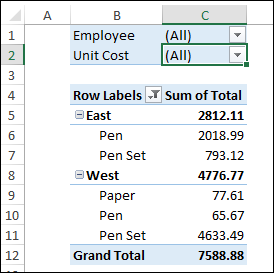
Before you run the macro, select any cell in the pivot table that you want to copy. In the screen shot below, there are two fields in the Filters area, arranged vertically.
- First, the macro copies the body of the pivot table, and pastes that onto a new worksheet.
- Next, the macro copies the Filters area, and pastes that onto the new sheet, above the body.
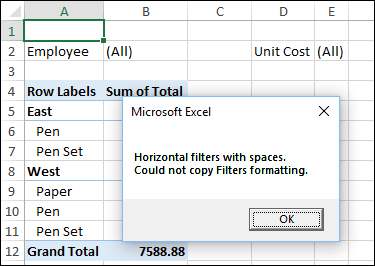
NOTE: Report filter formatting will not be copied if there are multiple filter fields, horizontally arranged, like “Employee” and “Unit Cost”, shown below. The filter layout setting can be changed in the Pivot Table Options.
Macro Code
Here is the code for the macro to copy pivot table values and formatting. Select a pivot table cell before you run the macro.
Copy this macro to a regular code module in Excel. Then, select a cell in any pivot table, and run the macro.
Sub PivotCopyFormatValues()
'select pivot table cell first
Dim ws As Worksheet
Dim pt As PivotTable
Dim rngPT As Range
Dim rngPTa As Range
Dim rngCopy As Range
Dim rngCopy2 As Range
Dim lRowTop As Long
Dim lRowsPT As Long
Dim lRowPage As Long
Dim msgSpace As String

On Error Resume Next
Set pt = ActiveCell.PivotTable
Set rngPTa = pt.PageRange
On Error GoTo errHandler

If pt Is Nothing Then
    MsgBox "Could not copy pivot table for active cell"
    GoTo exitHandler
End If

If pt.PageFieldOrder = xlOverThenDown Then
  If pt.PageFields.Count > 1 Then
    msgSpace = "Horizontal filters with spaces." _
      & vbCrLf _
      & "Could not copy Filters formatting."
  End If
End If

Set rngPT = pt.TableRange1
lRowTop = rngPT.Rows(1).Row
lRowsPT = rngPT.Rows.Count
Set ws = Worksheets.Add
Set rngCopy = rngPT.Resize(lRowsPT - 1)
Set rngCopy2 = rngPT.Rows(lRowsPT)

rngCopy.Copy Destination:=ws.Cells(lRowTop, 1)
rngCopy2.Copy _
  Destination:=ws.Cells(lRowTop + lRowsPT - 1, 1)

If Not rngPTa Is Nothing Then
    lRowPage = rngPTa.Rows(1).Row
    rngPTa.Copy Destination:=ws.Cells(lRowPage, 1)
End If

ws.Columns.AutoFit
If msgSpace <> "" Then
  MsgBox msgSpace
End If

exitHandler:
    Exit Sub
errHandler:
    MsgBox "Could not copy pivot table for active cell"
    Resume exitHandler
End Sub
Get the Sample File
Go to my Contextures site, to get the sample file with the macro to copy pivot table values and formatting. The zipped Excel file is in xlsb format, and contains one macro, so be sure to enable macros when you open the workbook, if you want to test the macro.
______________________
Copy Pivot Table Values and Formatting
______________________