
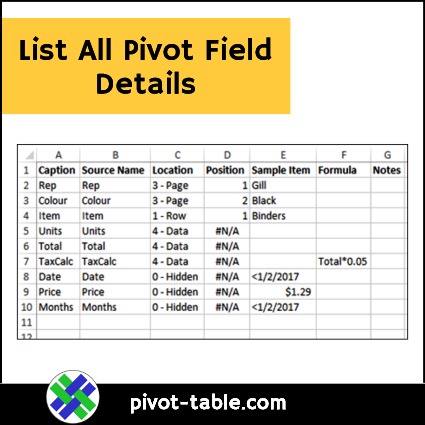
Here’s another macro to help with documenting what’s in an Excel workbook. Use this macro to make a list of all the fields in a pivot table. The list includes details for each field, such as its caption and location in the pivot table layout.
Pivot Field List
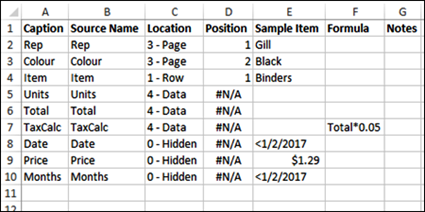
To use this macro, select a worksheet that has a pivot table. The macro adds a new sheet to the workbook, with a list of all the pivot fields, in that pivot table.
NOTE: If there are multiple pivot tables on the active sheet, the macro lists the pivot fields from the first pivot table only.
Pivot Field Details
In the list, the following details, if available, are shown for each pivot field:
- Caption
- Source Name
- Location (in the layout)
- Position (at that location)
- Sample Item from the field
- Formula (for Calculated Fields)
Also, a Notes column is included, where you can enter your own comments about the pivot fields, if needed.
Data Model Pivot Tables
The macro to list pivot fields also works for pivot tables that have been added to the workbook’s Data Model. These are OLAP-based pivot tables, and their source names and pivot items look different from those in Normal pivot tables.
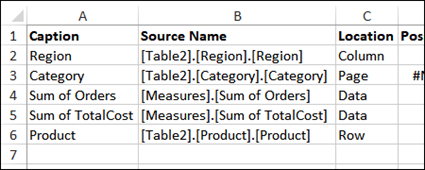
Normal Vs Data Model
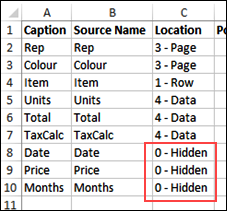
If you list all the pivot fields for a Normal pivot table, all the fields from the source data are listed. In the Location column, you’ll see “Hidden” listed, if the pivot field is not in the pivot table layout.
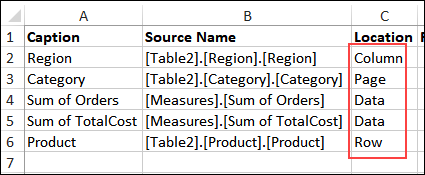
For Data Model pivot tables, only the fields in the pivot table layout are listed. Fields that are not in the layout are not included in the PivotFields collection.
As a result, none of the fields will show “Hidden” as their location.
Using the Pivot Fields List Macro
The following code adds a new sheet, named “Pivot_Fields_List”, to the workbook. Then it creates a list of all the pivot fields in the first pivot table on the active sheet.
WARNING: If there is an existing sheet named “Pivot_Fields_List”, it is deleted. If you want to keep previous lists, rename the sheets before running the macro again.
Pivot Fields List Macro Code
Add the following code to a regular code module in your Excel file, and run it when needed.
NOTE: Because of a problem with the Orientation method, all the data fields are identified as “Hidden”. Additional code checks the “Hidden” fields, to see if they are in the DataFields collection.
Sub OrderList_PivotFields()
'contextures.com
'use the Notes column
' for comments about fields
Dim lRow As Long
Dim wsList As Worksheet
Dim pt As PivotTable
Dim pf As PivotField
Dim df As PivotField
Dim pi As PivotItem
Dim strList As String
Dim strLoc As String
strList = "Pivot_Fields_List"
Application.DisplayAlerts = False

On Error Resume Next
Set pt = ActiveSheet.PivotTables(1)
If pt Is Nothing Then
  MsgBox "No pivot table on active sheet"
  GoTo exitHandler
End If
Sheets(strList).Delete
On Error GoTo errHandler

Set wsList = Sheets.Add
lRow = 2

With wsList
  .Name = strList
  .Cells(1, 1).Value = "Caption"
  .Cells(1, 2).Value = "Source Name"
  .Cells(1, 3).Value = "Location"
  .Cells(1, 4).Value = "Position"
  .Cells(1, 5).Value = "Sample Item"
  .Cells(1, 6).Value = "Formula"
  .Cells(1, 7).Value = "Notes"
  .Rows(1).Font.Bold = True

  For Each pf In pt.PivotFields
    If pf.Caption <> "Values" Then
        .Cells(lRow, 1).Value = pf.Caption
        .Cells(lRow, 2).Value = pf.SourceName
        Select Case pf.Orientation
          Case xlHidden
            strLoc = "Hidden"
          Case xlRowField
            strLoc = "Row"
          Case xlColumnField
            strLoc = "Column"
          Case xlPageField
            strLoc = "Page"
          Case xlDataField
            strLoc = "Data"
        End Select
        If strLoc = "Hidden" Then
          For Each df In pt.DataFields
            If df.SourceName _
                = pf.SourceName Then
              strLoc = "Data"
              Exit For
            End If
          Next df
        End If
        .Cells(lRow, 3).Value = strLoc
        .Cells(lRow, 4).Value = pf.Position

        On Error Resume Next
        If pf.PivotItems.Count > 0 Then
          .Cells(lRow, 5).Value _
              = pf.PivotItems(1).Value
        End If
        On Error GoTo errHandler

        'print the formula for calculated fields
        If pf.IsCalculated = True Then
          .Cells(lRow, 6).Value = _
              Right(pf.Formula, Len(pf.Formula) - 1)
        End If

        lRow = lRow + 1
      End If
  Next pf
  .Columns("A:G").EntireColumn.AutoFit
End With

exitHandler:
  Application.DisplayAlerts = True
  Exit Sub
errHandler:
  MsgBox "Could not create list"
  Resume exitHandler

End Sub
Get the Sample Workbook
Get the sample file with this macro, and pivot tables for testing, from the List All Pivot Fields page on my Contextures website.
Also, see more information on Pivot Field settings, and macros to remove Pivot Fields.
_______________________________
List All Pivot Field Details
_______________________
Outstanding work, Debra.
Very useful, as usual!
Could it be added to such that it reports on any fields in the Values area? It currently ignores those.